Contact details and the “Contact us” page
Your contact details appear on the “Contact us” page and at the bottom of your store, and customers use them from “Track your order”.
In this article (4)
1Your numbers and accounts
Where?Settings›Contact
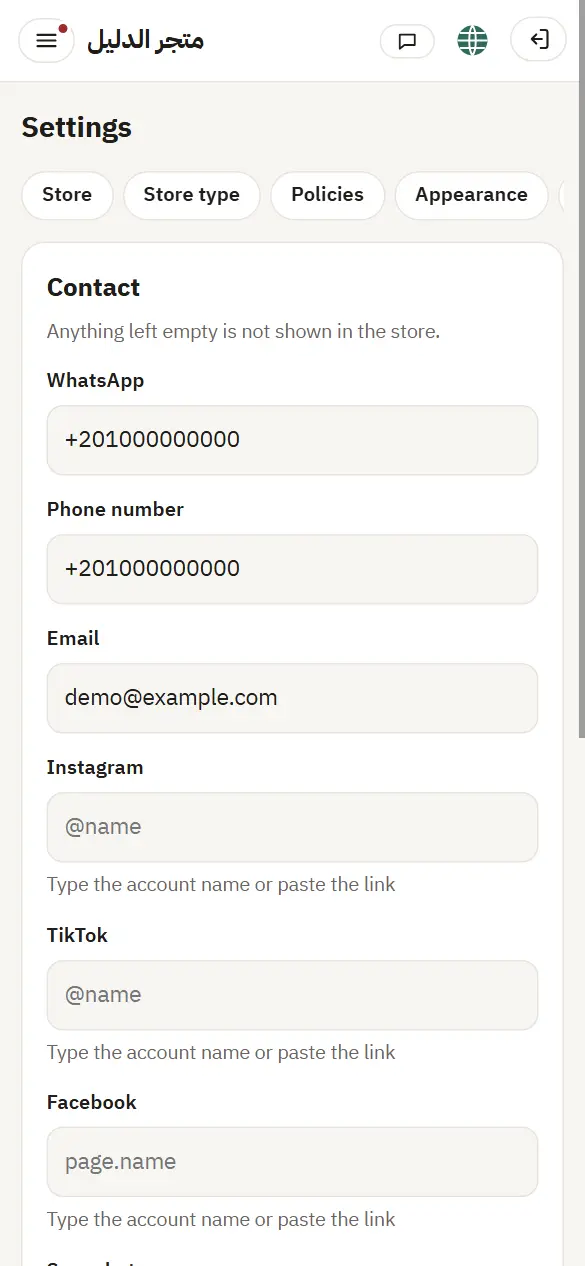
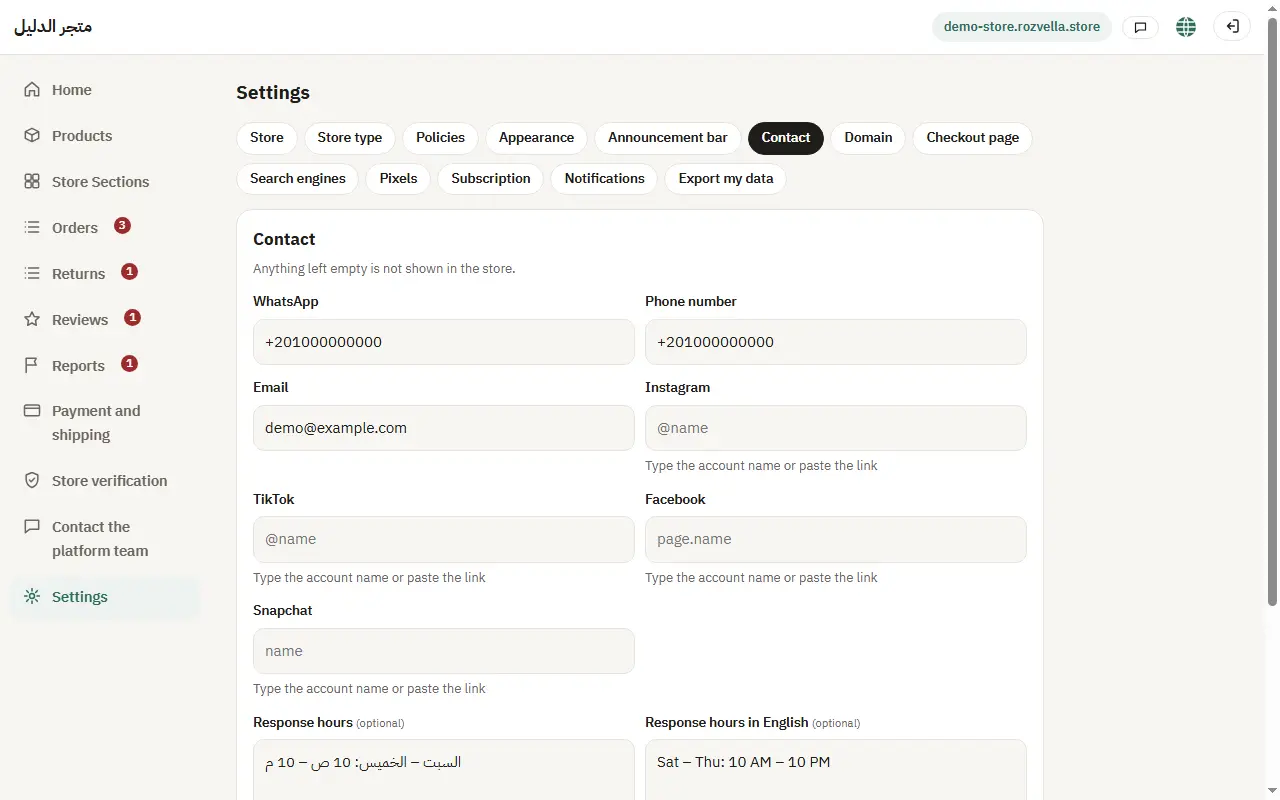
Enter your WhatsApp number, phone number and email. For Instagram, TikTok, Facebook and Snapchat, enter the account name or paste the full link. Then press “Save”.
Picture from a demo dashboard
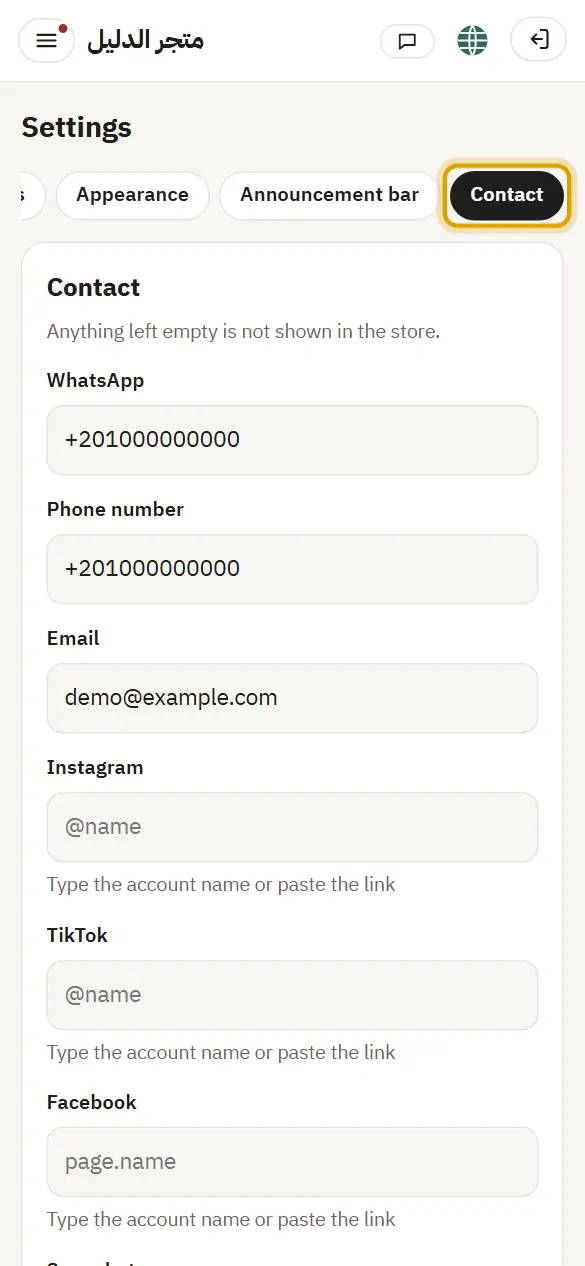
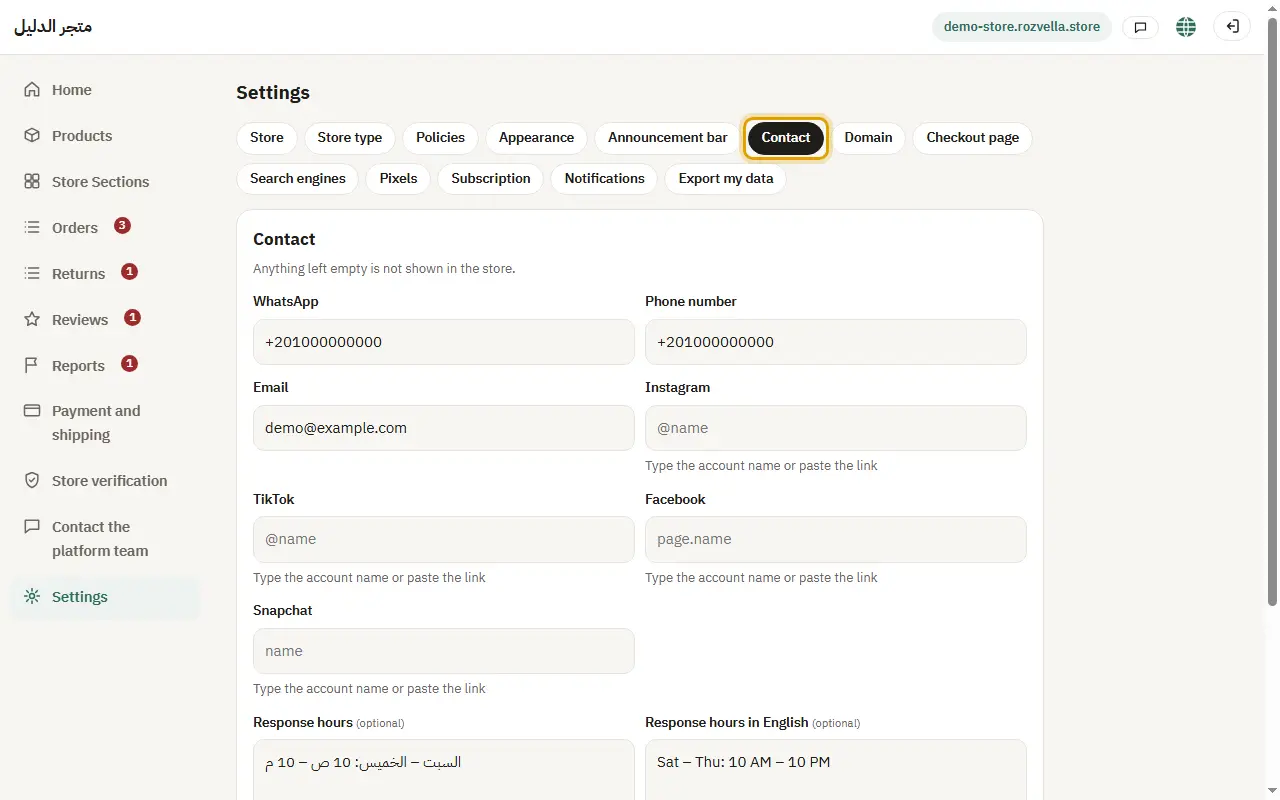
What happens?The details appear in your store. An empty field is not shown.
Common problems and fixesThe account link wasn't accepted
Make sure the link is for the right platform (an Instagram link in the Instagram field), or type just the account name.
2Response hours
Where?Settings›Contact›Response hours
Write your hours, one per line, for example: Sat – Thu: 10 AM – 10 PM. Then press “Save”.
Picture from a demo dashboard
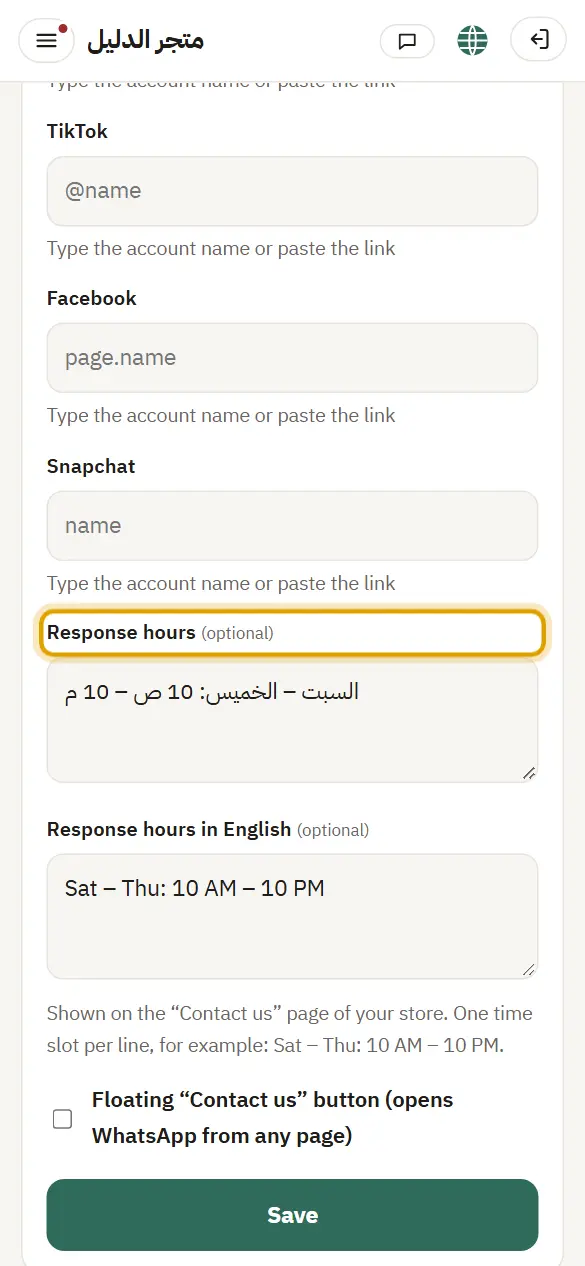
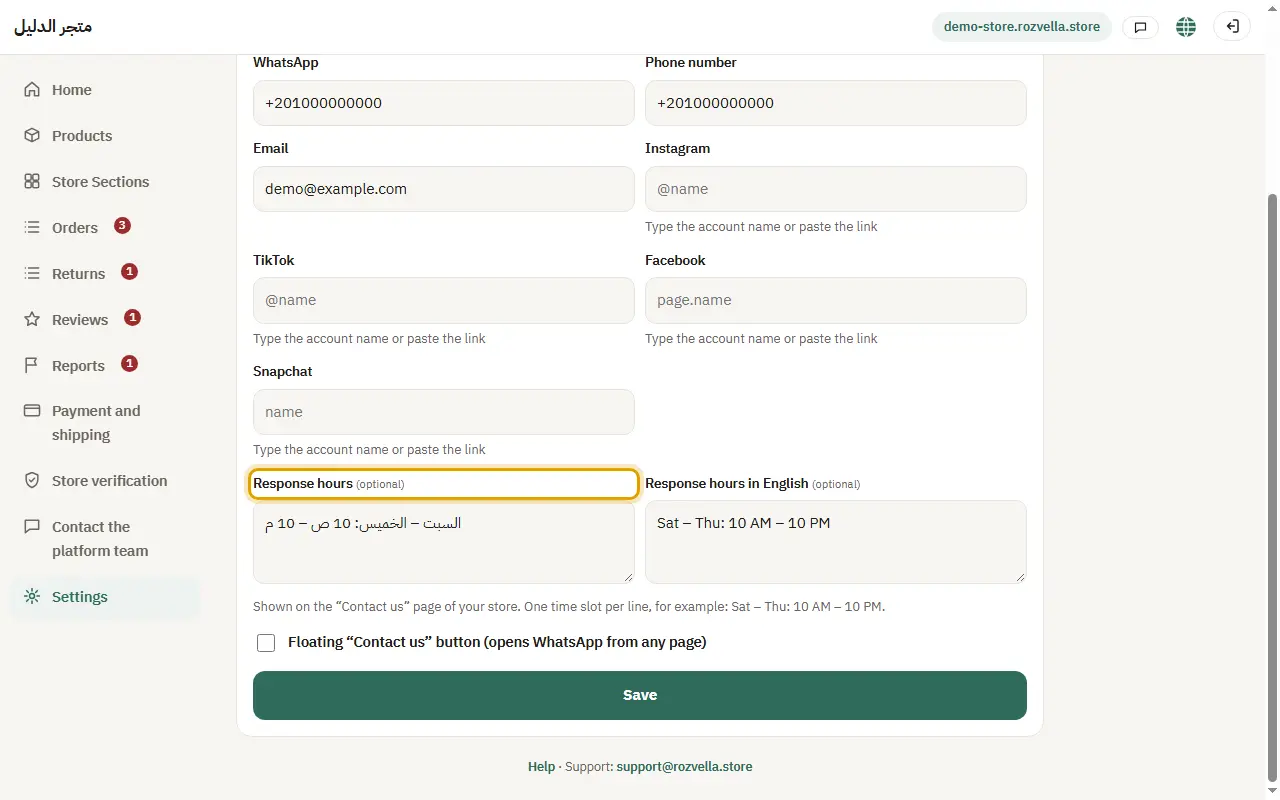
What happens?The hours appear on the “Contact us” page of your store.
3The floating “Contact us” button
Where?Settings›Contact
Tick the floating “Contact us” button, then press “Save”.
Picture from a demo dashboard
What happens?A small WhatsApp button appears at the bottom of your store pages, and hides when the page footer appears.
4The “Contact us” page in your store
Open your store from “Preview store”, then “Contact us” from the menu.
Picture from a demo dashboard
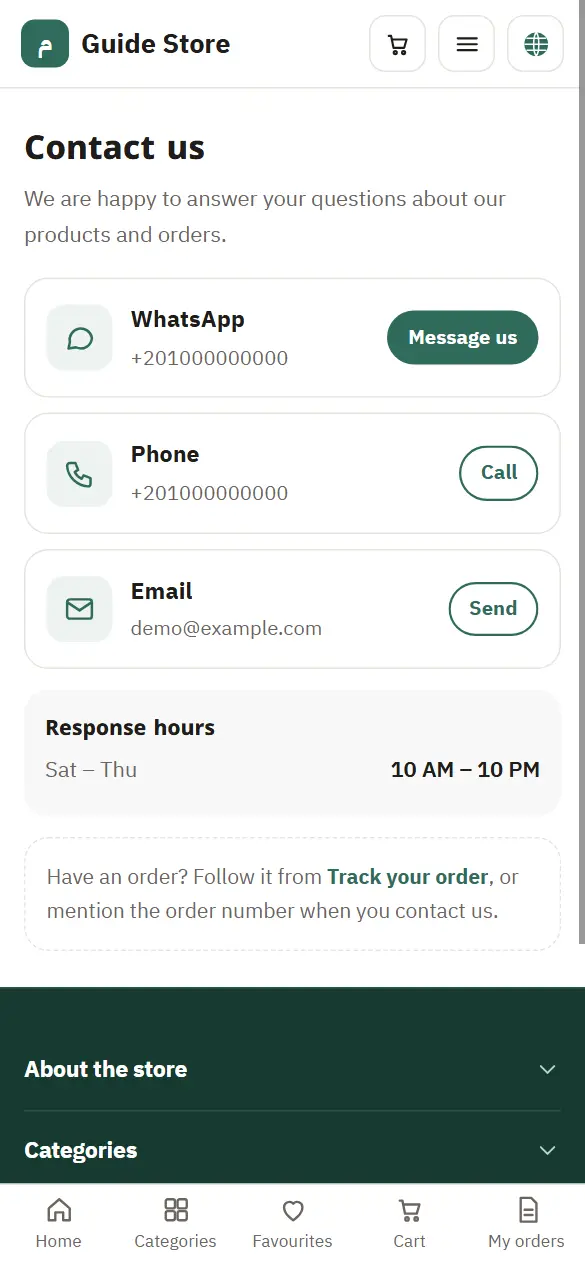
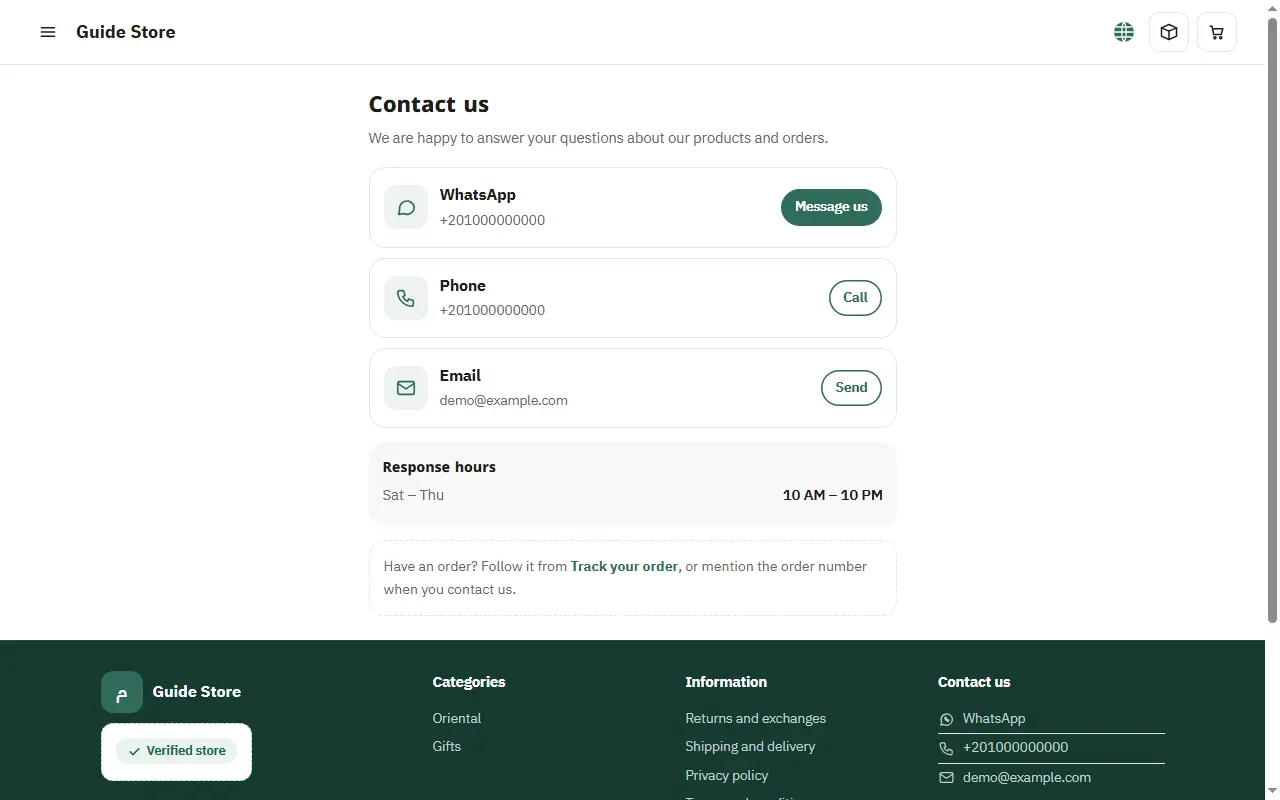
What happens?Cards for WhatsApp, phone and email appear with your response hours and a “Track your order” link.