Logging in and “Forgot your password?”
You log in with your phone number or email and your password. If you forget it, we send a link to change it to your confirmed email.
In this article (4)
1Log in
Where?Log in
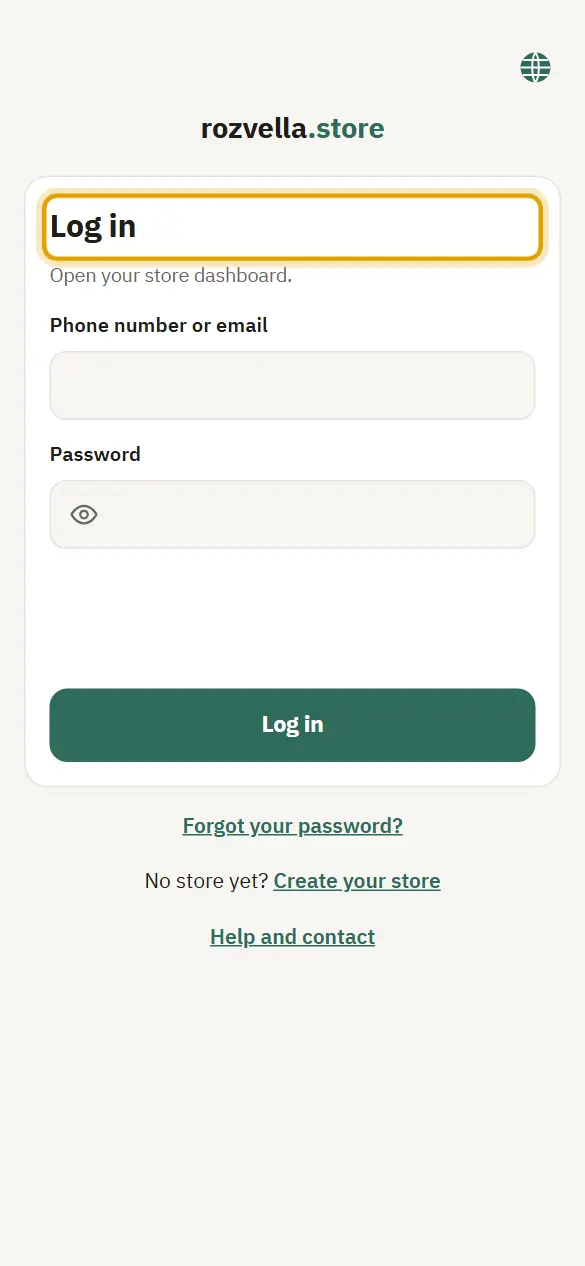
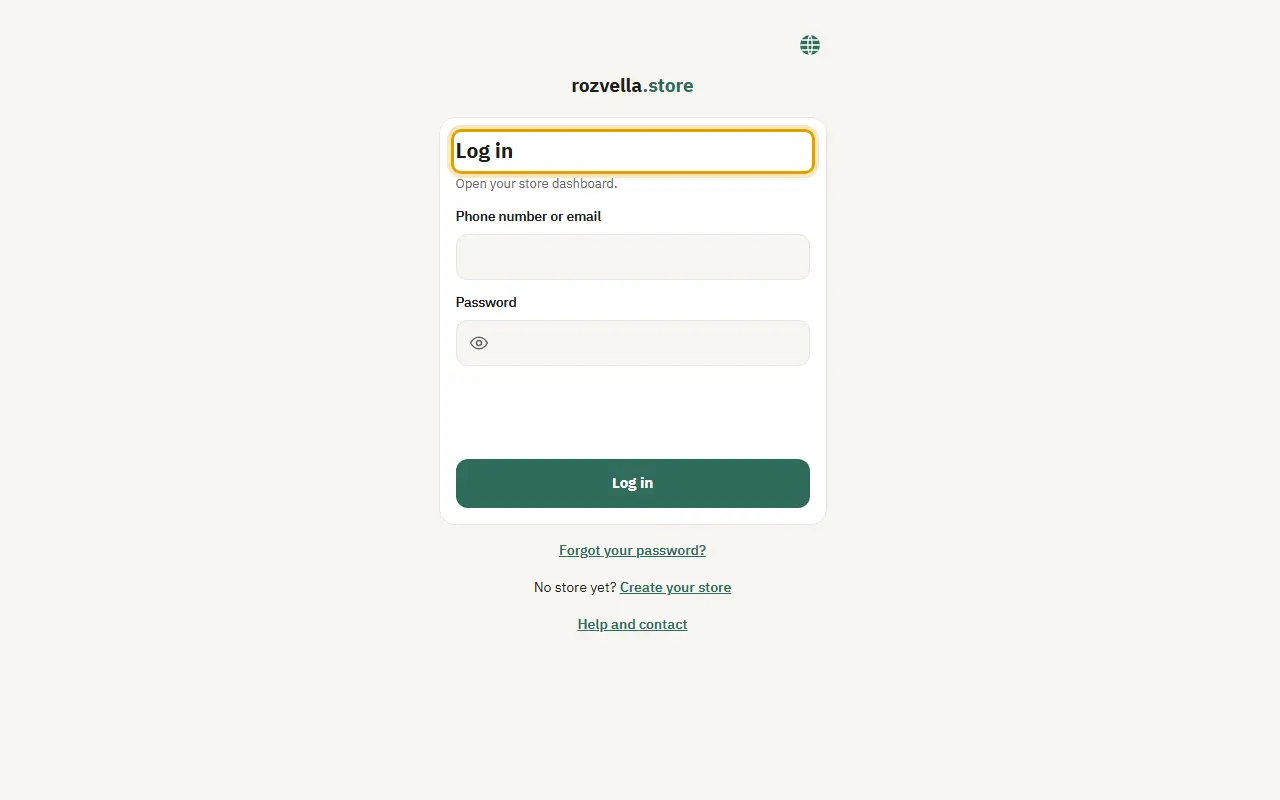
On the “Log in” page enter your phone number or email and your password, then press “Log in”.
“The phone number, email or password is incorrect”
Check the number or email you signed up with and the password. If you forgot it, press “Forgot your password?”.
“Too many attempts. Try again shortly”
After several wrong attempts, logging in to your account is locked for a while to protect it. Wait a little, or change your password from “Forgot your password?”.
2Forgot your password?
Where?Forgot your password?›Send the link
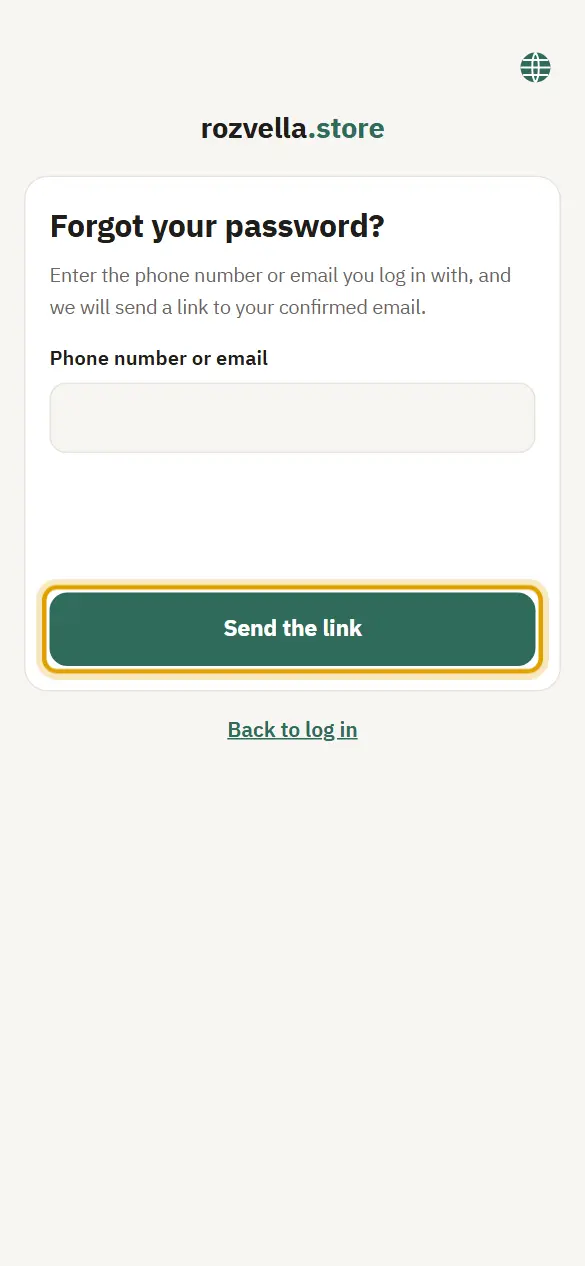
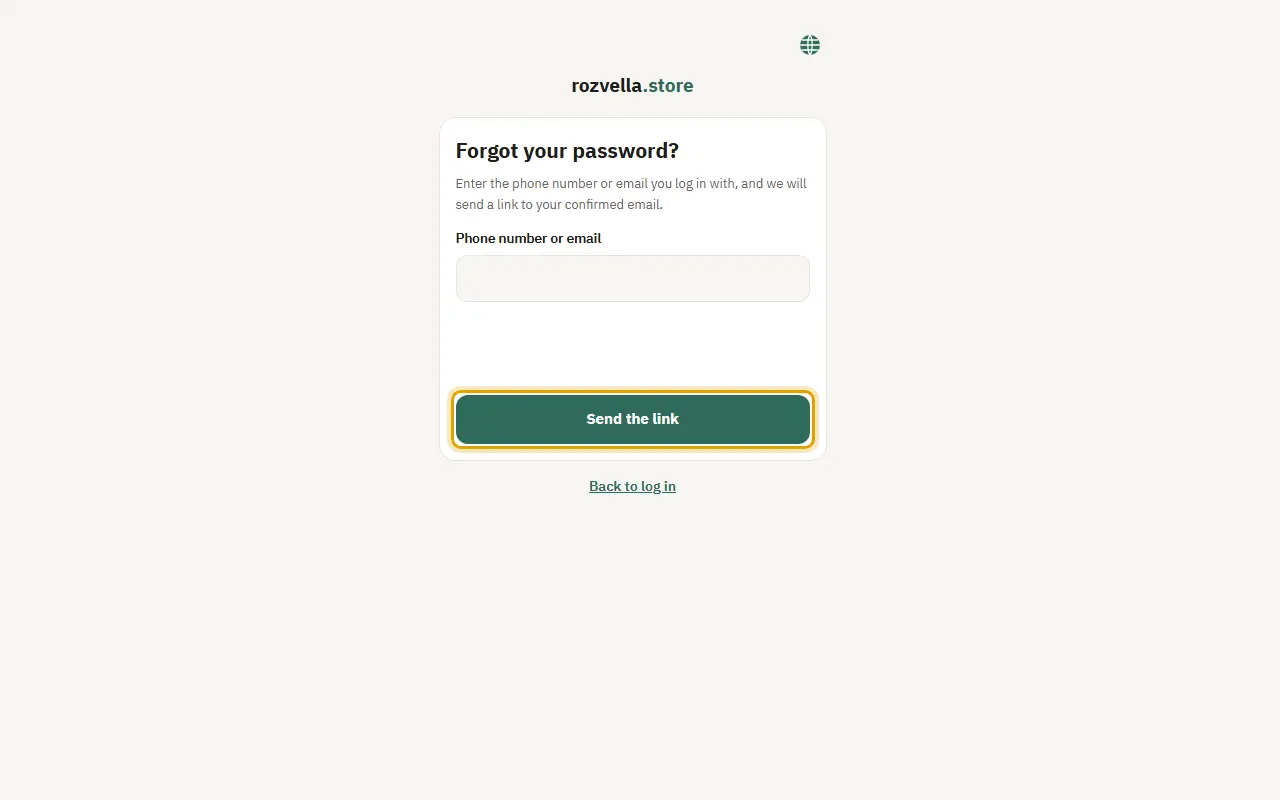
Press “Forgot your password?” under the log-in button, enter the phone number or email you log in with, then press “Send the link”.
The link didn't arrive
Check your spam folder. If your account has no confirmed email, write to support@rozvella.store and include your account phone number.
3Enter a new password
Where?Save and log in
Open the link from your email, type the new password (at least 8 characters) twice, then press “Save and log in”.
“The link has expired or was already used”
The link works for one hour and only once. Press “Request a new link”.
4Logging out
Where?Log out
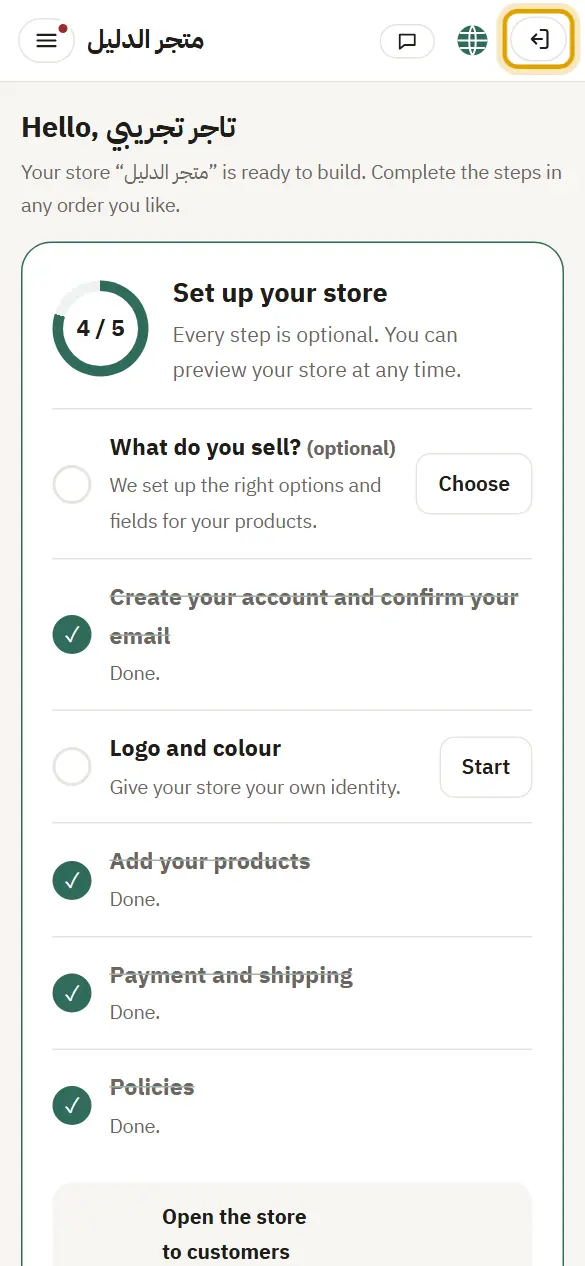
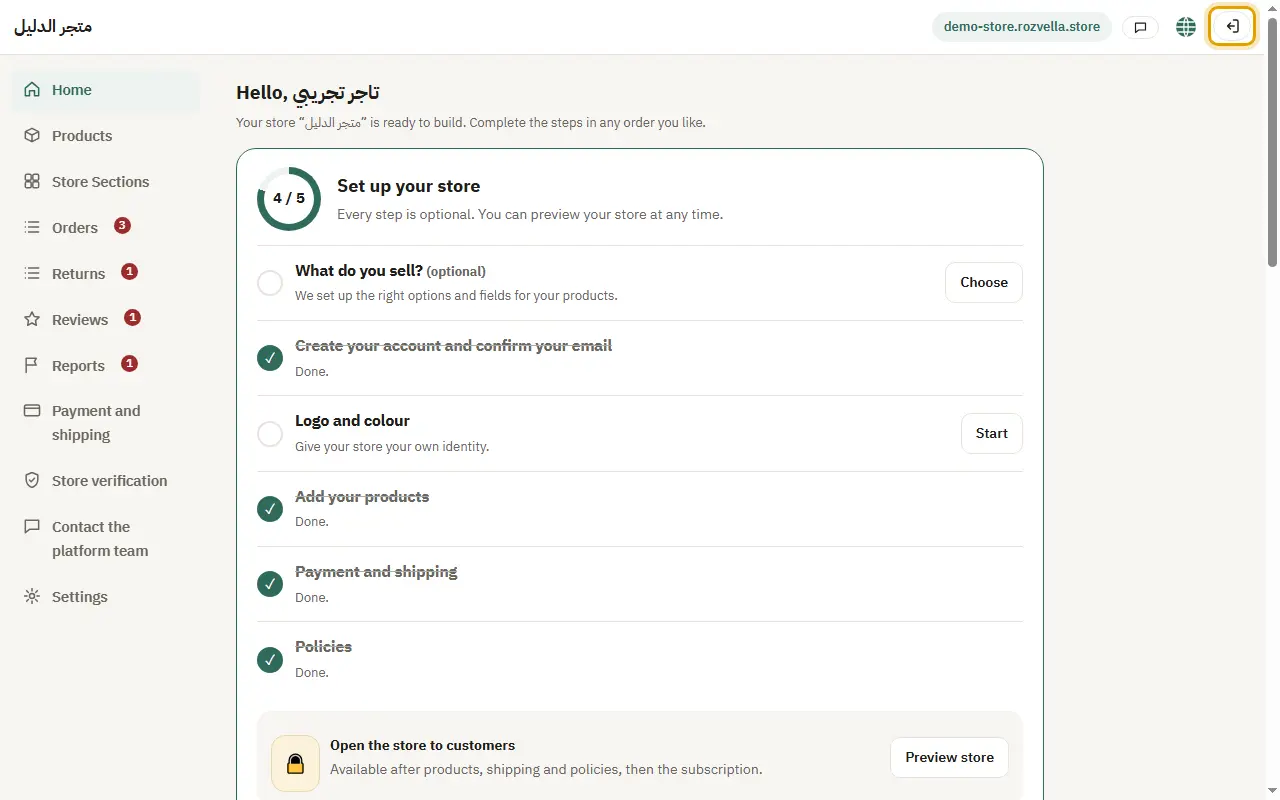
Press the log-out button at the top of the dashboard.