Notifications and the weekly report
Notifications are sent to your confirmed email only.
In this article (2)
1Choose your notifications
Where?Settings›Notifications›Save
Tick what you want: an email for every new order, when a transfer receipt is uploaded, and for every return request or review. Then press “Save”.
Picture from a demo dashboard
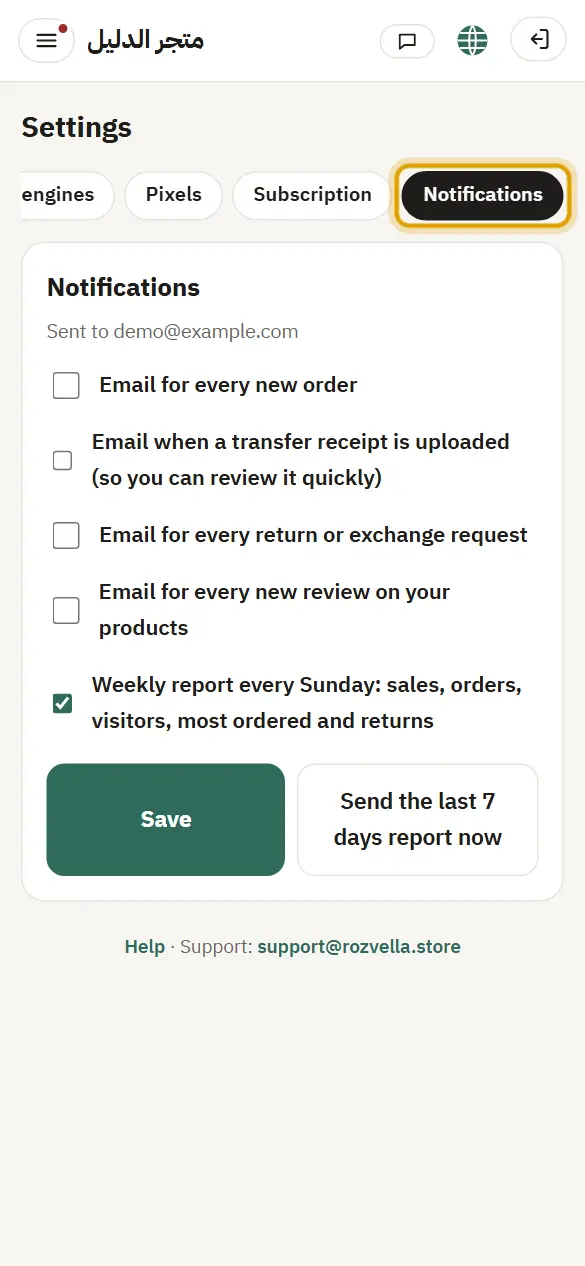
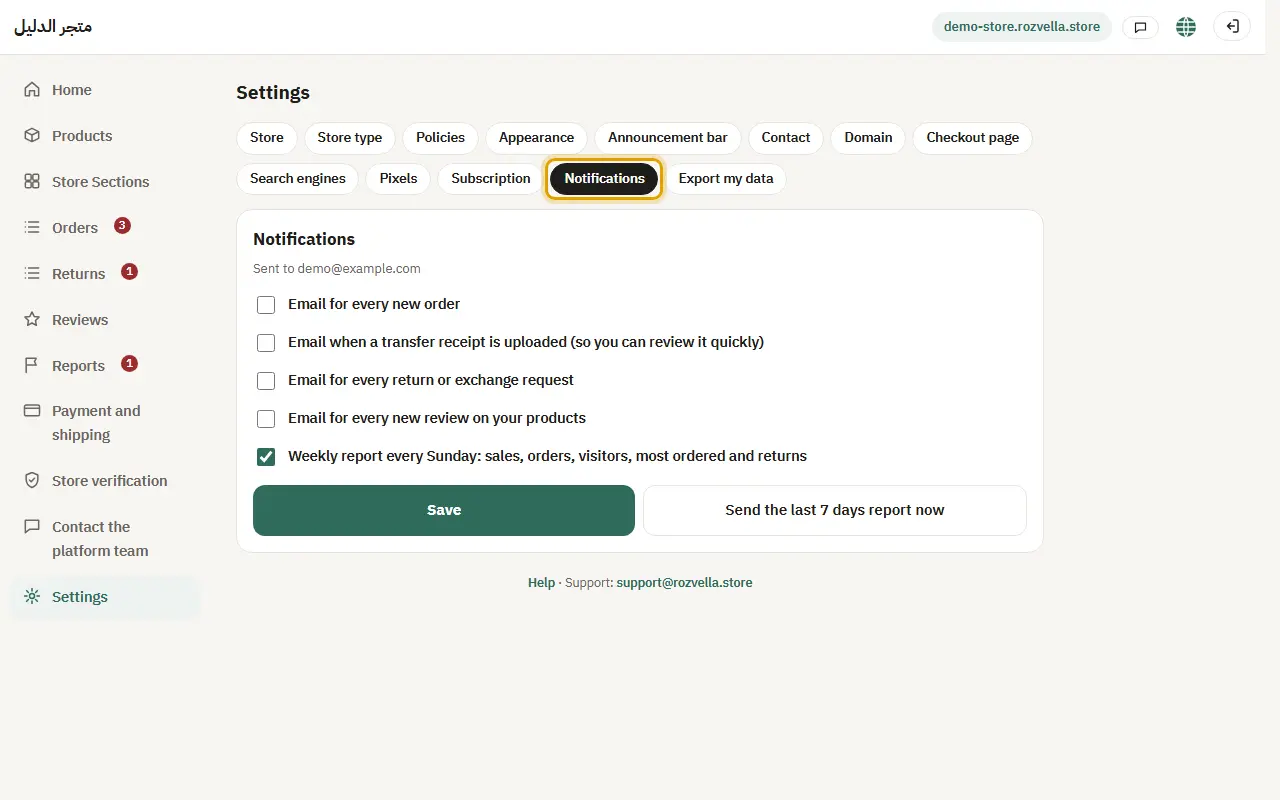
What happens?Emails come from no-reply@rozvella.store in your dashboard language.
Common problems and fixes“Confirm your email first”
Notifications go to a confirmed email only. Press “Confirm email” and confirm it.
2The weekly report
Where?Settings›Notifications›Send the last 7 days report now
Tick the weekly report. To see it now, press “Send the last 7 days' report now”.
Picture from a demo dashboard
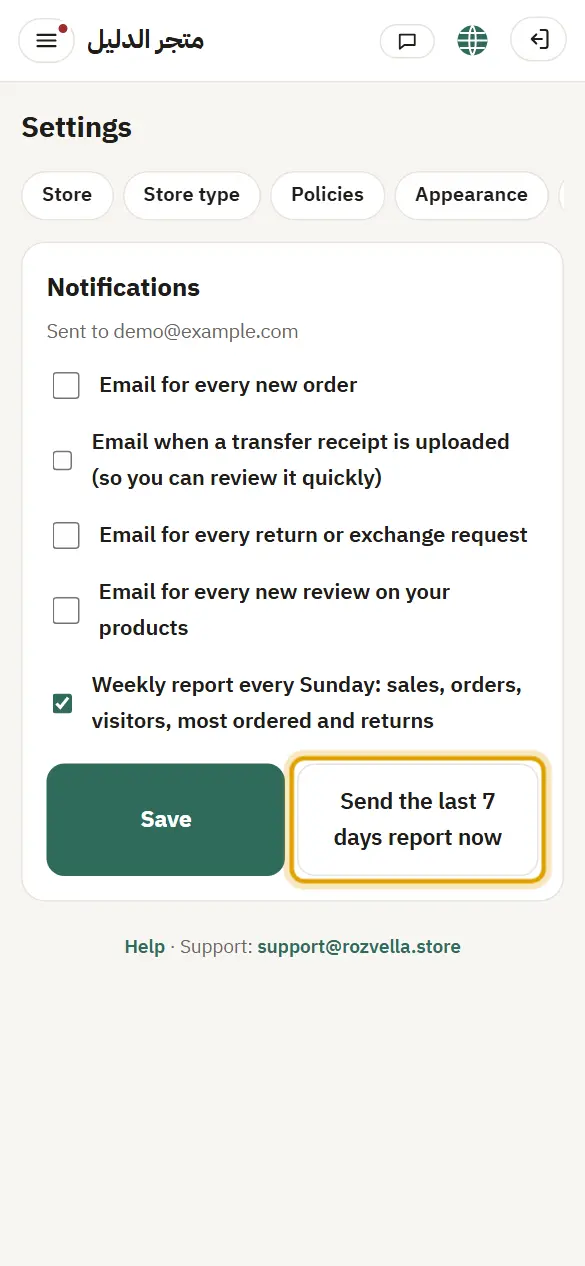
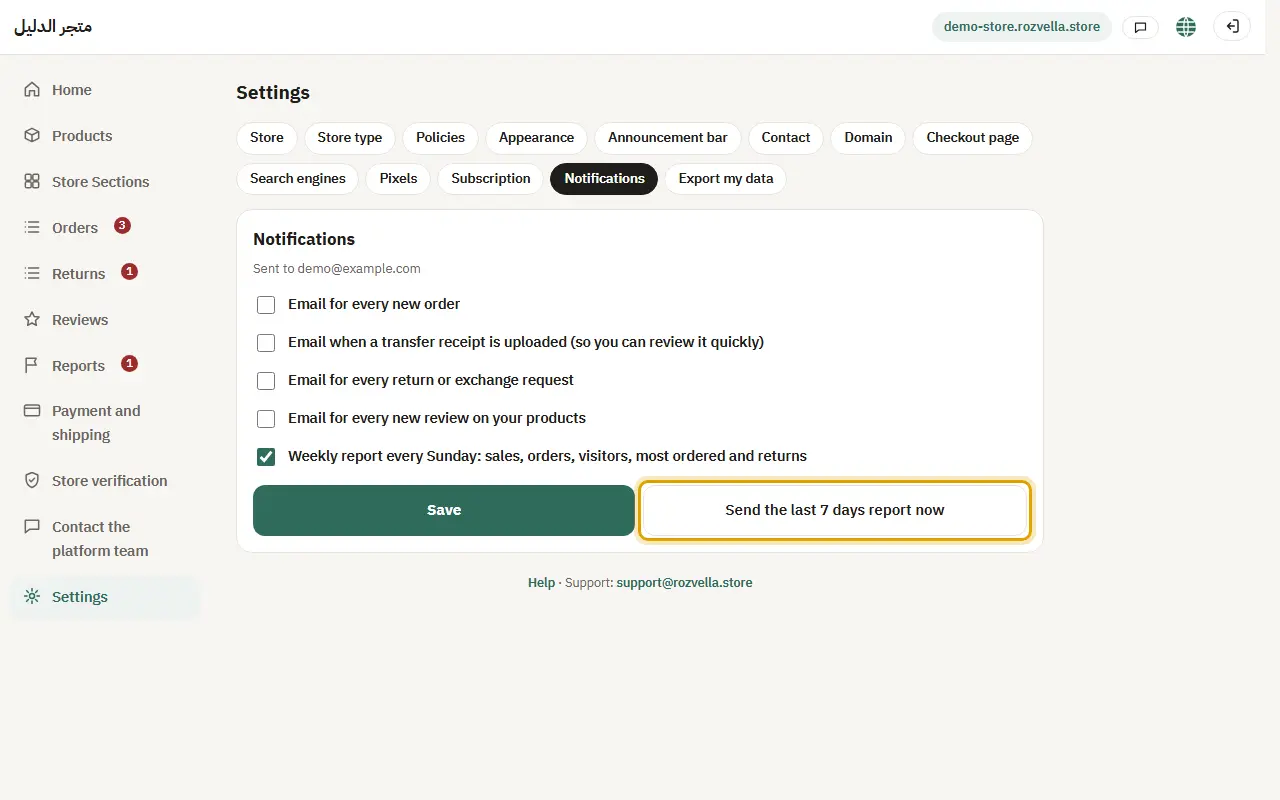
What happens?It arrives once a week: sales, orders, visitors, best sellers and returns. A week with no activity isn't sent.