rozvella.storeCreate your store

Orders and their statuses

Every order goes through four statuses: new, confirmed, shipped and delivered. The customer follows them from “Track your order”.

7 steps · Last updated: 17 November 2026

In this article (7)
  1. A new order
  2. Confirm the order
  3. Ship the order
  4. Mark it delivered
  5. Cancelling an order
  6. The invoice
  7. A digital order

1A new order

Where?

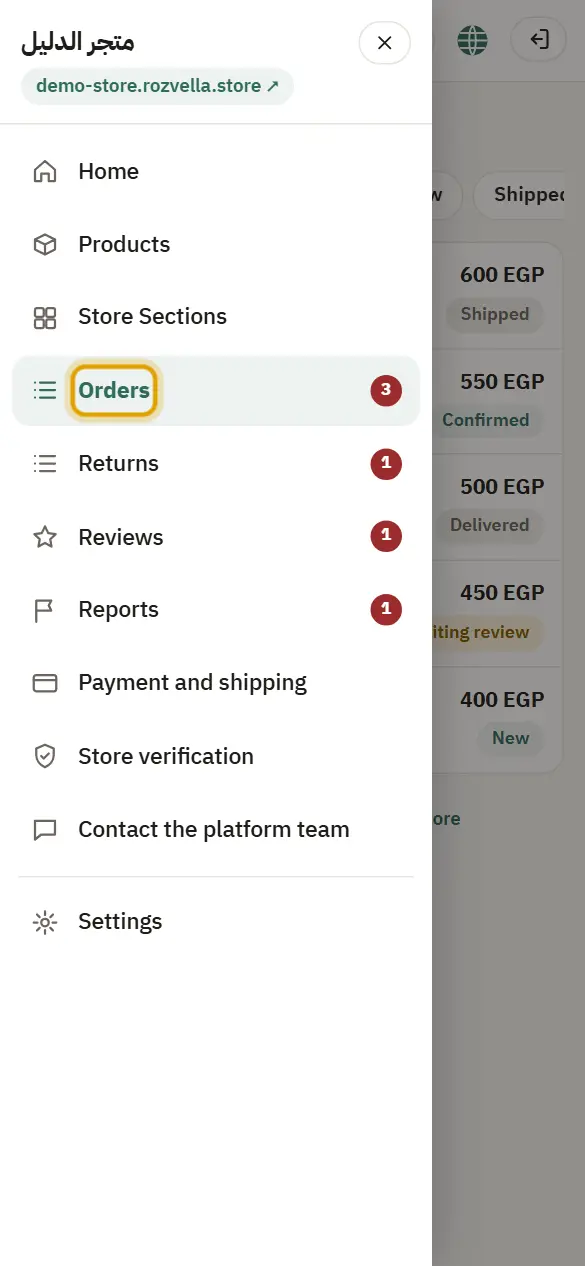
Orders

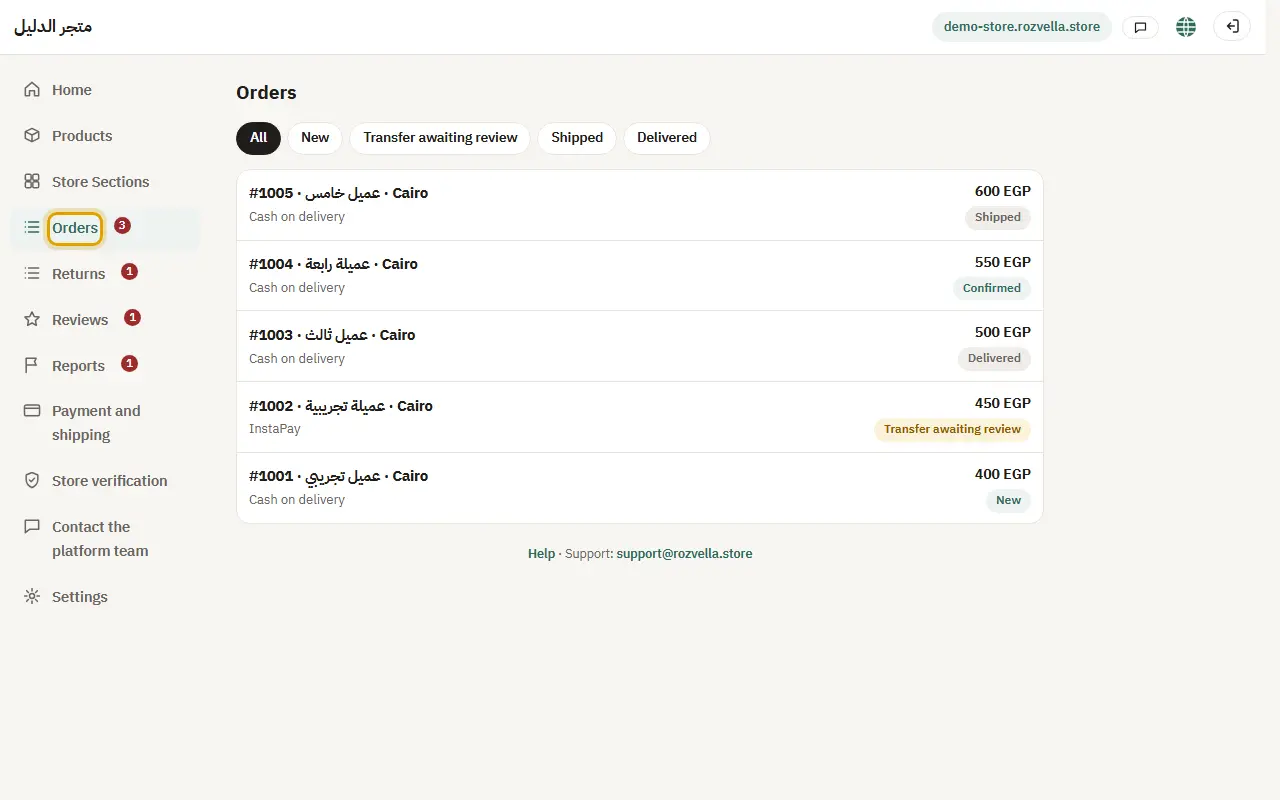
Open “Orders”. New orders are at the top, and the red number in the menu is how many there are.
Picture from a demo dashboard
A new order — Orders and their statusesA new order — Orders and their statusesA new order — Orders and their statuses
What happens?You see the order number, customer, payment method, total and status. You get an email for each order if you turned it on in “Notifications”.

2Confirm the order

Where?

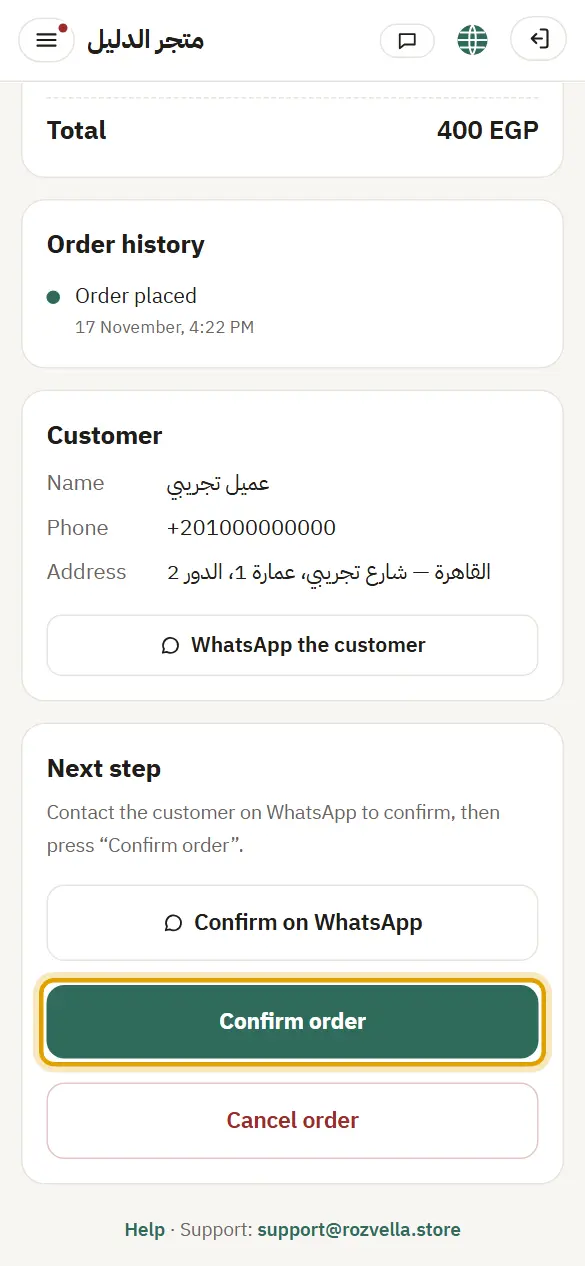
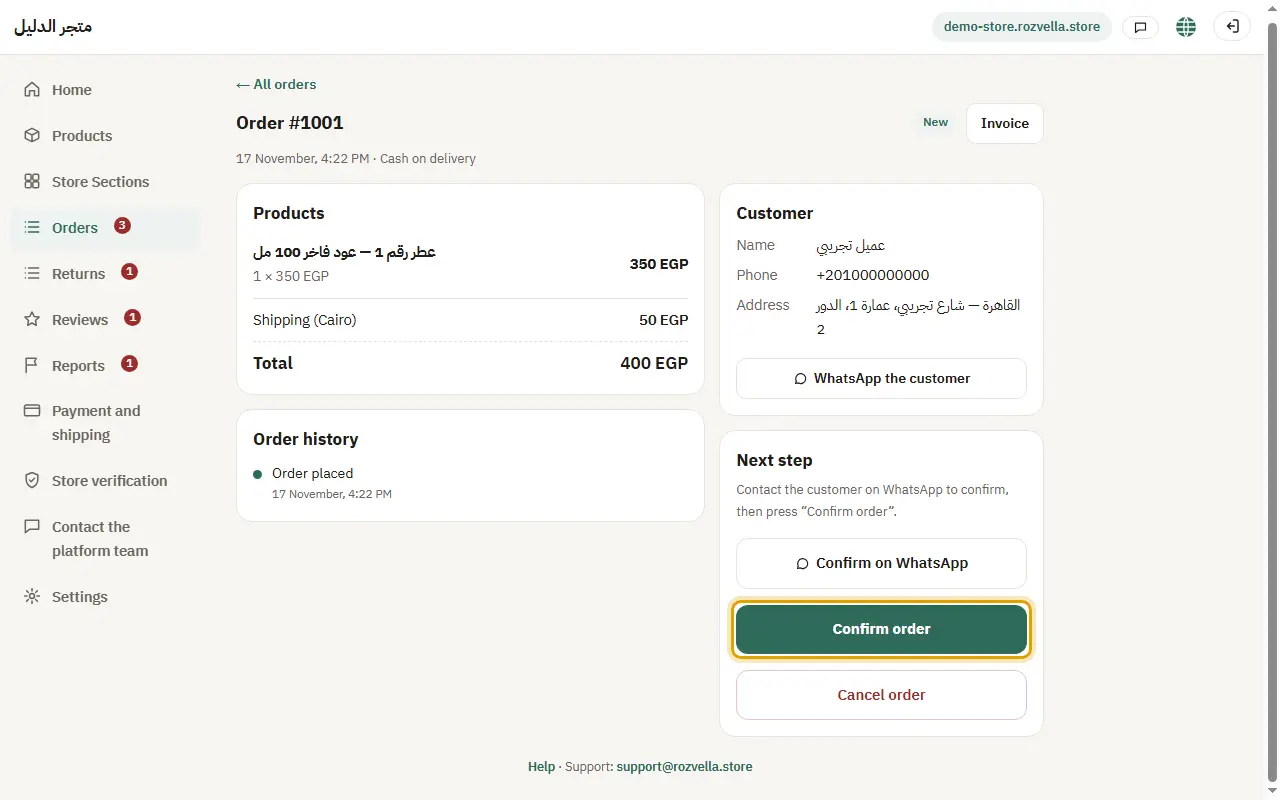
OrdersConfirm on WhatsAppConfirm order

Open the order and press “Confirm on WhatsApp” to send the customer a ready message, then press “Confirm order”.
Picture from a demo dashboard
Confirm the order — Orders and their statusesConfirm the order — Orders and their statusesConfirm the order — Orders and their statuses
What happens?The order becomes “Confirmed”, the shipping deadline starts, and the last day to ship shows on the order.
Common problems and fixes
“This action isn't available for the order's current status”

The order's status changed (maybe from another window). The page was refreshed, so choose the step that is available now.

“Review the transfer first”

The order was paid by transfer. Review and accept the receipt before confirming.

3Ship the order

Where?

OrdersShipped

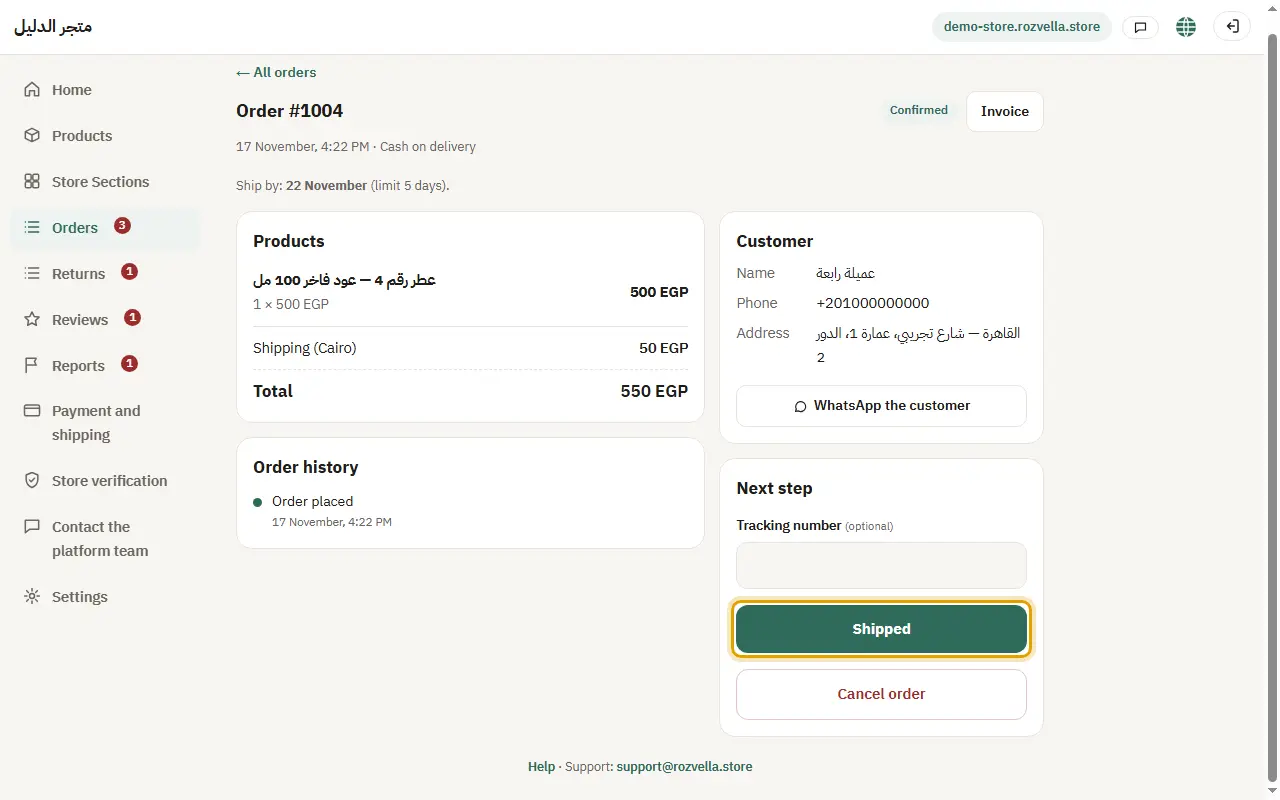
Enter the tracking number (optional) and press “Shipped” before the shipping deadline.
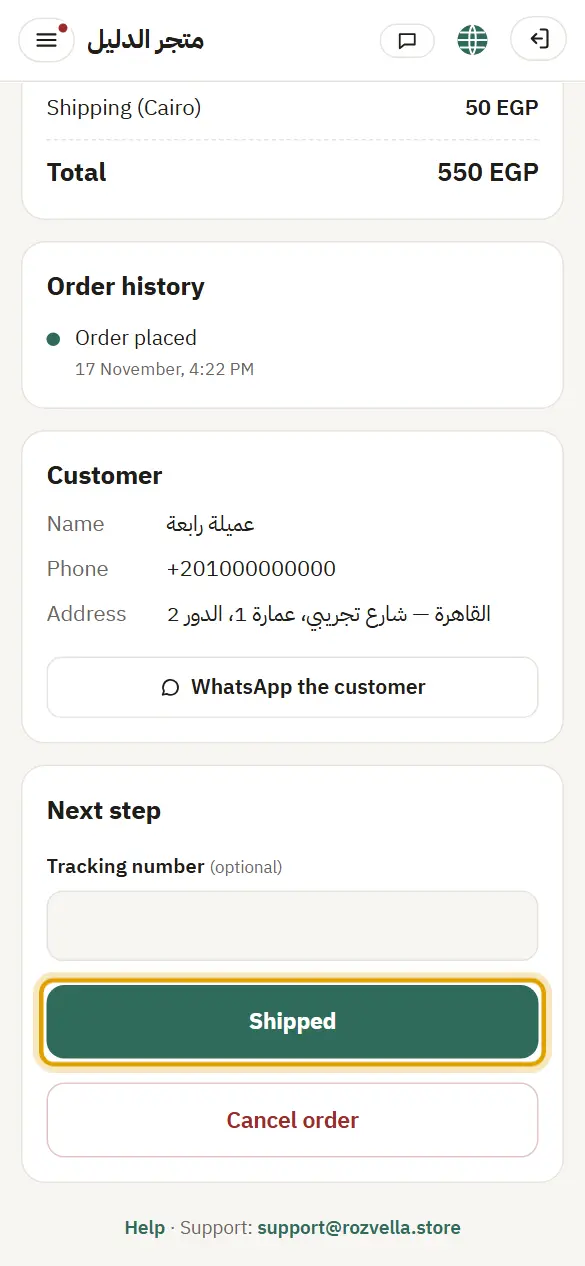
Picture from a demo dashboard
Ship the order — Orders and their statusesShip the order — Orders and their statusesShip the order — Orders and their statuses
What happens?The customer sees the tracking number in “Track your order”, and gets an email if they left one.
Common problems and fixes
“The order is late for shipping”

Ship it now or contact the customer. A late order lets the customer report that it hasn't arrived, and repeated delays are visible to the team.

4Mark it delivered

Where?

OrdersDelivered

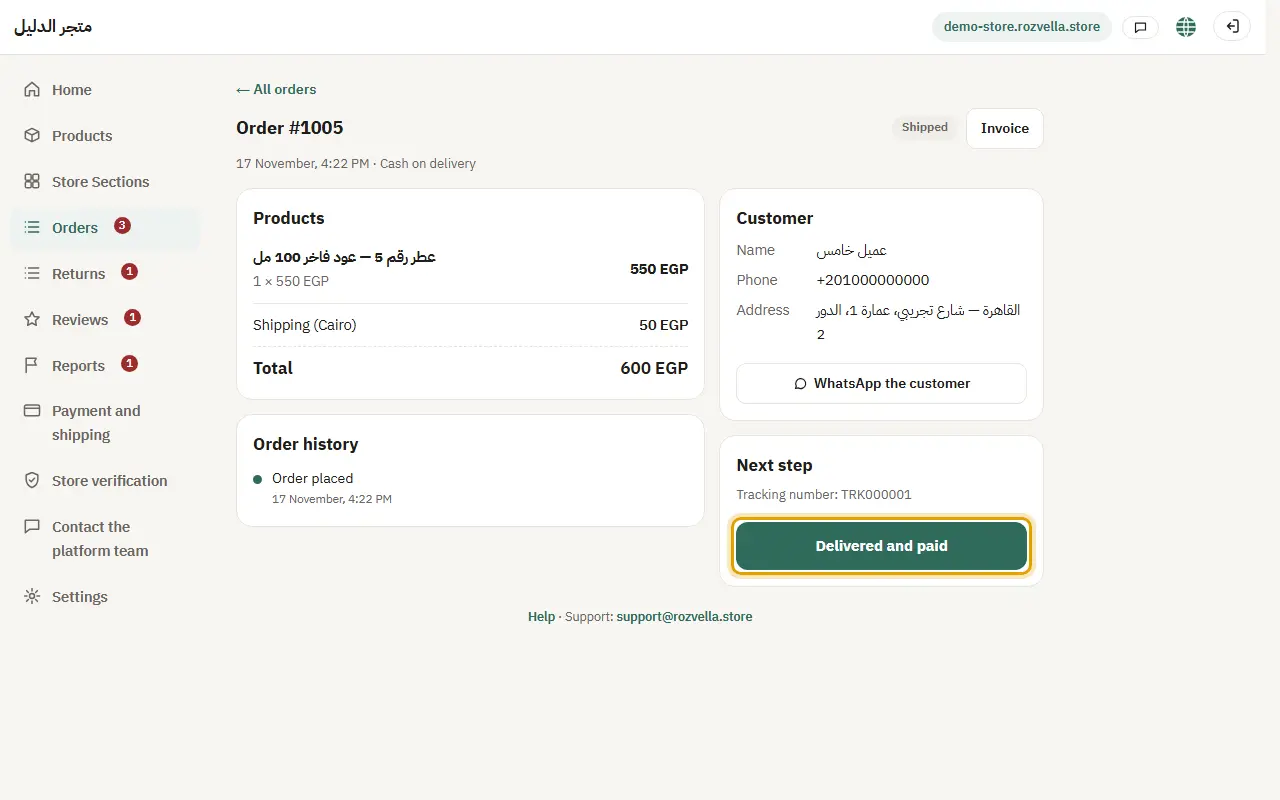
Once the order reaches the customer, press “Delivered”.
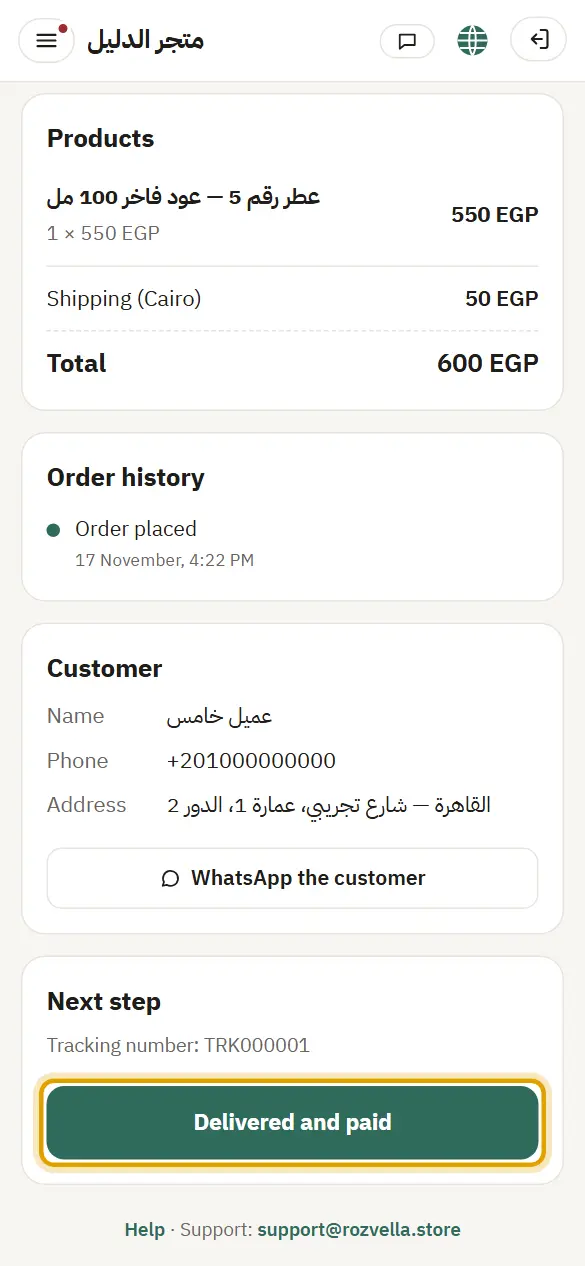
Picture from a demo dashboard
Mark it delivered — Orders and their statusesMark it delivered — Orders and their statusesMark it delivered — Orders and their statuses
What happens?The order is complete, and the customer can review the products and request a return within your policy period. Delivered orders help unlock prepayment.

5Cancelling an order

Where?

OrdersCancel order

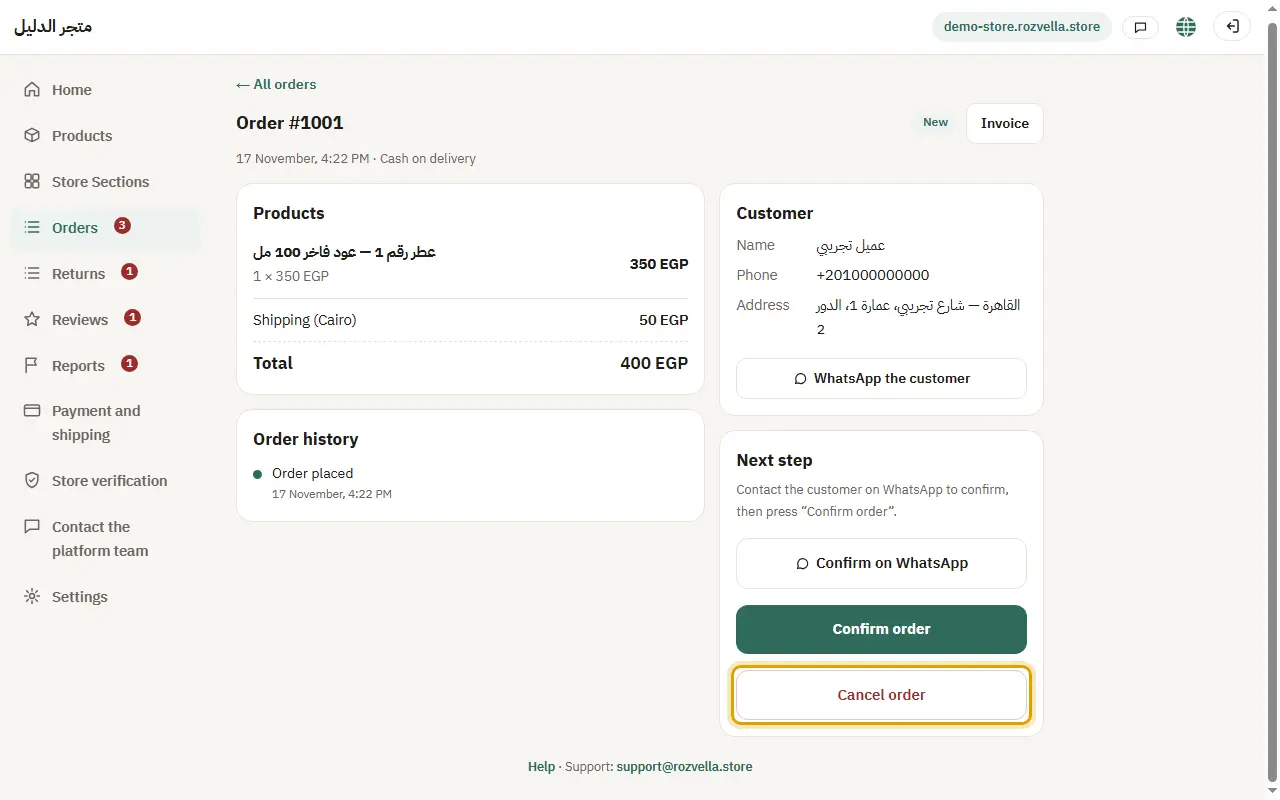
Press “Cancel order” if you can no longer fulfil it, after contacting the customer.
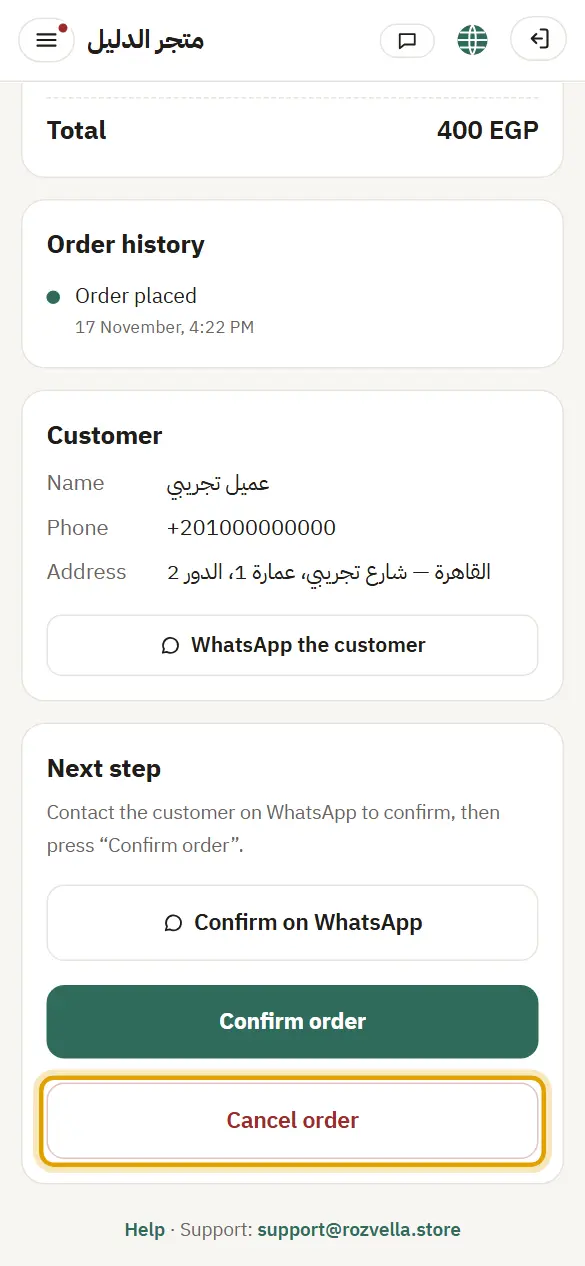
Picture from a demo dashboard
Cancelling an order — Orders and their statusesCancelling an order — Orders and their statusesCancelling an order — Orders and their statuses
What happens?The order becomes “Cancelled”, and the customer sees it in “Track your order”. If it was paid by card, refund it from the order page.

6The invoice

Where?

OrdersInvoice

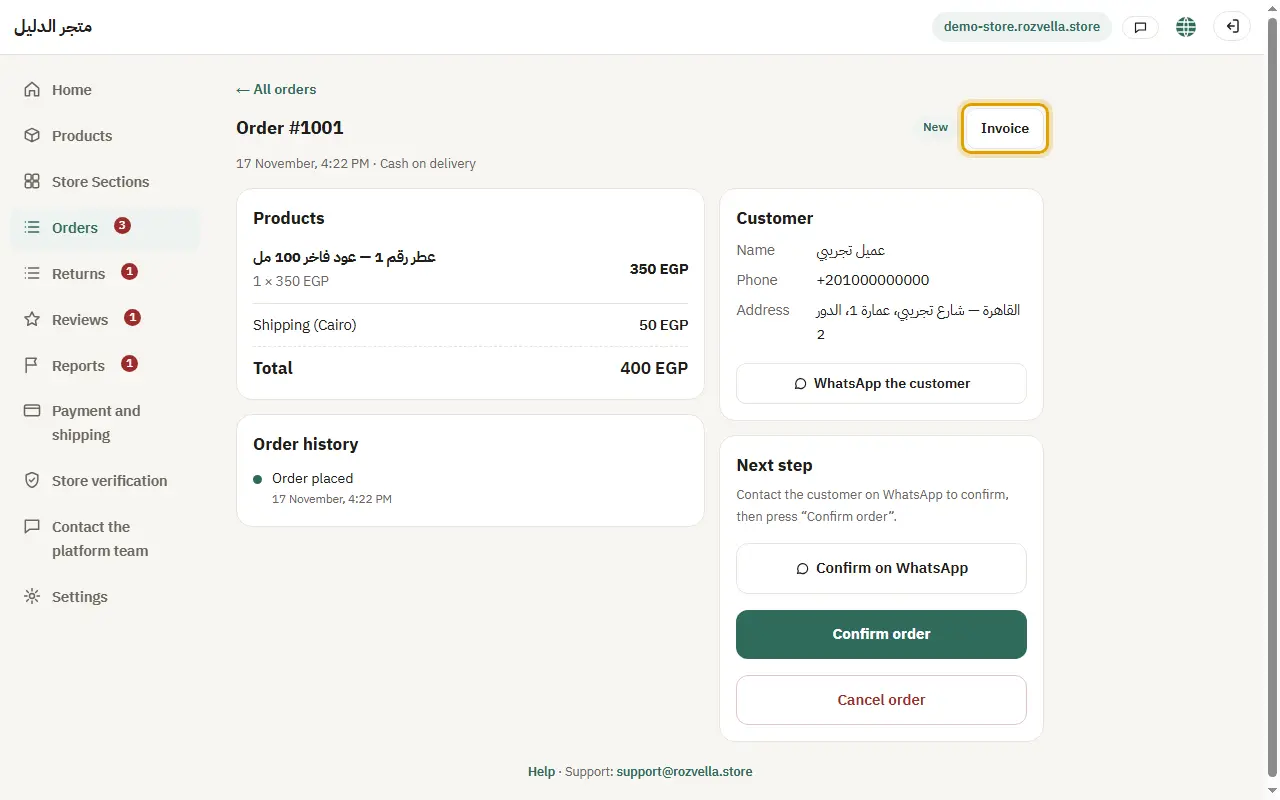
Press “Invoice” on the order page, then “Print / save PDF”.
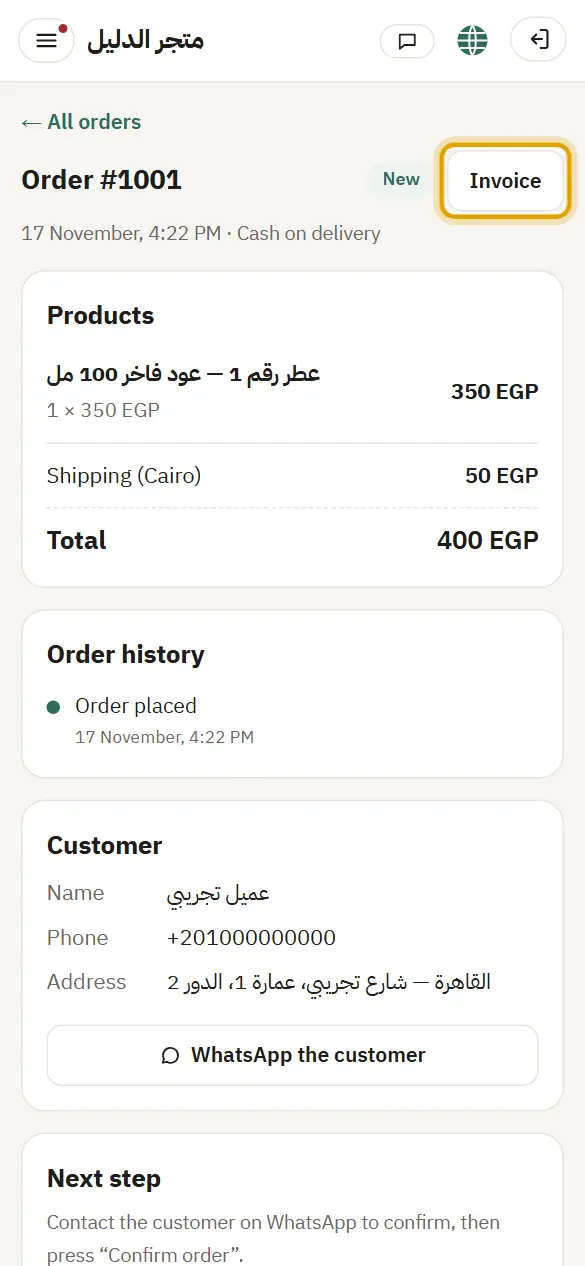
Picture from a demo dashboard
The invoice — Orders and their statusesThe invoice — Orders and their statusesThe invoice — Orders and their statuses
What happens?A print-ready copy opens with your store name and the order details.

7A digital order

An order with only digital products has no shipping area and no address.

What happens?The customer downloads the file from “Track your order” once the order is “Paid”.