rozvella.storeCreate your store

Wallets, cash outlets and instalments through Paymob

Once your Paymob account is connected, you see “Other payment methods through Paymob”. The money goes straight to your Paymob account.

4 steps · Last updated: 17 November 2026

In this article (4)
  1. The Integration ID for each method
  2. Save and test the connection
  3. Cash at a payment outlet
  4. Instalments

1The Integration ID for each method

Where?

Payment and shippingOther payment methods through Paymob

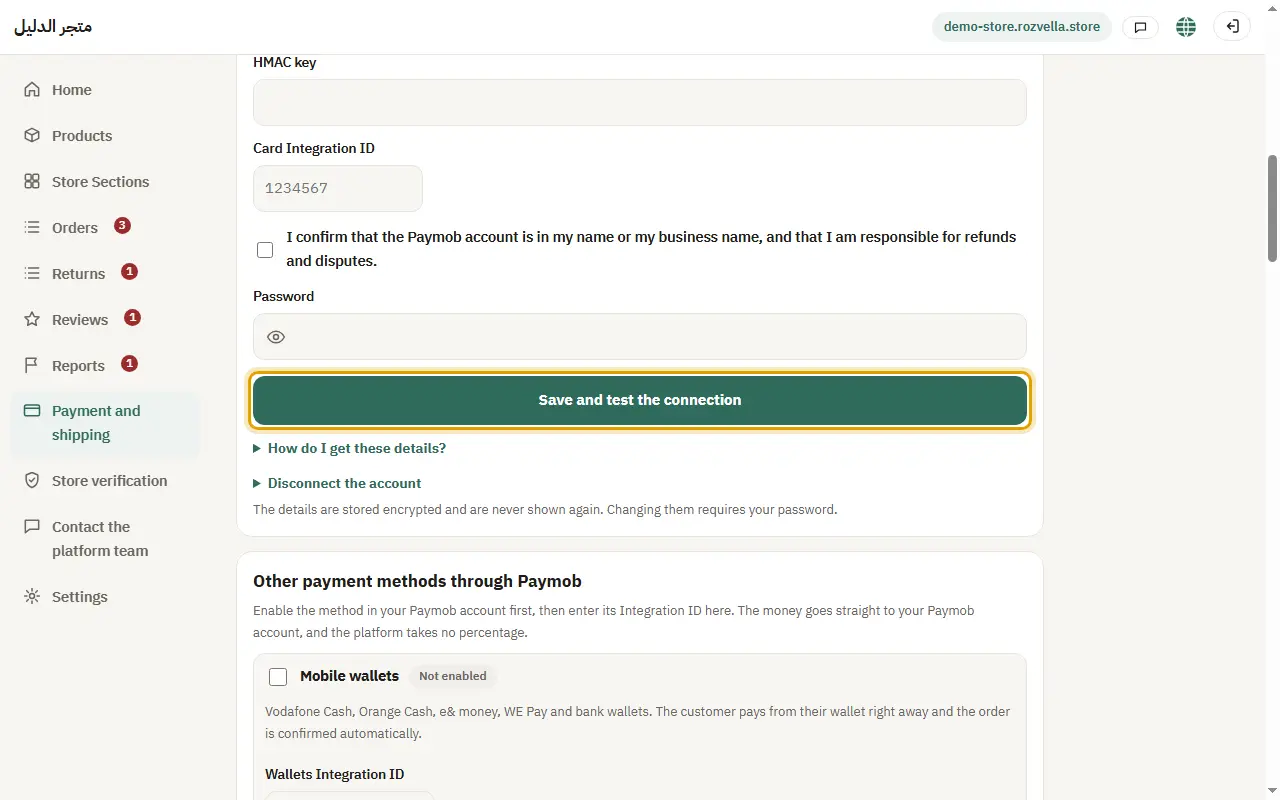
Enable the method in your Paymob account, then copy the Integration ID from Developers, then Payment Integrations. Tick the method and enter its number (for instalments, one per company or bank).
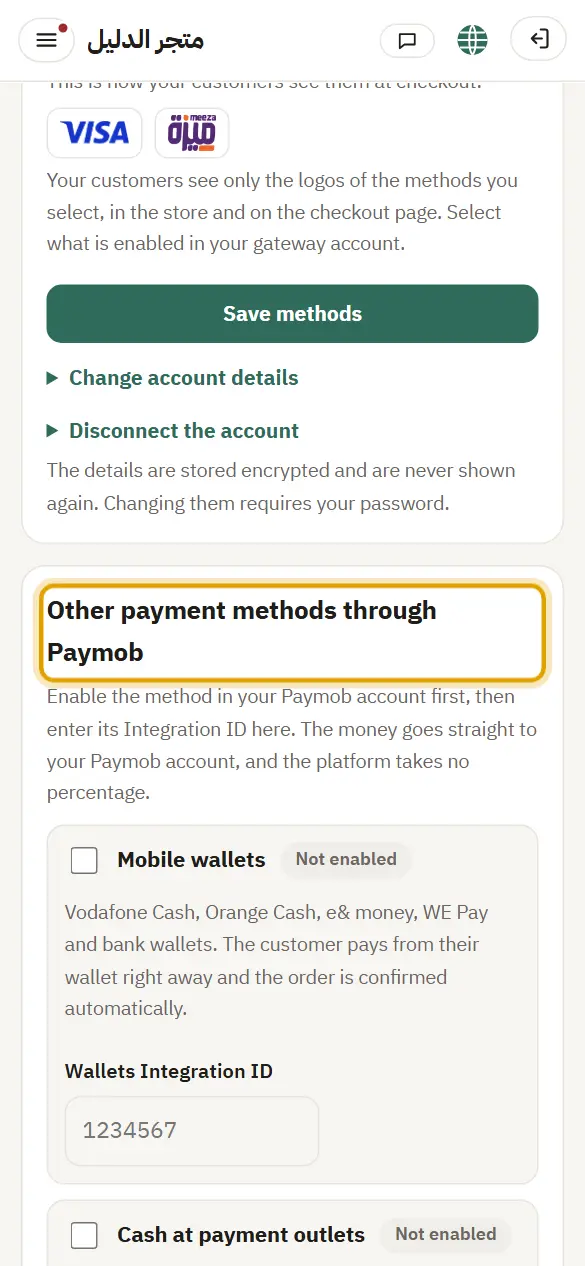
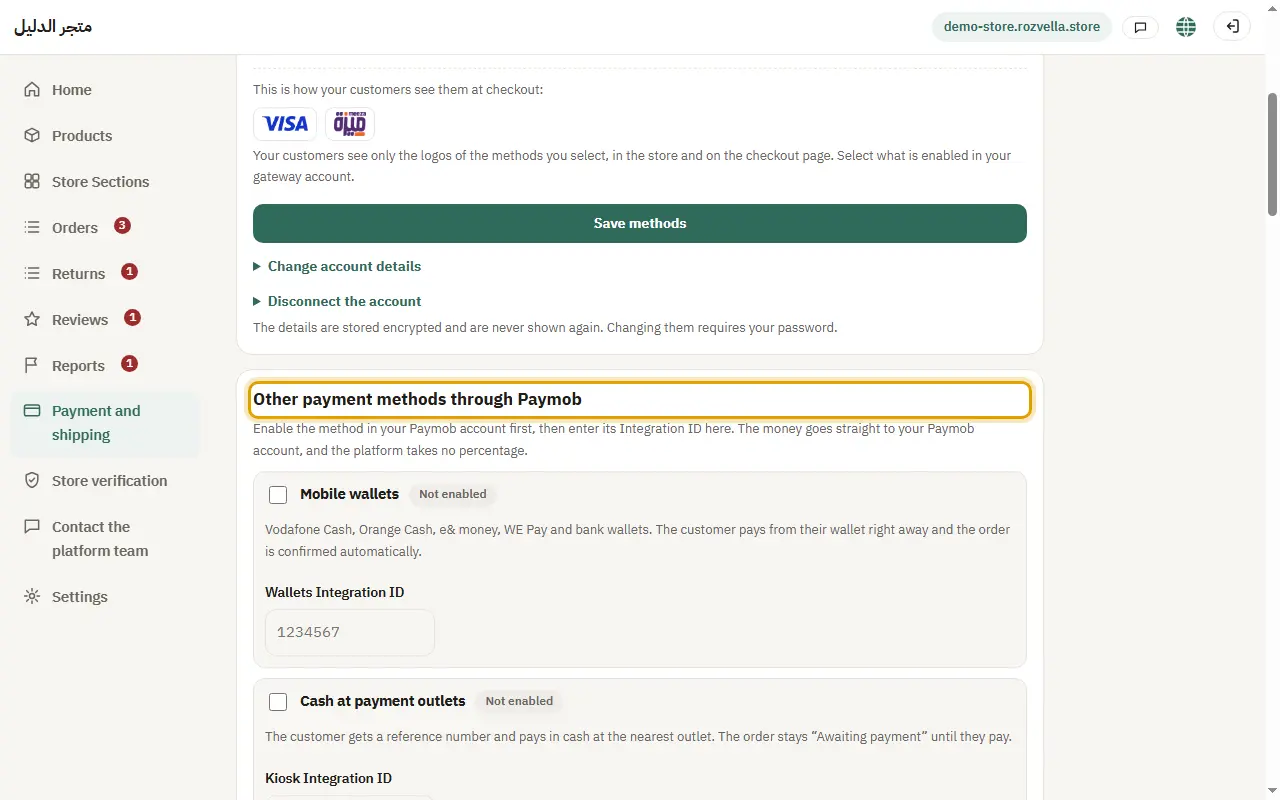
Picture from a demo dashboard
The Integration ID for each method — Wallets, cash outlets and instalments through PaymobThe Integration ID for each method — Wallets, cash outlets and instalments through PaymobThe Integration ID for each method — Wallets, cash outlets and instalments through Paymob
What happens?A number field appears for each method you tick.

2Save and test the connection

Where?

Payment and shippingOther payment methods through PaymobSave and test the connection

Enter your password and press “Save and test the connection”.
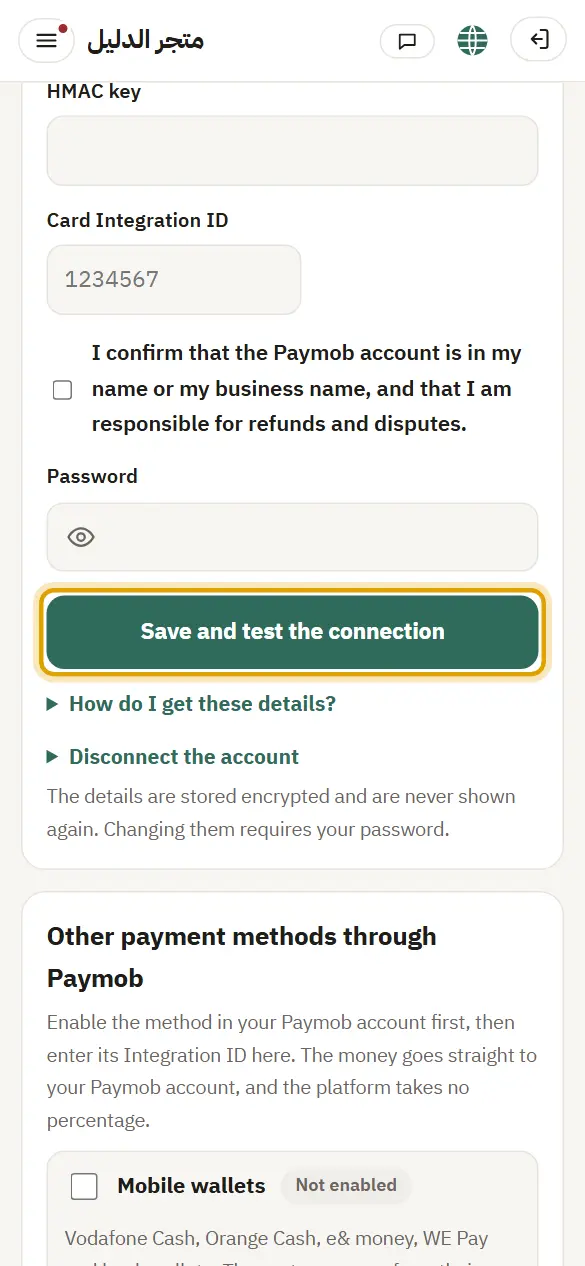
Picture from a demo dashboard
Save and test the connection — Wallets, cash outlets and instalments through PaymobSave and test the connection — Wallets, cash outlets and instalments through PaymobSave and test the connection — Wallets, cash outlets and instalments through Paymob
What happens?Each number is tested on your account before saving, and a wrong number is not saved.
Common problems and fixes
The Integration ID is rejected

Make sure the number is from the same connected Paymob account and that the method is enabled there. If it keeps being rejected, contact Paymob support.

3Cash at a payment outlet

The customer gets a reference number and pays with it in cash at the nearest outlet (Aman or Masary) before the time shown.

What happens?The order stays “awaiting payment” until they pay, so don't ship it before it becomes “Paid”. Refunds for outlets are made by you directly, then recorded under “Record a manual refund”.

4Instalments

In “Shown for orders from” enter an amount so instalments appear for orders of that amount or more (shipping not included), or leave it empty for all orders. Then choose “Instalment companies enabled in your account” so their logos appear.

What happens?The customer chooses the instalment company on the Paymob page, and you receive the full amount.