Preview your store before opening it
Before your store opens, customers and visitors see “Coming soon”. You can preview the whole store at any time.
In this article (3)
1Open the preview
Where?Preview store
Press “Preview store” on the dashboard home or after any save, or press your store link at the top of the dashboard.
Picture from a demo dashboard
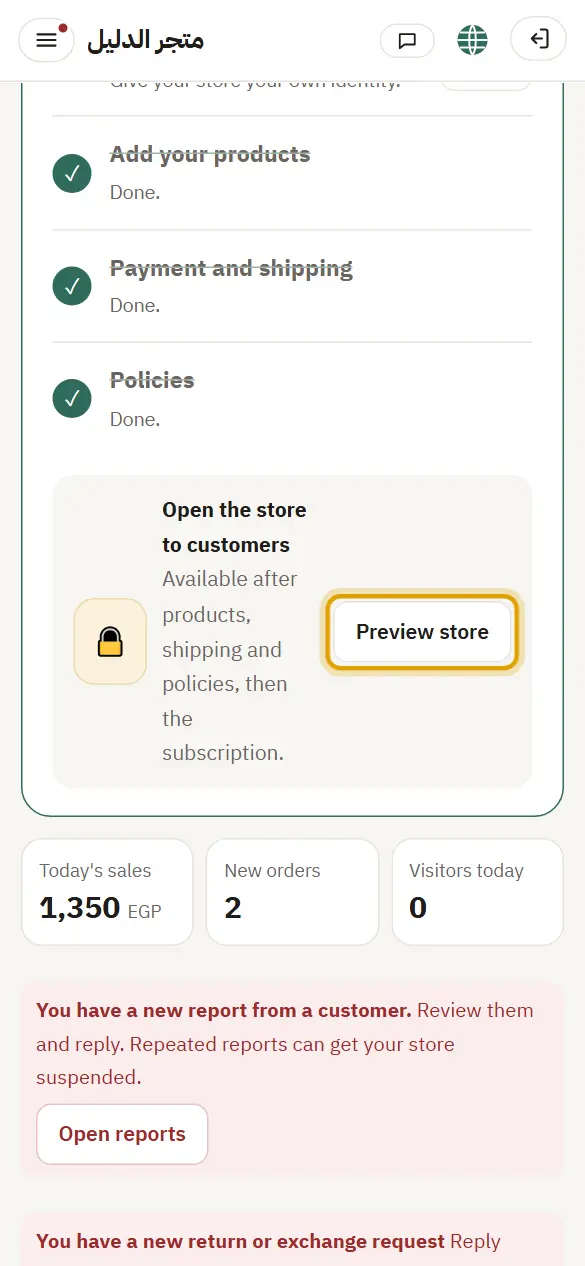
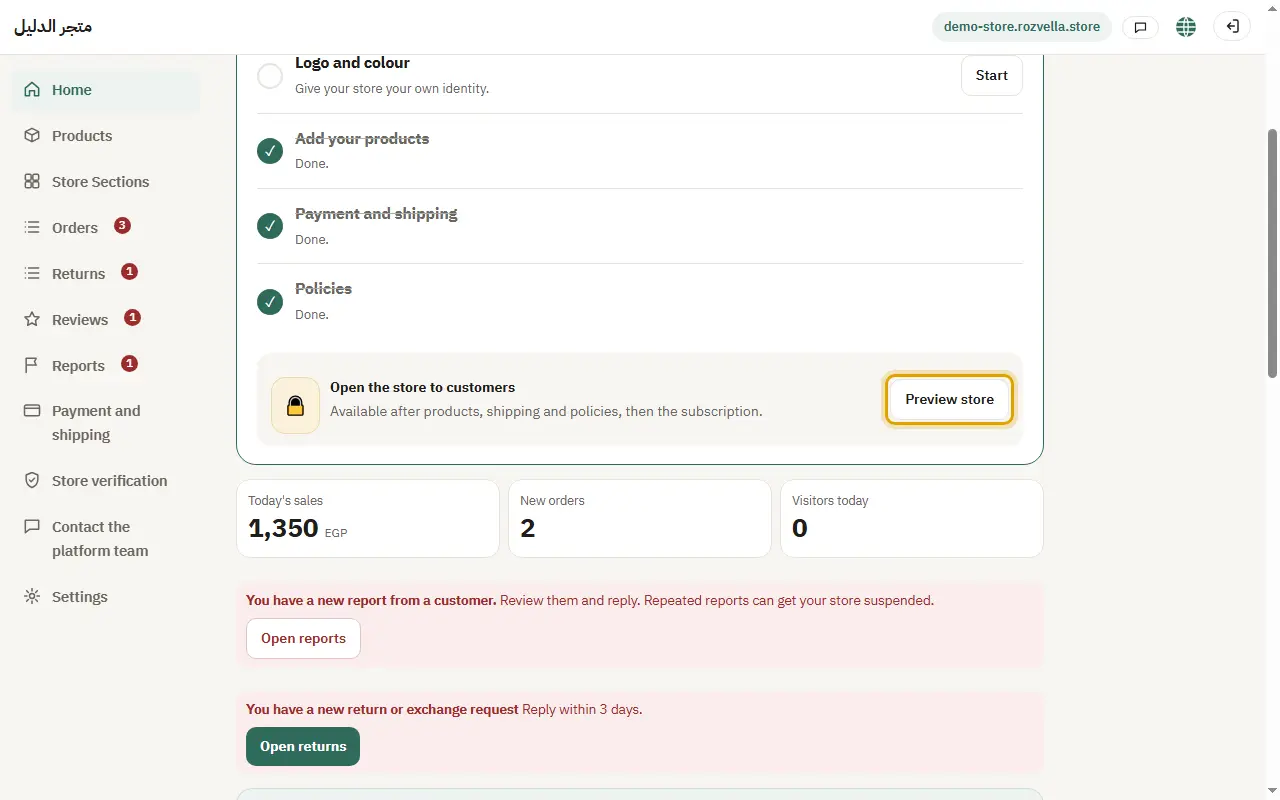
What happens?Your store opens on its link in a new tab, with a “Preview” bar at the top.
2Try your store
Browse products and sections, add to the cart, and open the order page as a customer would.
Picture from a demo dashboard
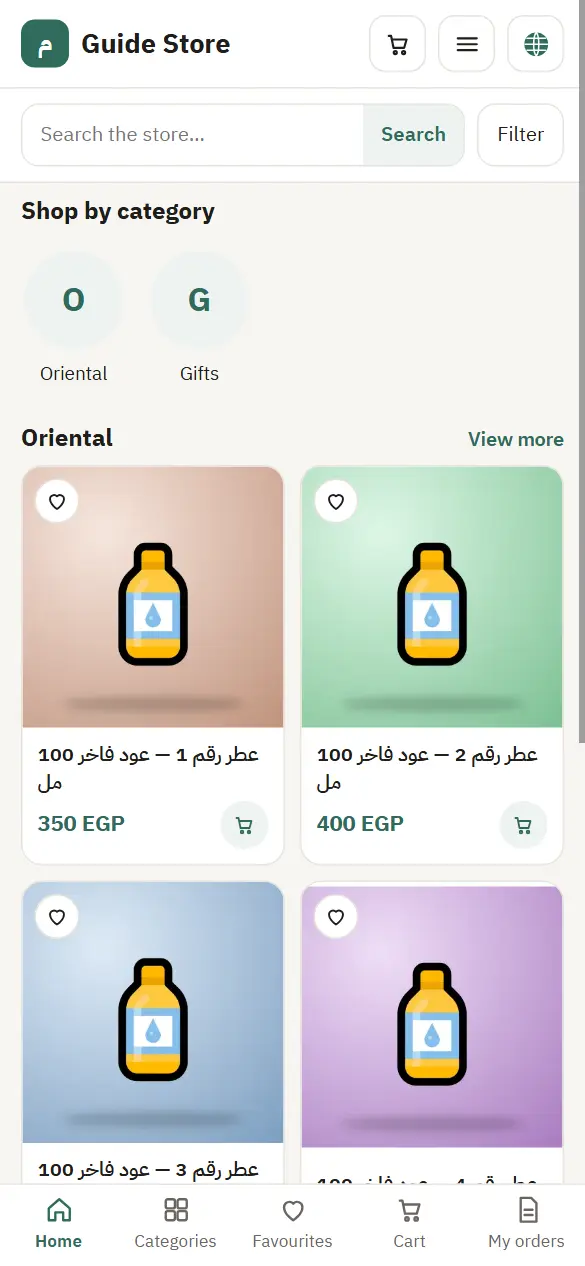
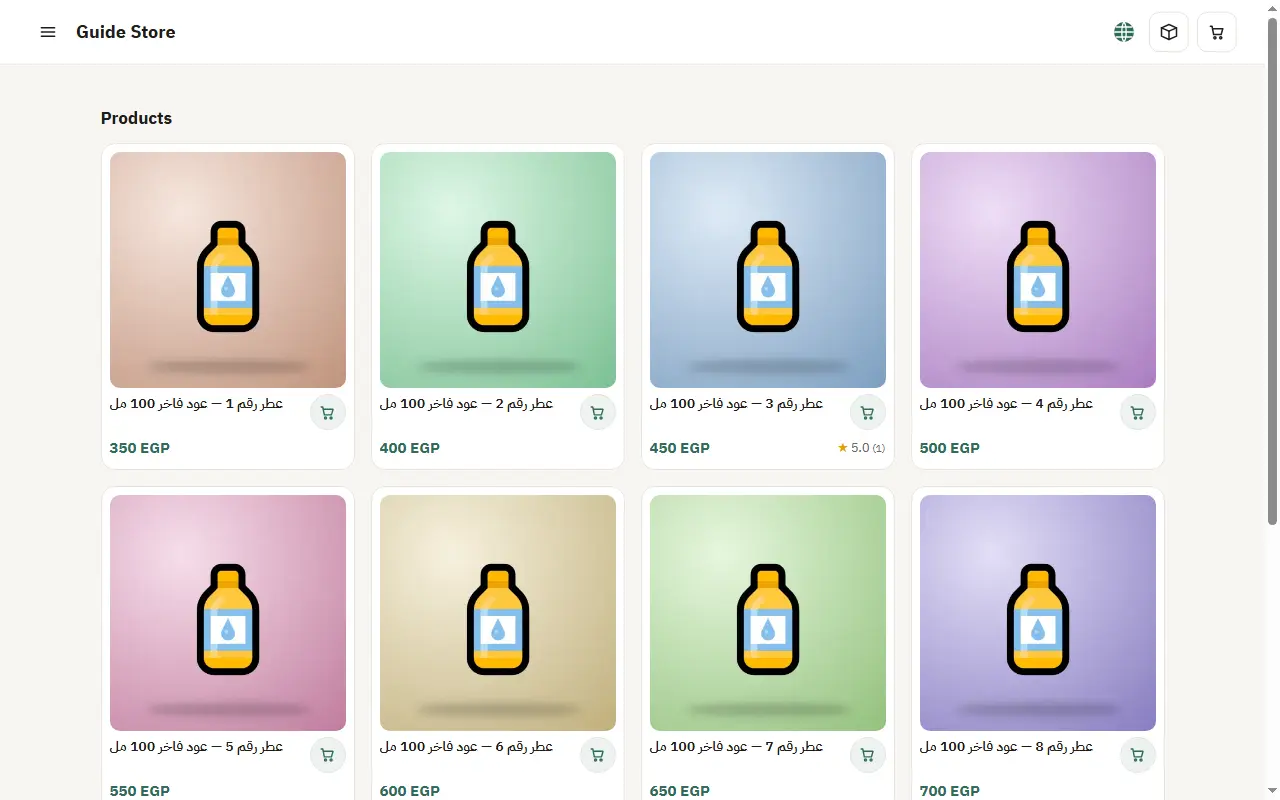
What happens?Everything works as it will for customers, but the order is not sent in preview.
3When does the preview stop?
The preview is tied to your dashboard login: it stops if you log out. The preview link itself works for two minutes, so if it has expired press “Preview store” again.
What happens?After your store opens to customers, “Preview store” opens your store as everyone sees it.
Common problems and fixesI see “Coming soon” instead of my store
Open the store from “Preview store” in the dashboard rather than typing the link, and make sure you are still logged in.