Create your store and confirm your email
You create your account and your store together on one page, then confirm your email. Building the store is free; you pay when you open it to customers.
In this article (5)
1Open “Create your store”
Where?Create your store
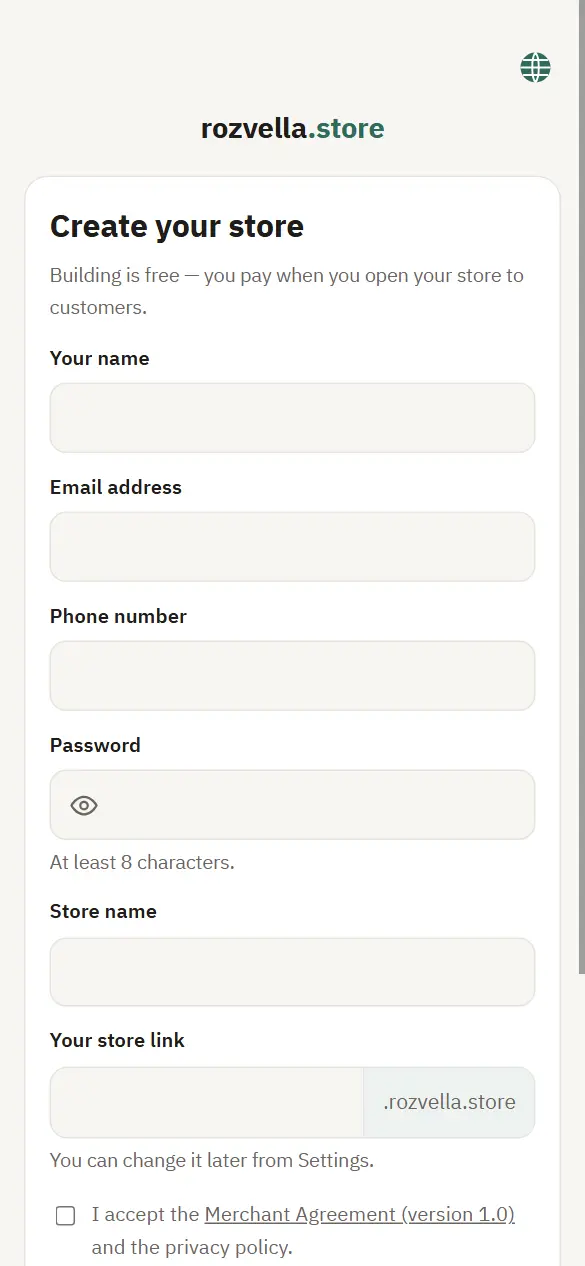
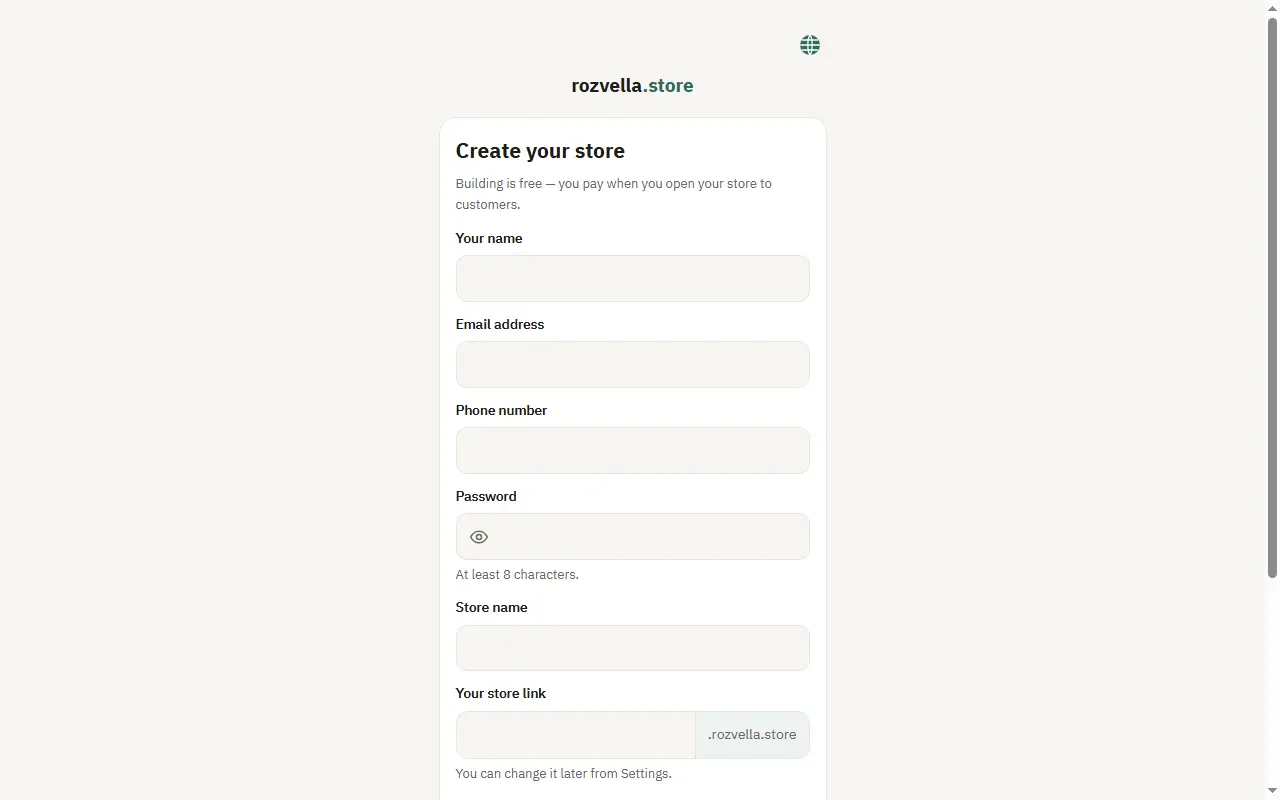
On the rozvella.store home page, press “Create your store” at the top.
I see “Sign-up opens soon”
New sign-ups are closed for now before launch. If you already have an account, press “Log in”, or ask support for an invitation.
2Enter your details and your store's details
Where?Create your store
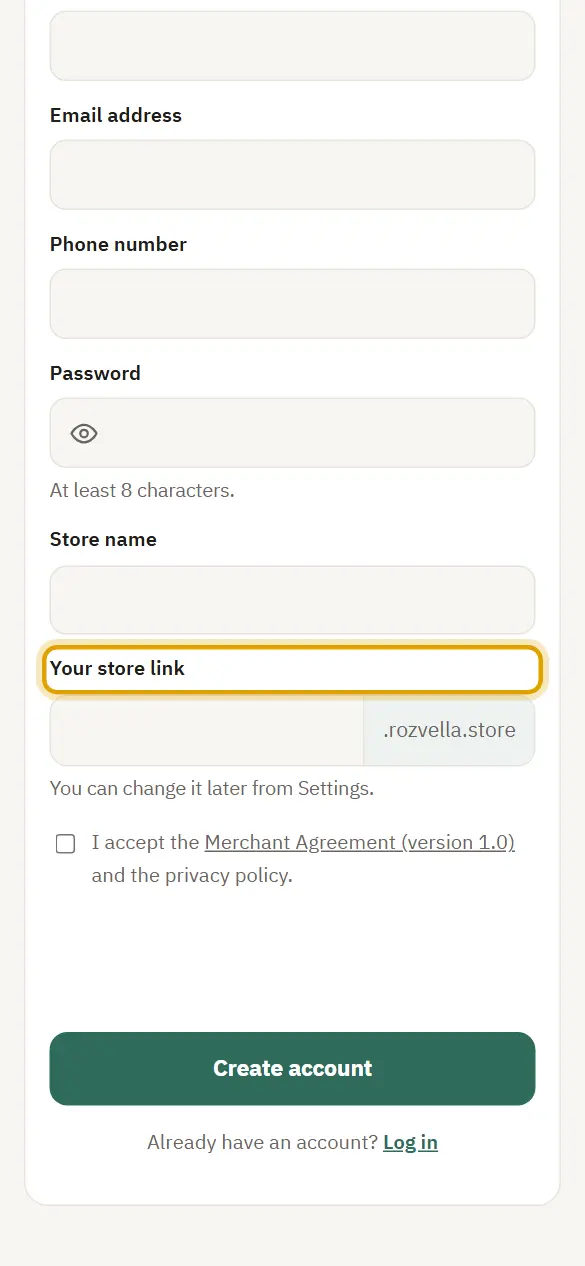
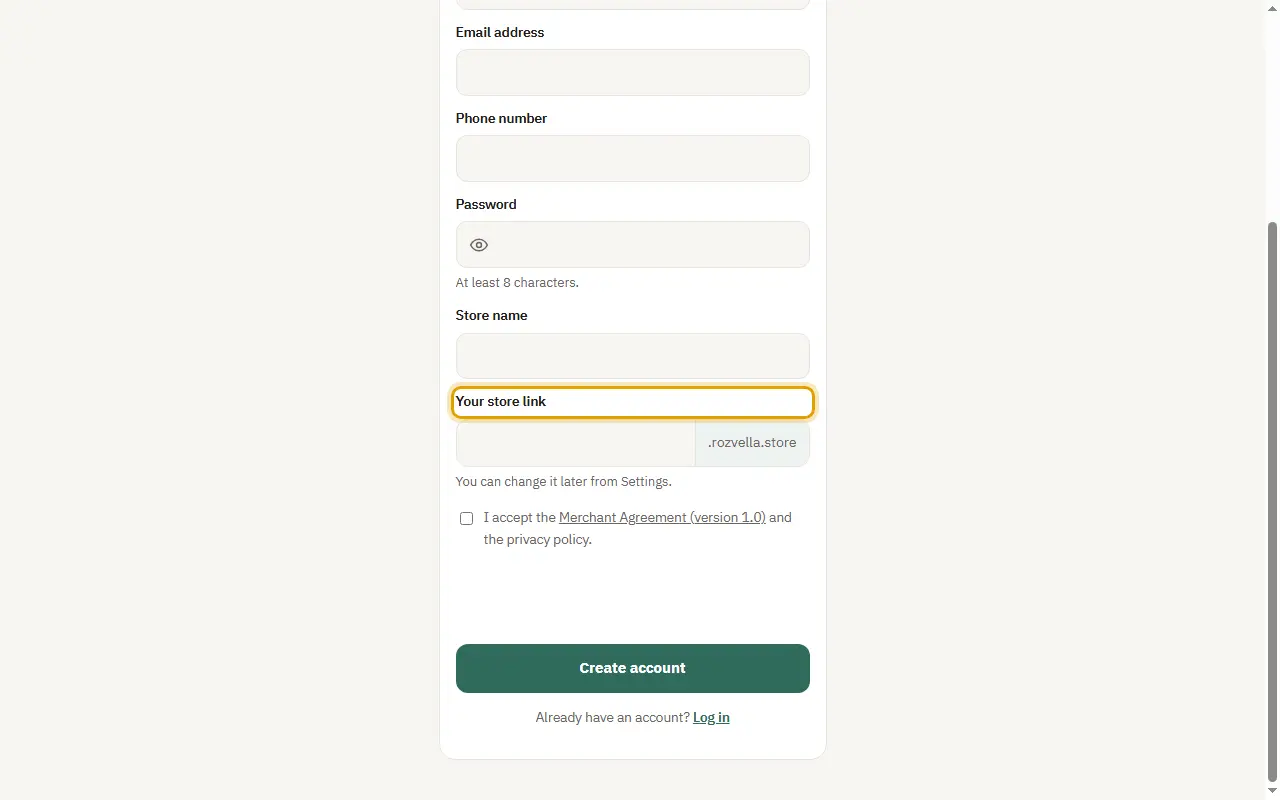
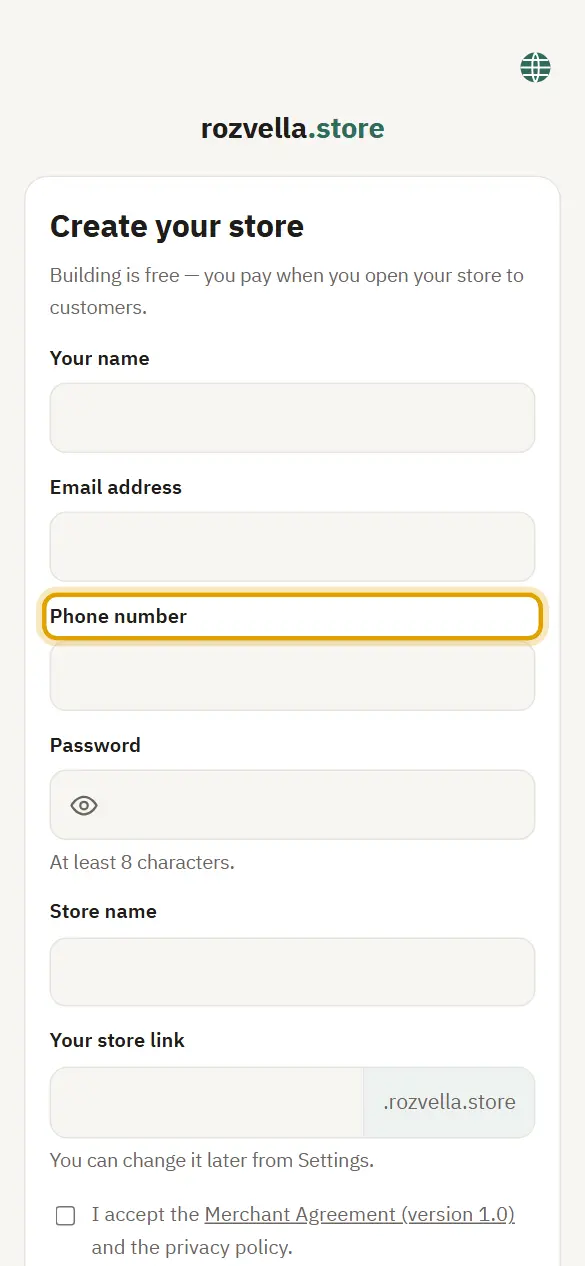
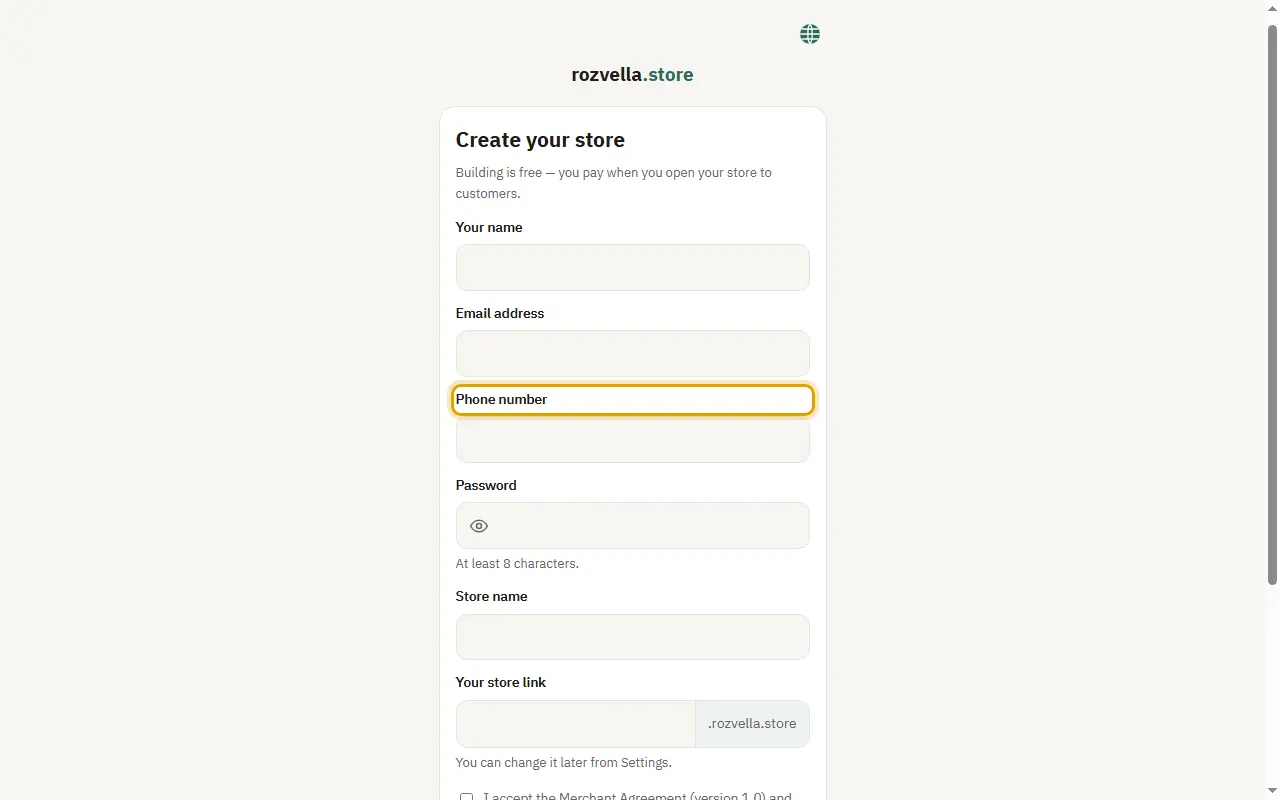
Enter your name, email, phone number, a password of at least 8 characters, and the store name. “Your store link” is suggested from the name and you can edit it: 3 to 20 small English letters, numbers or hyphens, like noor-perfumes.
“This number is already registered”
You already have an account with this number. Press “Log in”, and if you forgot the password press “Forgot your password?”.
“This email is used by another account”
Each email belongs to one account only. Log in to your account, or enter another email.
“This link is taken” or “reserved”
Choose another link, for example by adding your city or the kind of products you sell.
3Your store's country and currency come from your phone number
Enter your phone number with the country code if it is not Egyptian or Saudi, like +971501234567. From this code we set your store's country, its currency and the payment methods available to you.
The store country is wrong
You can change it from “Settings ← Store ← Store country” while the store is not open and has no orders.
“Enter the phone number with the country code”
Enter the full number with the international code, like +9665XXXXXXXX for Saudi Arabia or +9715XXXXXXXX for the UAE.
4Accept the Merchant Agreement and create the account
Where?Create account
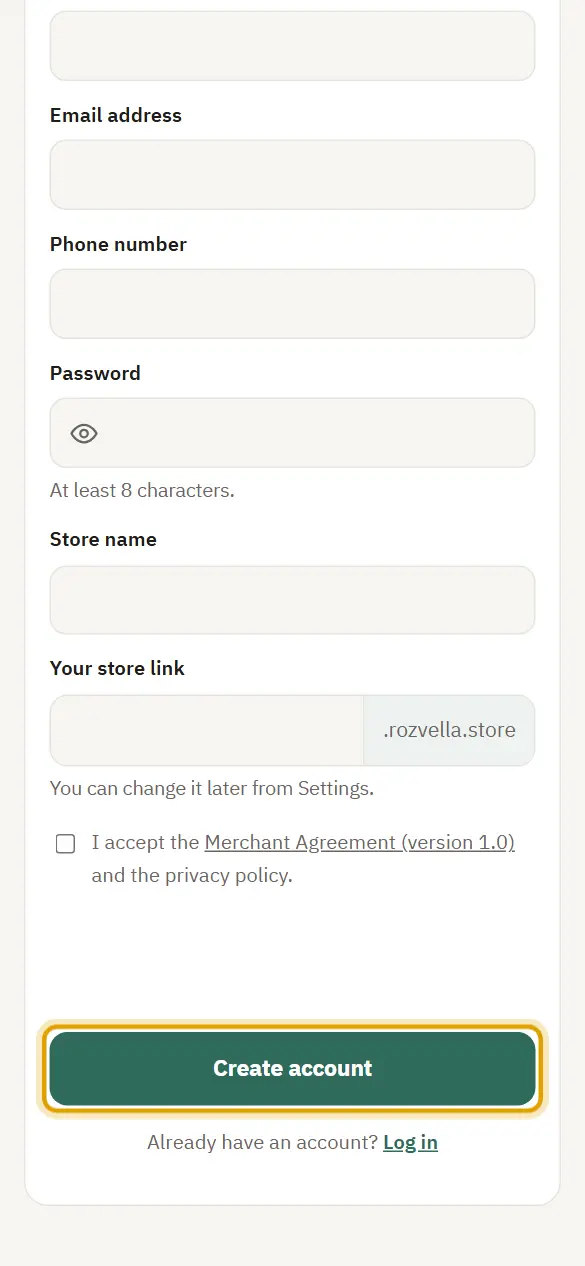
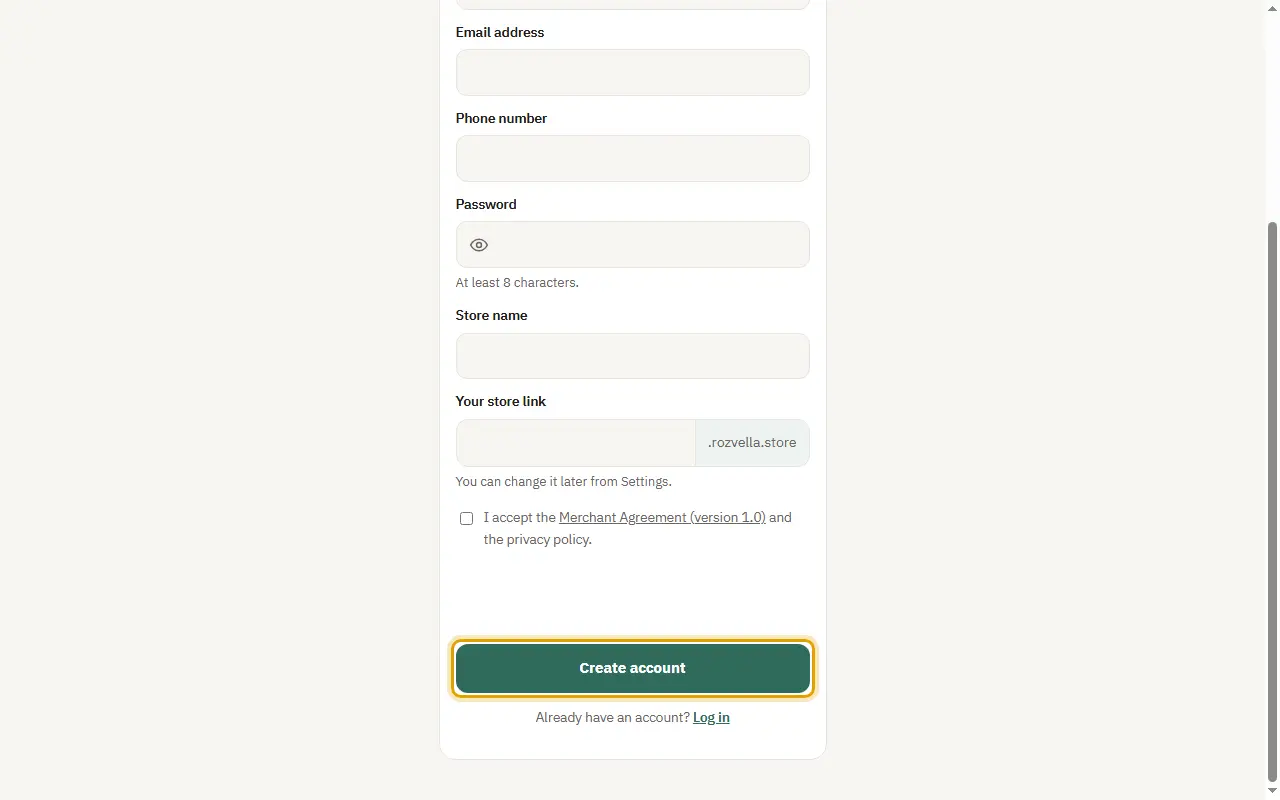
Tick your acceptance of the Merchant Agreement and the privacy policy (you can open the agreement to read it), then press “Create account”.
“We couldn't verify that you're not a robot”
Wait until the check above the button finishes, then press “Create account” again. If it repeats, refresh the page.
“Too many attempts”
Many accounts were created from the same network in a short time. Try again in an hour.
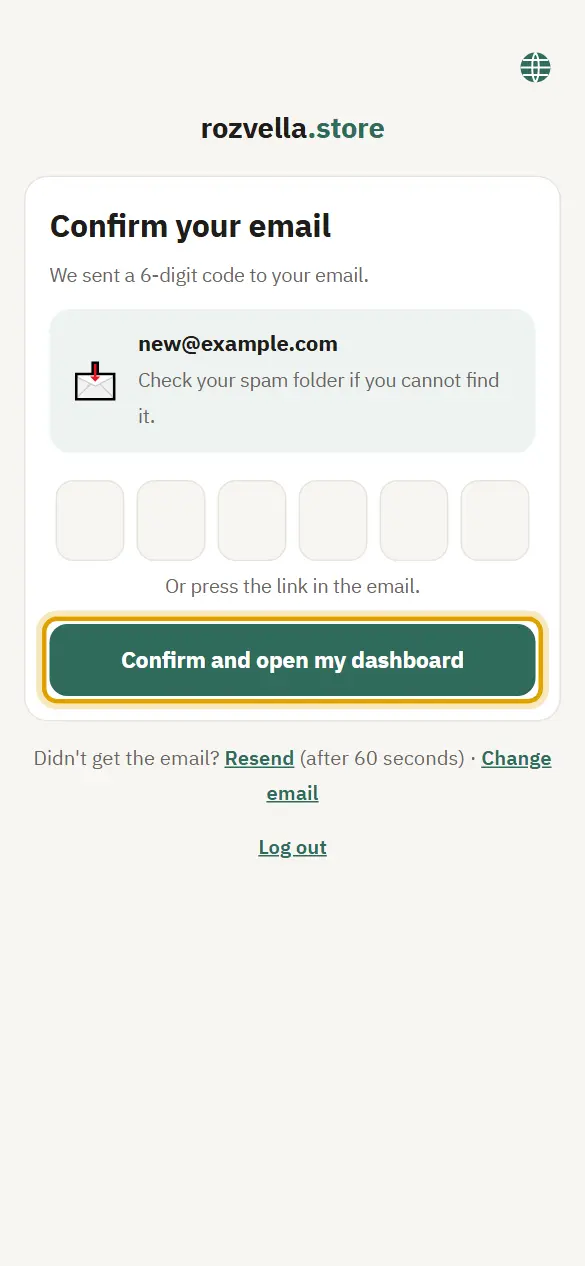
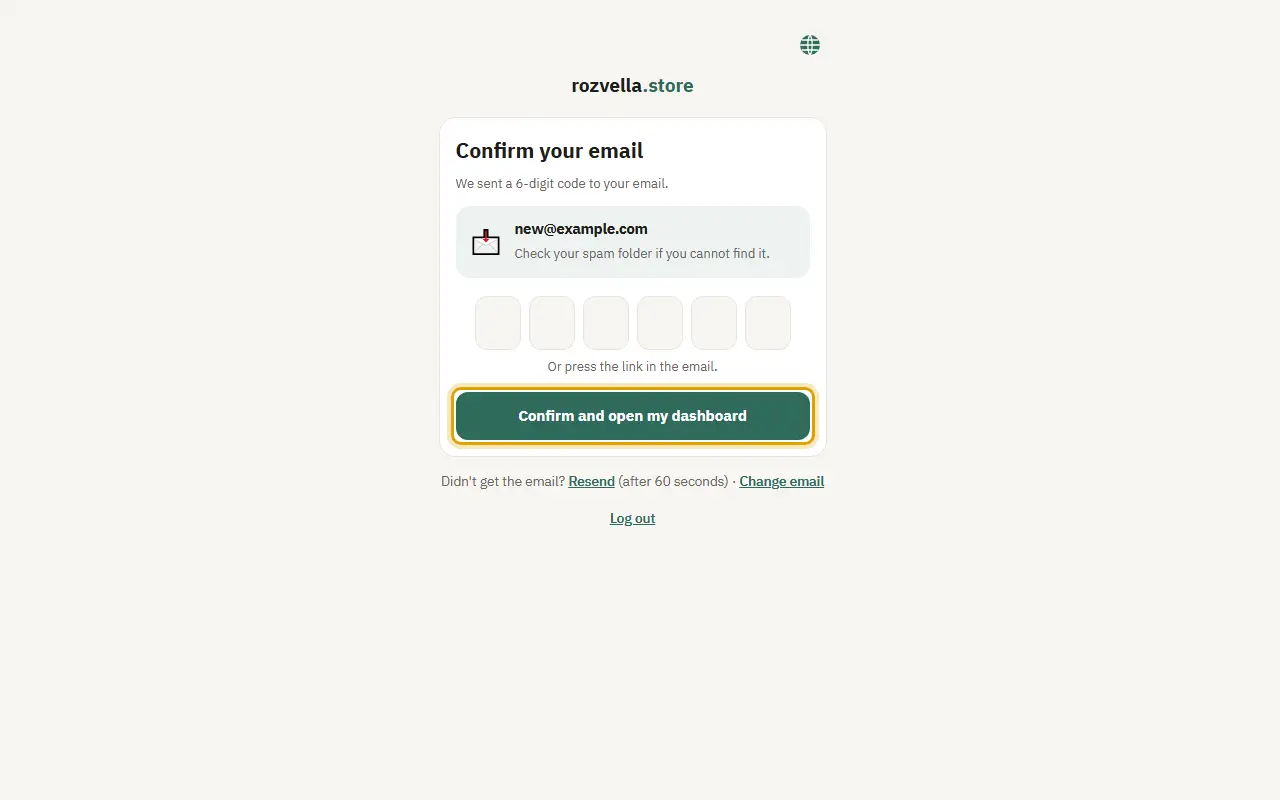
5Confirm your email
Where?Confirm and open my dashboard
Type the 6-digit code in the boxes, then press “Confirm and open my dashboard”. Or press the link in the email, then “Confirm” on the page that opens.
I didn't get the email
Check your spam folder. If it is not there, press “Resend” after 60 seconds.
I typed the wrong email
Press “Change email”, enter the right email, then “Save and send a new code”.
“Enter the 6-digit code”
Type the six digits as in the email, or paste the whole code into the first box.