rozvella.storeCreate your store

Dashboard tour

The dashboard is where you run your store: products, orders, payment, shipping and settings.

6 steps · Last updated: 17 November 2026

In this article (6)
  1. The side menu
  2. The menu on a phone
  3. “Set up your store” on the home page
  4. The red numbers
  5. “Preview store”
  6. Changing the language

1The side menu

Where?

(On the side of the page on a computer)

On a computer the menu is always on the side of the page: “Home”, “Products”, “Store sections”, “Orders”, “Payment and shipping”, “Settings” and more. Press any item to go to it. “Help” at the end of the menu opens the Merchant Guide in a new tab.
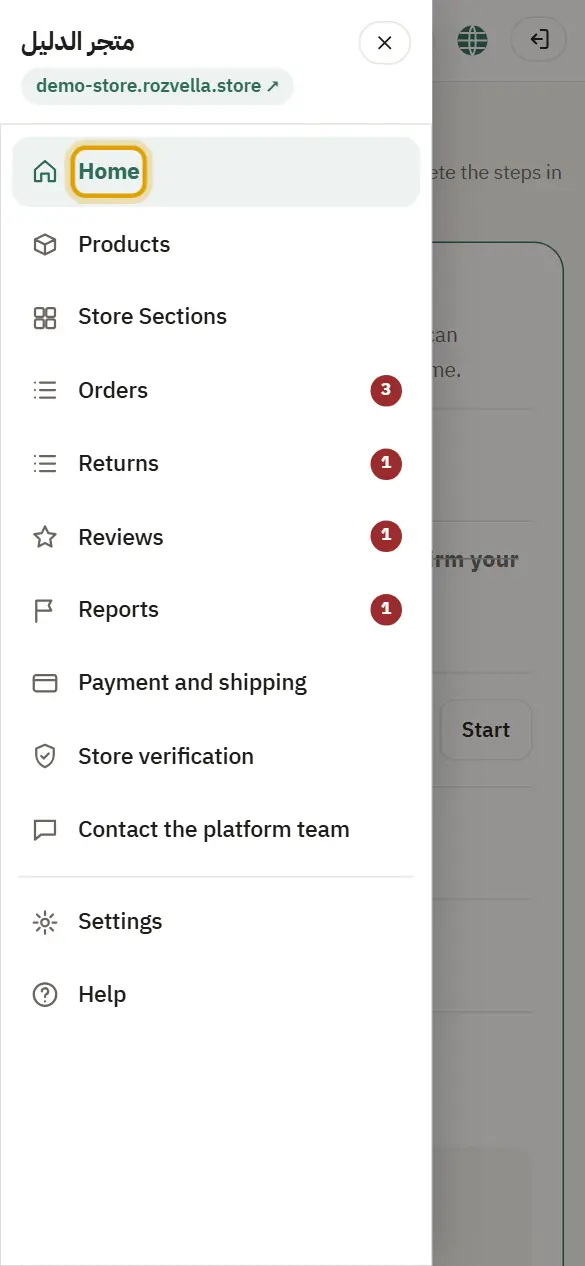
Picture from a demo dashboard
The side menu — Dashboard tourThe side menu — Dashboard tourThe side menu — Dashboard tour
What happens?The page you chose opens, and the current item is highlighted.
Common problems and fixes
I can't find “Returns” or “Reviews”

These items appear once the feature is available for your store.

2The menu on a phone

Where?

☰ (At the top, next to your store name)

On a phone, press ☰ to open the menu, then choose a page.
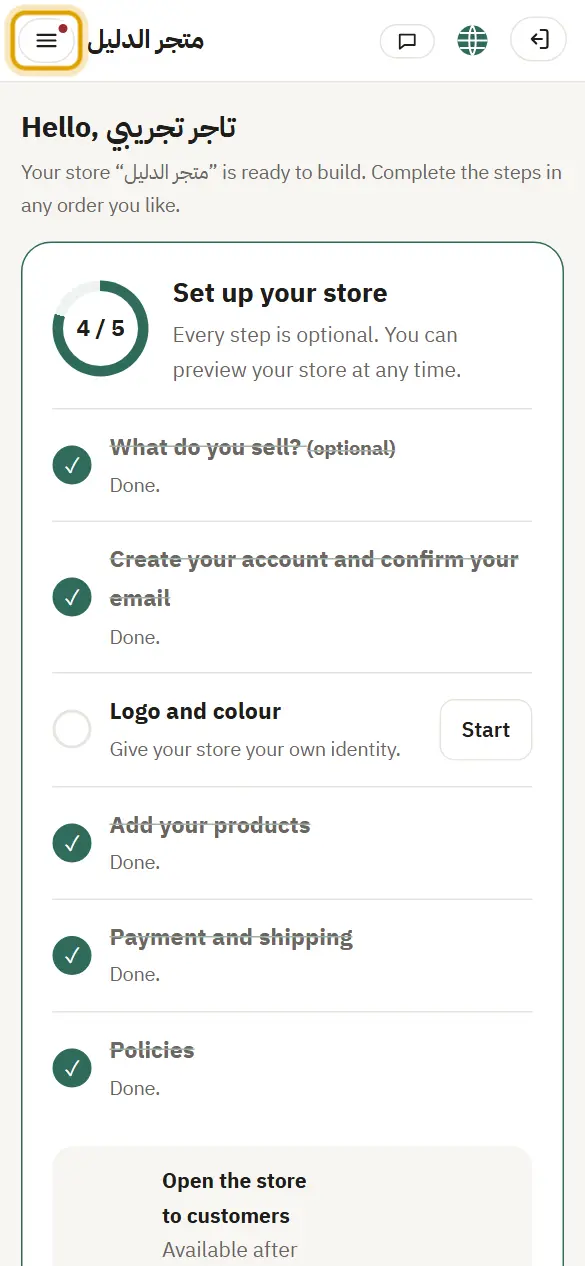
The menu on a phone — Dashboard tour
What happens?The menu opens from the right (from the left in English) with the same items and numbers, and closes with ✕, by pressing outside it, or when you choose a page.
Common problems and fixes
A red dot on ☰

You have something new in one of the items. Open the menu to see the number next to it.

I can't find ☰ on a computer

On a computer the menu is always shown, so you don't need the button.

3“Set up your store” on the home page

Where?

HomeSet up your store

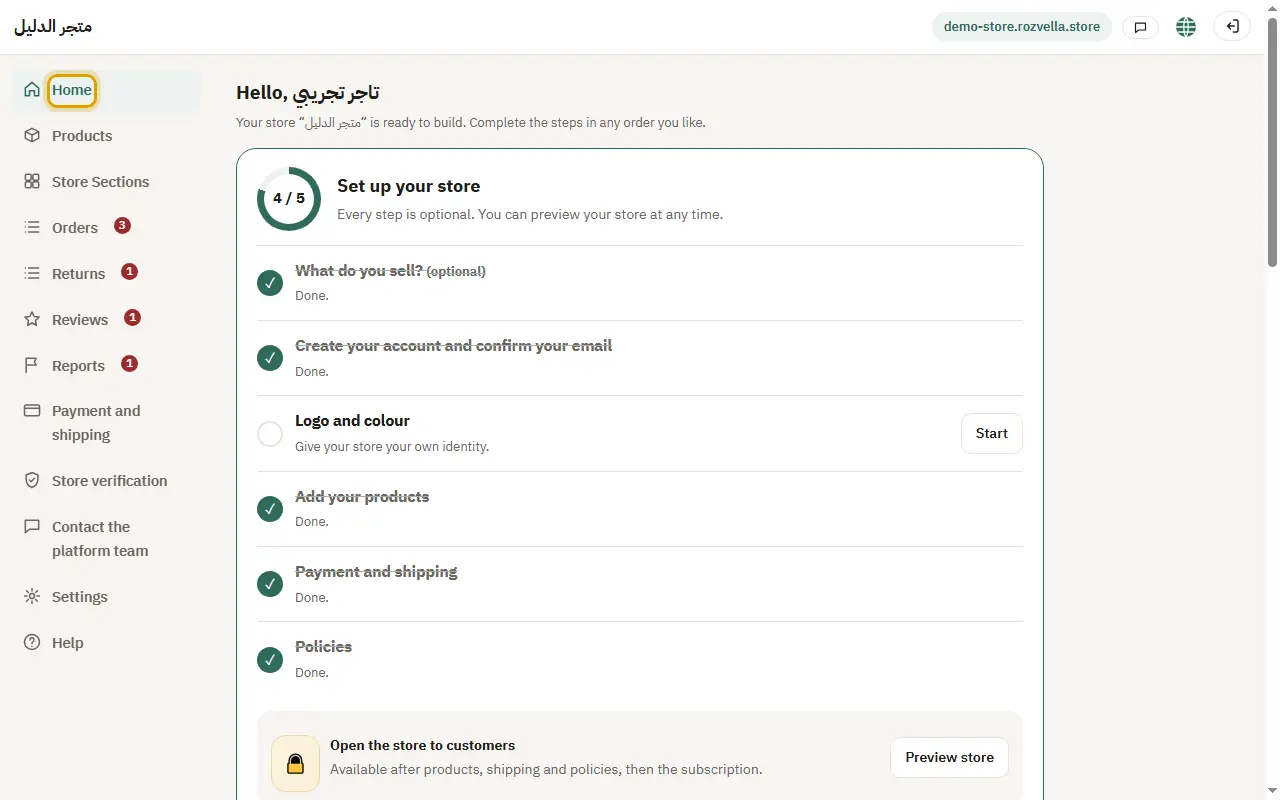
On the dashboard home you find “Set up your store” with its steps: logo and colour, products, payment and shipping, and policies. Press any step's button to go to it.
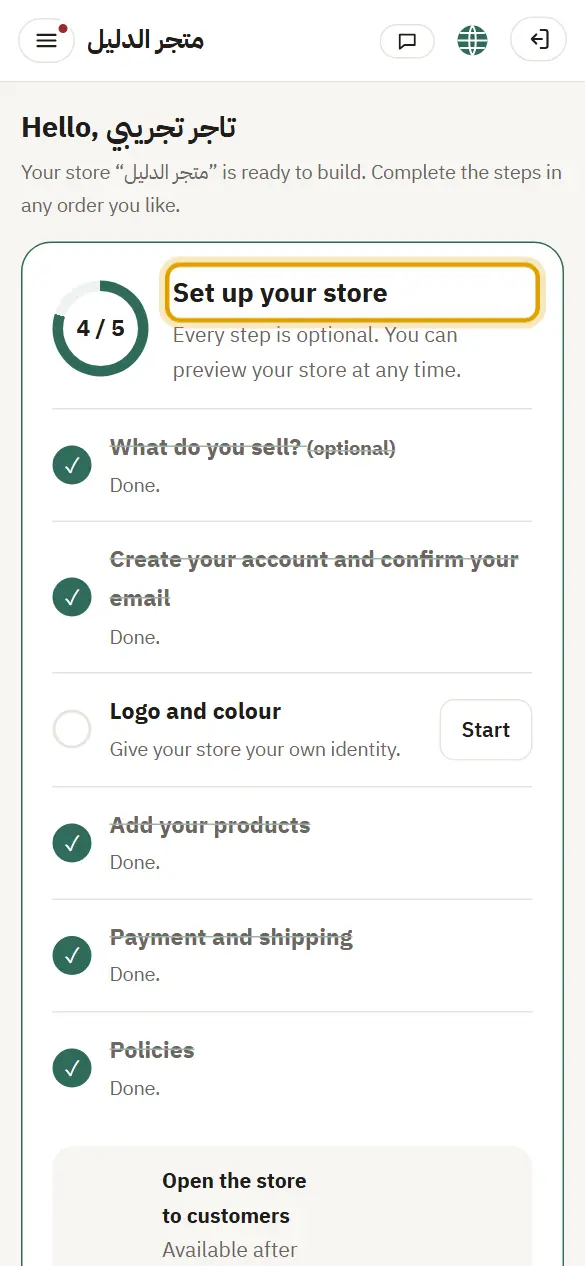
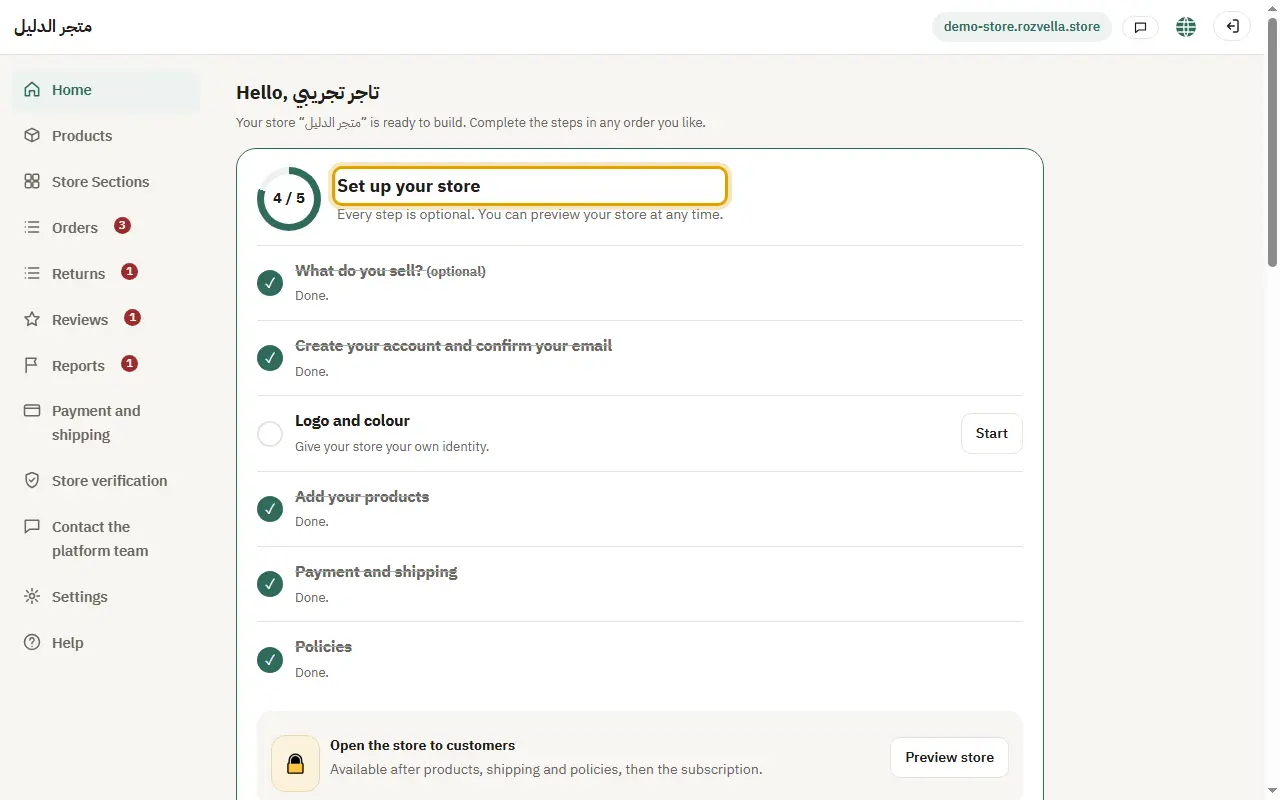
Picture from a demo dashboard
“Set up your store” on the home page — Dashboard tour“Set up your store” on the home page — Dashboard tour“Set up your store” on the home page — Dashboard tour
What happens?Each step is ticked ✓ by itself when you finish it, and the number you have finished is shown.

4The red numbers

A red number next to a menu item means there is something new: new orders, returns, reviews, reports, or a reply from the platform team.
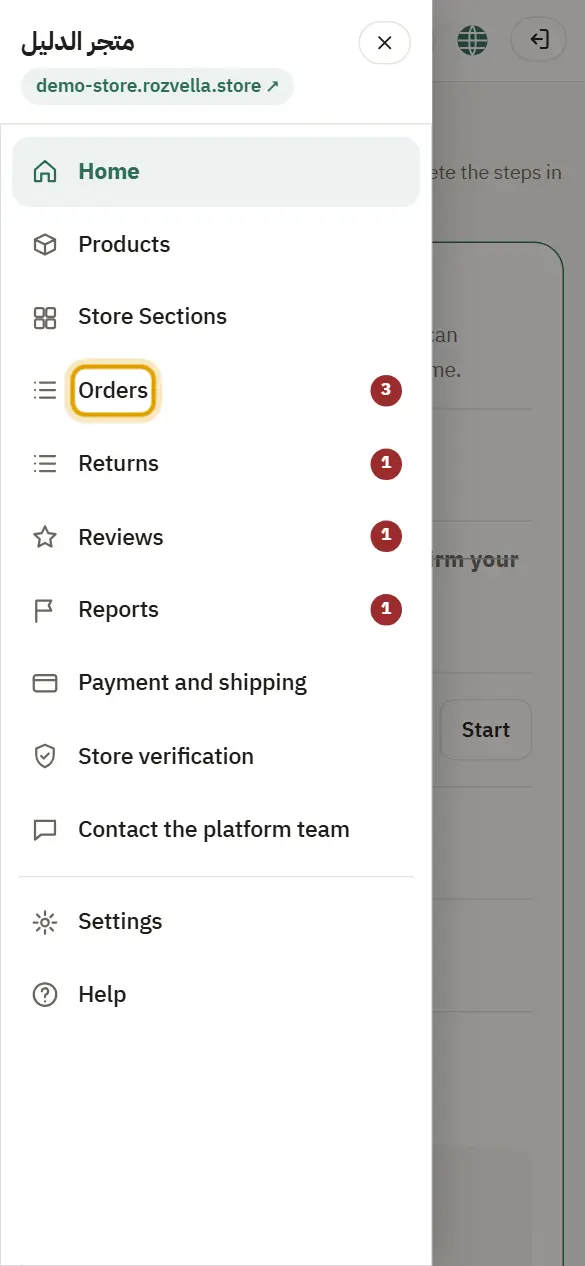
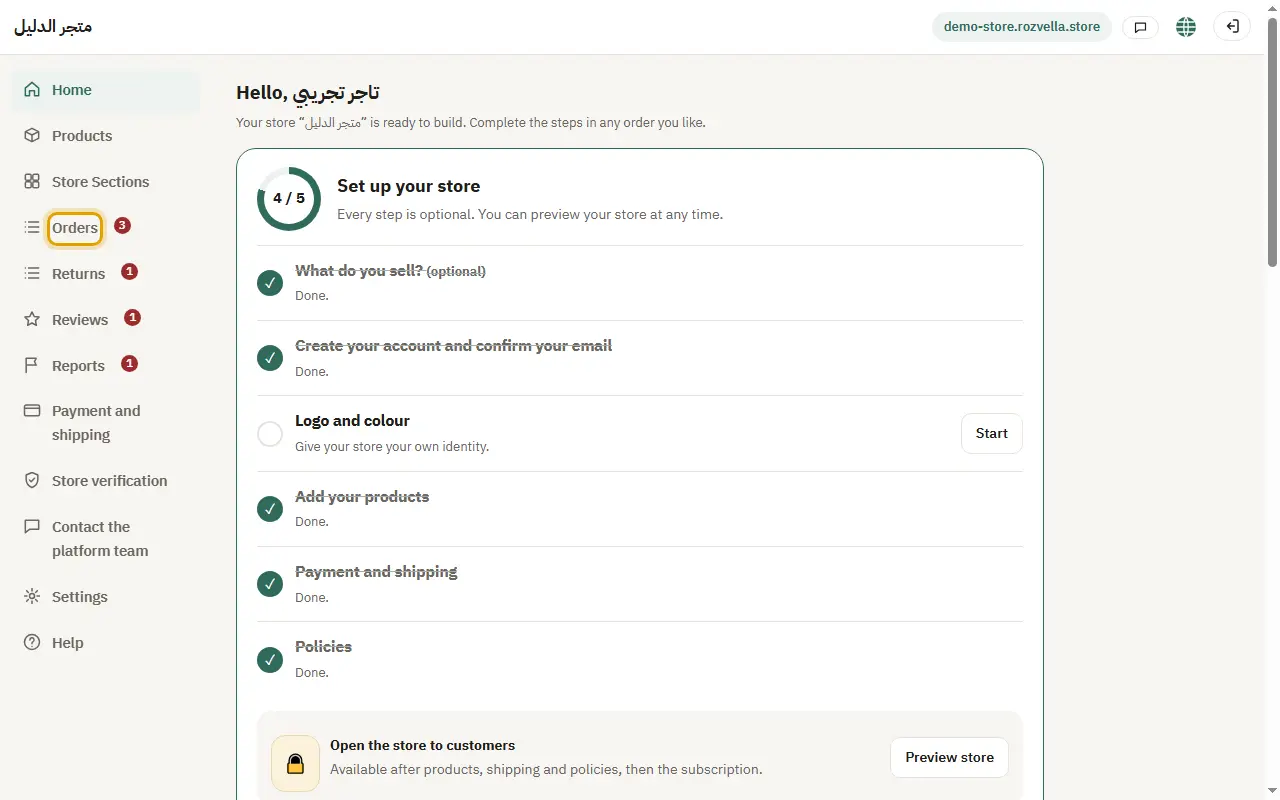
Picture from a demo dashboard
The red numbers — Dashboard tourThe red numbers — Dashboard tourThe red numbers — Dashboard tour
What happens?The number disappears after you open the page and deal with what is new.

5“Preview store”

Where?

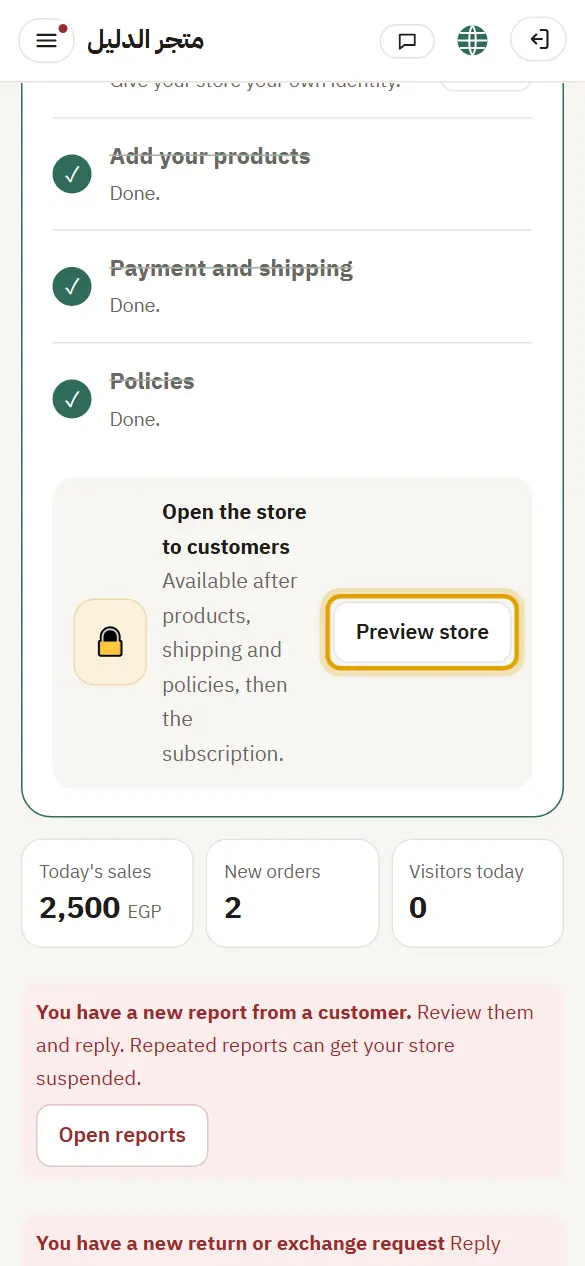
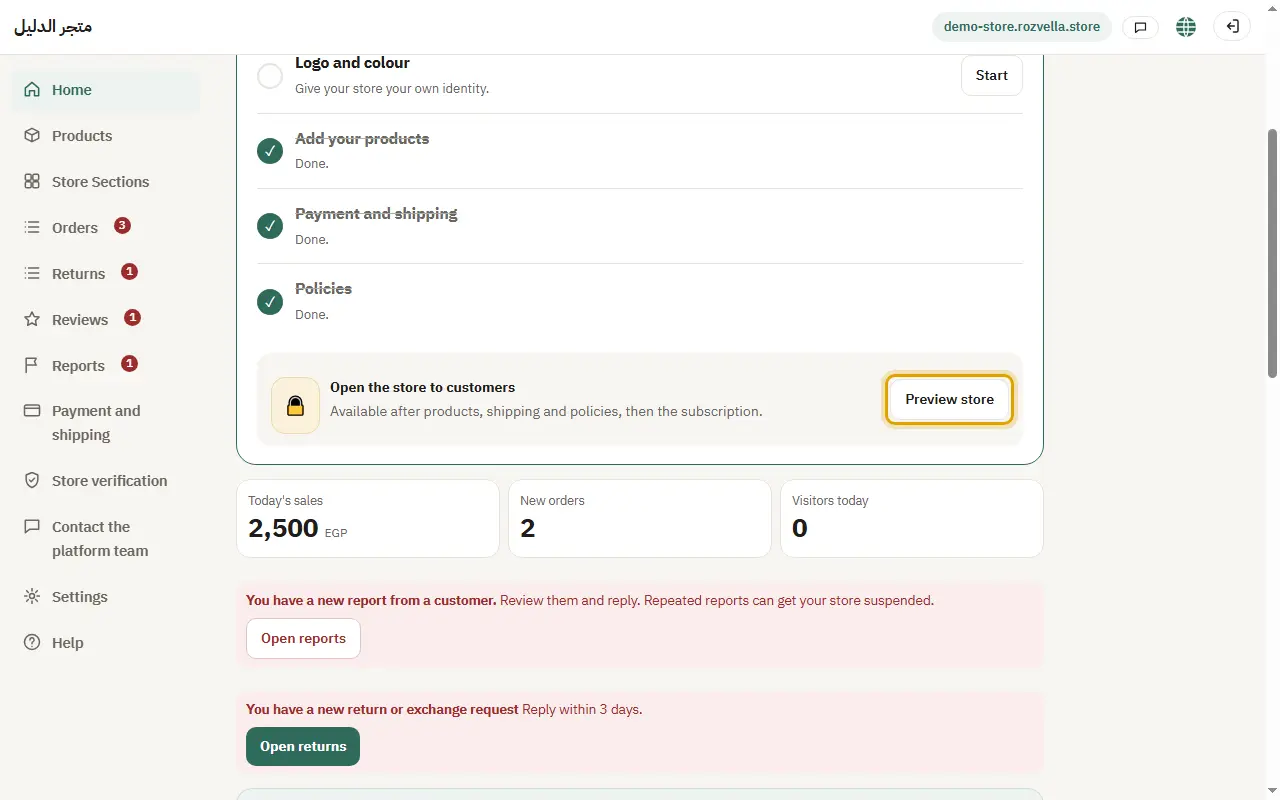
Preview store

Press your store link at the top of the dashboard, or “Preview store” on the home page, to see your store the way customers will.
Picture from a demo dashboard
“Preview store” — Dashboard tour“Preview store” — Dashboard tour“Preview store” — Dashboard tour
What happens?Your store opens in a new tab with a “Preview” bar at the top. Details are in the article “Preview your store before opening it”.

6Changing the language

Where?

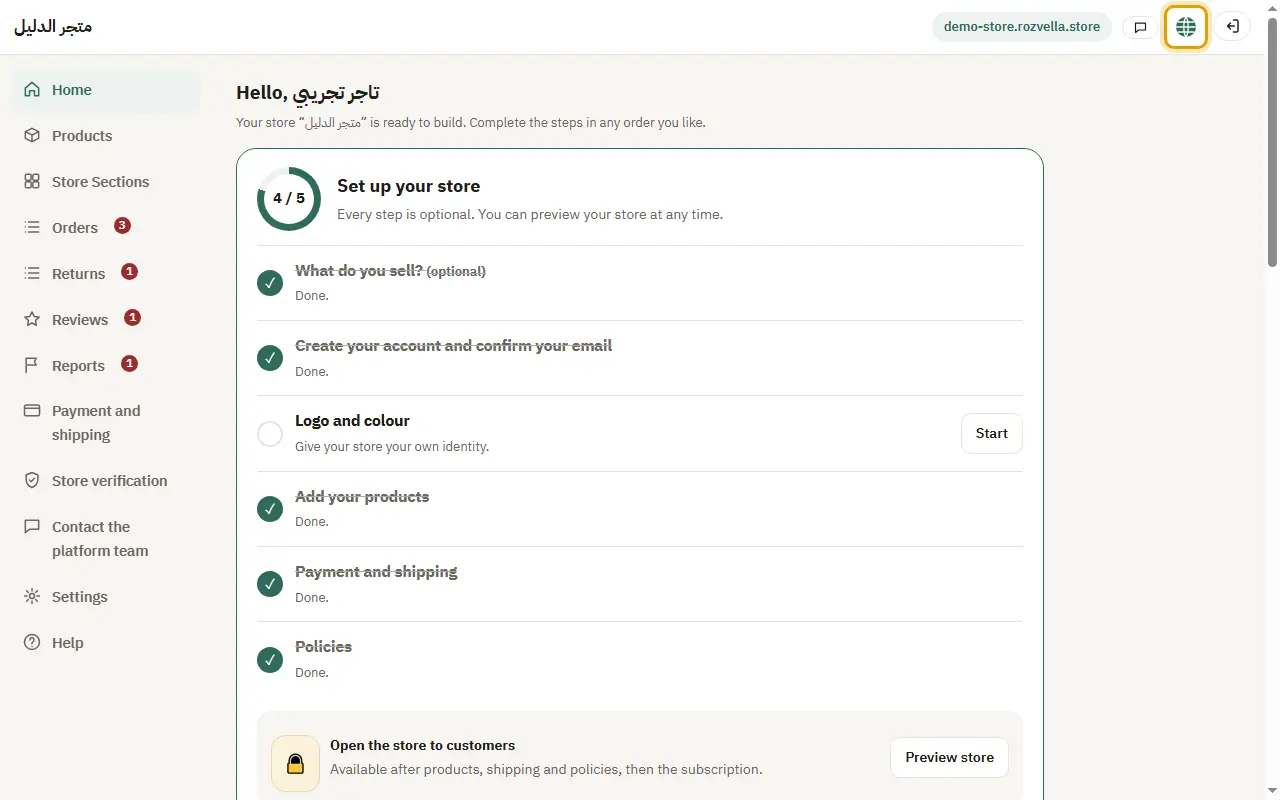
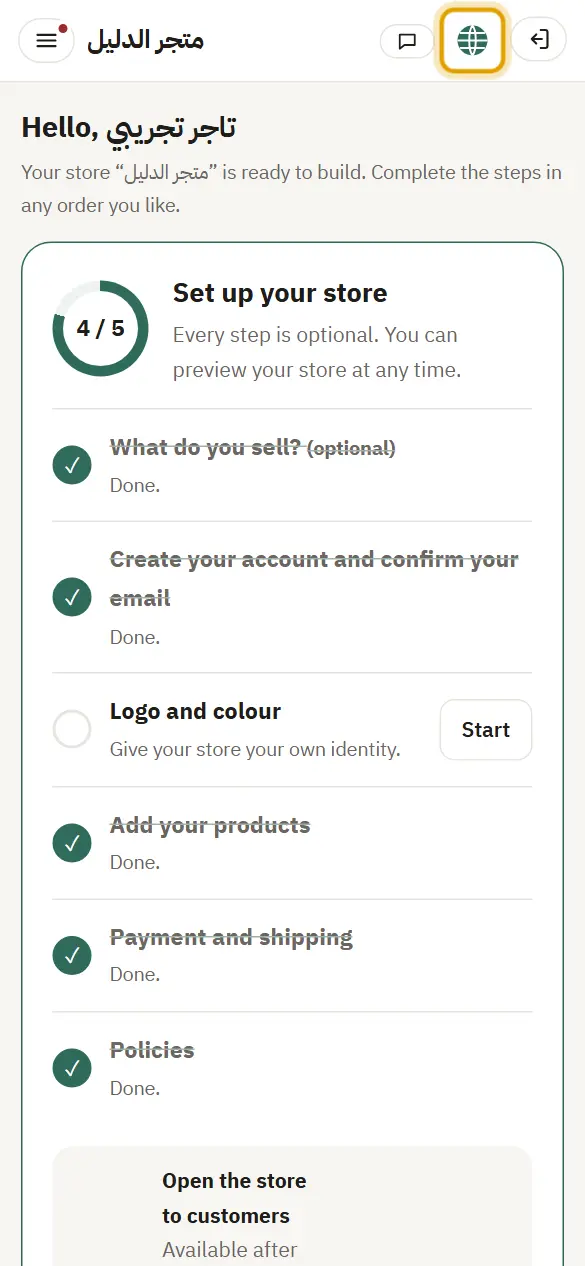
🌐 (At the top of the page)

Press 🌐 to switch the dashboard to English or Arabic.
Picture from a demo dashboard
Changing the language — Dashboard tourChanging the language — Dashboard tourChanging the language — Dashboard tour
What happens?The dashboard language changes right away, is saved to your account, and your emails come in the same language.