rozvella.storeCreate your store

Card payments (Paymob and Tap)

Card payments go through your own account at the payment gateway: Paymob for stores in Egypt, and Tap for Saudi Arabia, the UAE, Kuwait, Qatar, Bahrain and Oman. The platform takes no percentage.

6 steps · Last updated: 17 November 2026

In this article (6)
  1. What do you need first?
  2. Connect your account
  3. Methods shown to your customers
  4. When does an order become “Paid”?
  5. Refunds
  6. Changing the details or disconnecting

1What do you need first?

Where?

Payment and shippingCard payments

A verified store with prepayment open, and an account at the gateway in your name or your business name.
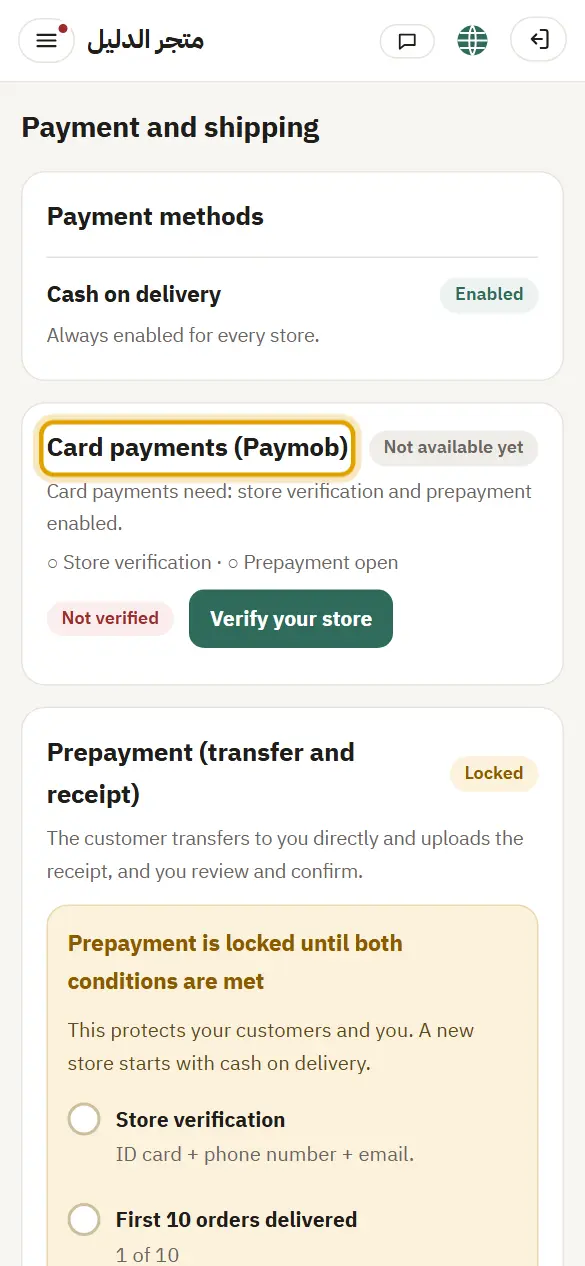
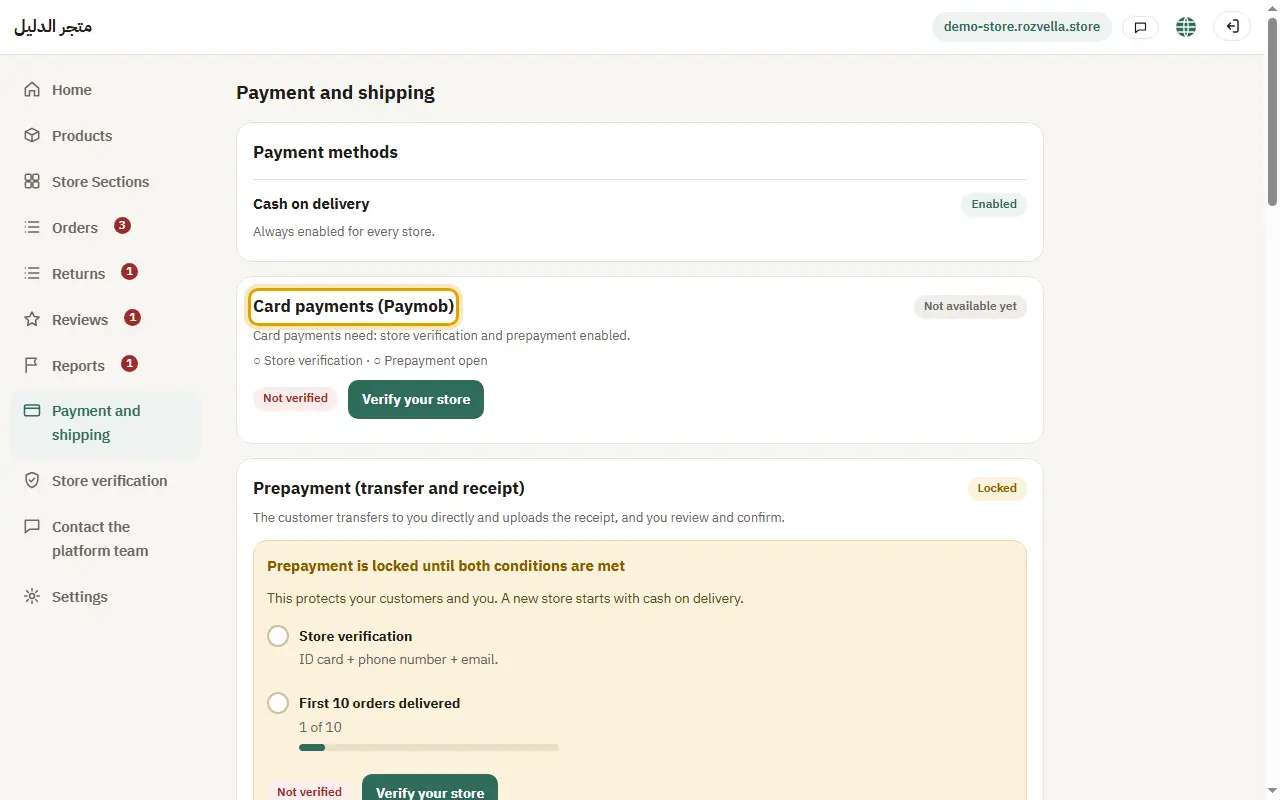
Picture from a demo dashboard
What do you need first? — Card payments (Paymob and Tap)What do you need first? — Card payments (Paymob and Tap)What do you need first? — Card payments (Paymob and Tap)
What happens?Until then the card shows “Not available yet” with what is missing.

2Connect your account

Where?

Payment and shippingCard paymentsSave and test the connection

For Tap enter the secret key; for Paymob enter the Secret Key, Public Key, API key, HMAC key and the card Integration ID. You'll find how under “How do I get the keys?” or “How do I get these details?”. Tick the declaration, enter your password and press “Save and test the connection”.
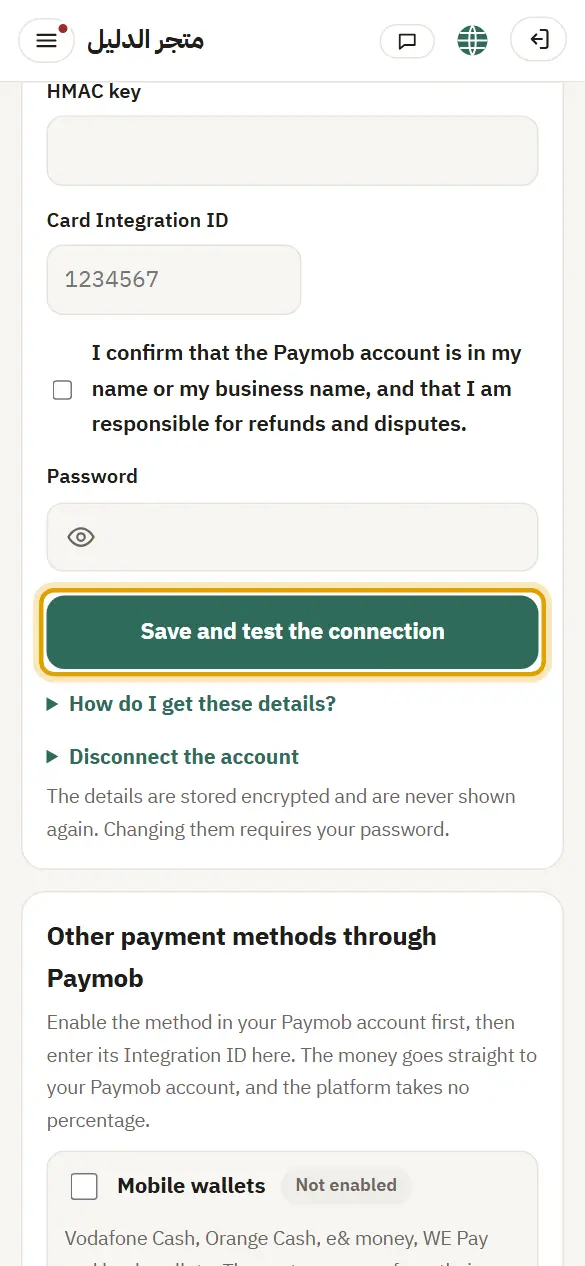
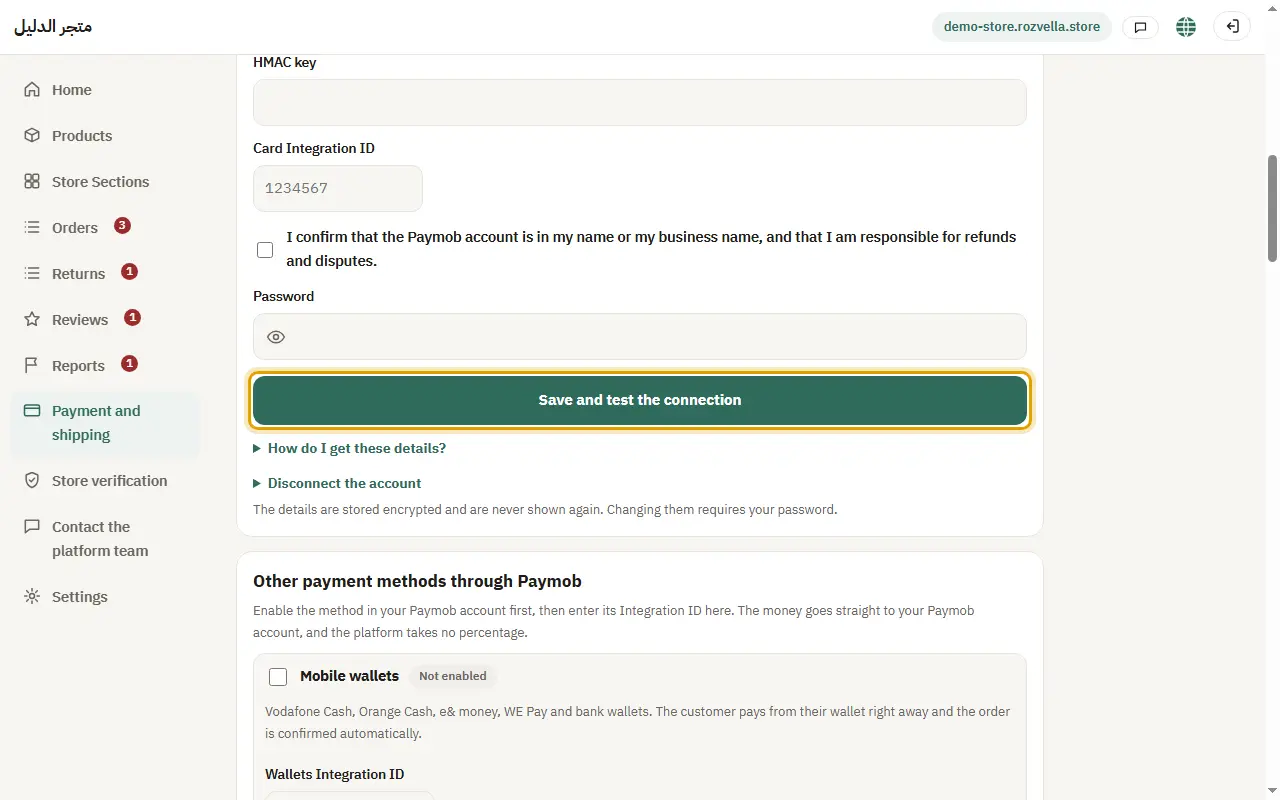
Picture from a demo dashboard
Connect your account — Card payments (Paymob and Tap)Connect your account — Card payments (Paymob and Tap)Connect your account — Card payments (Paymob and Tap)
What happens?We test the connection to your account before saving; the details are stored encrypted and never shown again (only the last 4 characters).
Common problems and fixes
The key is rejected

Make sure you copied the full key from the same account, and that it is the live key, not a test key.

3Methods shown to your customers

Where?

Payment and shippingMethods enabled in your accountSave methods

Choose the methods actually enabled in your gateway account (such as Visa, Mastercard, mada and Apple Pay), then press “Save methods”.
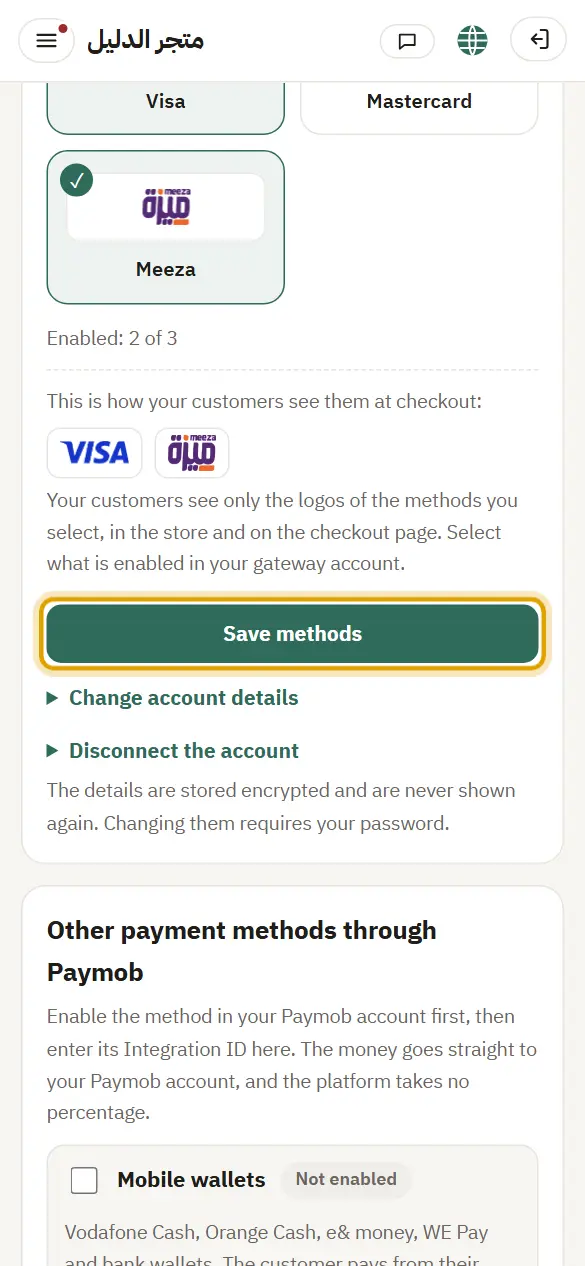
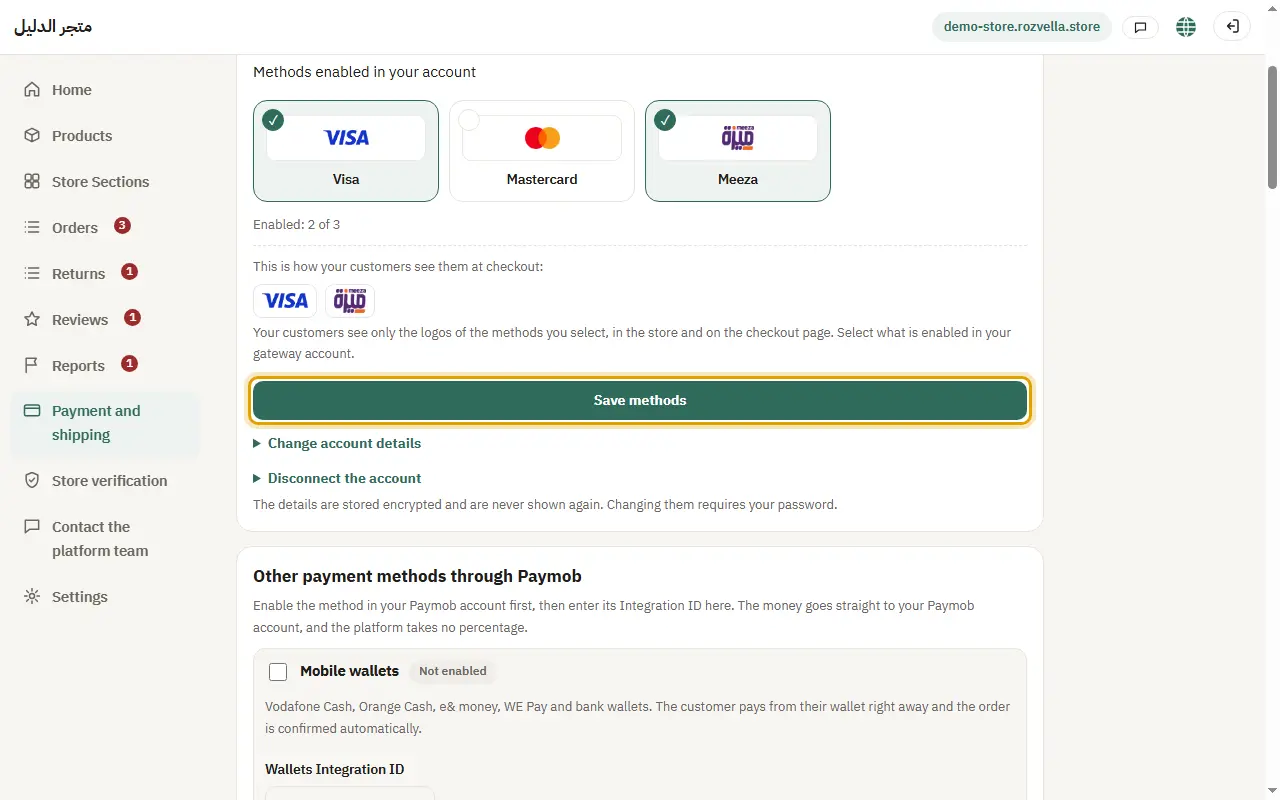
Picture from a demo dashboard
Methods shown to your customers — Card payments (Paymob and Tap)Methods shown to your customers — Card payments (Paymob and Tap)Methods shown to your customers — Card payments (Paymob and Tap)
What happens?Only these methods' logos appear in your store and at checkout.

4When does an order become “Paid”?

The customer chooses “Card” and completes the payment on the gateway page.

What happens?The order becomes “Paid” after we verify the payment with the gateway itself, not just because the customer came back to the store.

5Refunds

Where?

OrdersFull refund

On the order page choose “Full refund” or “Partial refund”, enter your password, then “Refund the amount”.
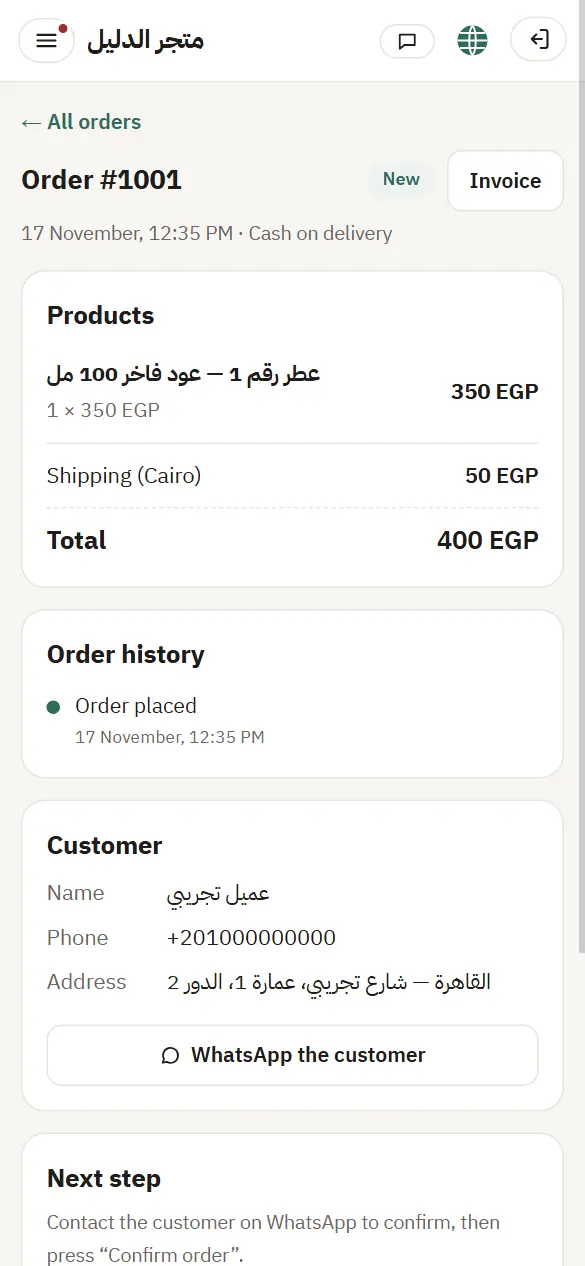
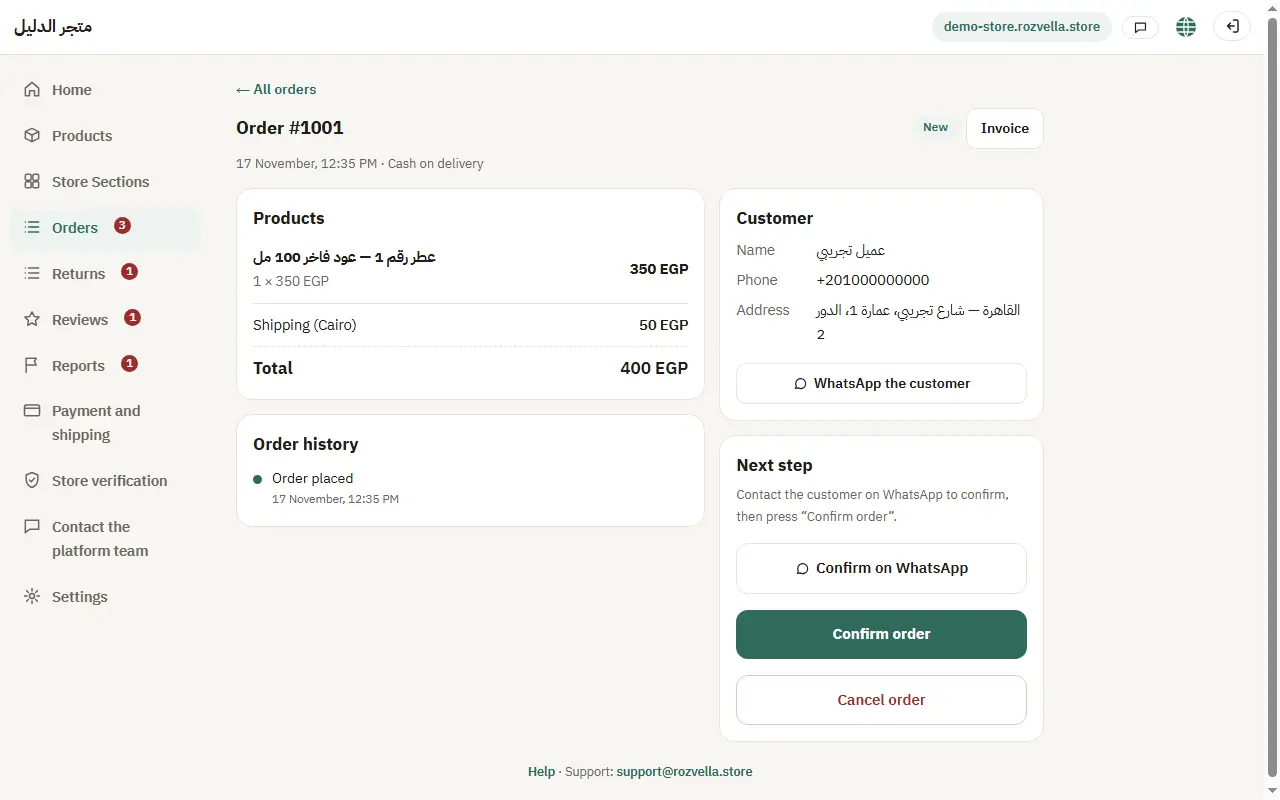
Picture from a demo dashboard
Refunds — Card payments (Paymob and Tap)Refunds — Card payments (Paymob and Tap)Refunds — Card payments (Paymob and Tap)
What happens?The money returns through the gateway to the customer's card, and appears in the “Transaction log” once the gateway confirms it.

6Changing the details or disconnecting

Where?

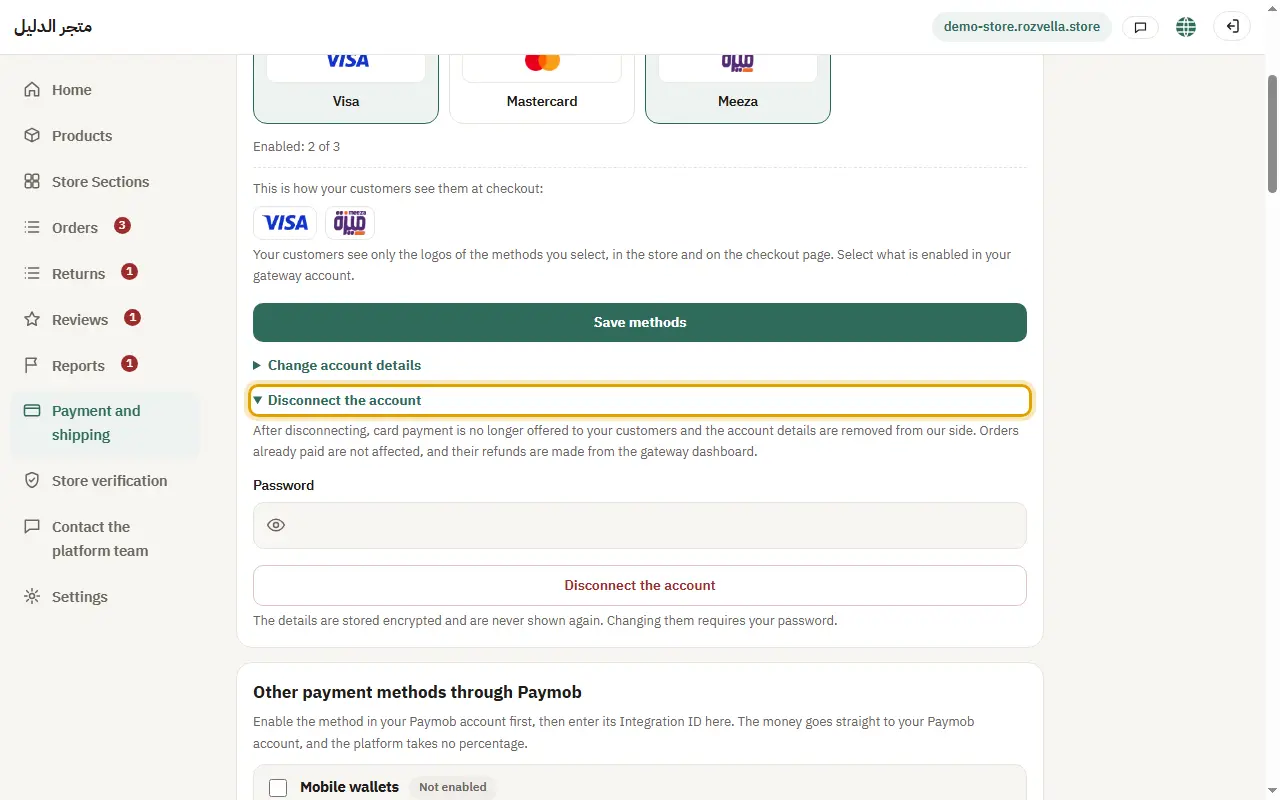
Payment and shippingChange account detailsDisconnect the account

Use “Change account details” or “Disconnect the account”; both need your password.
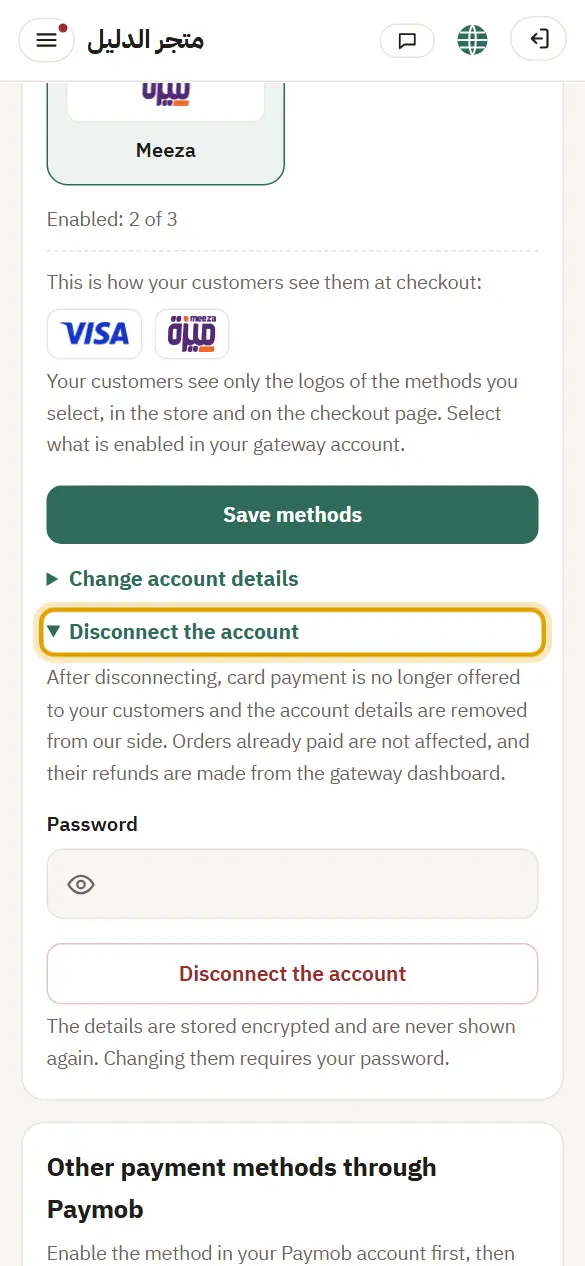
Picture from a demo dashboard
Changing the details or disconnecting — Card payments (Paymob and Tap)Changing the details or disconnecting — Card payments (Paymob and Tap)Changing the details or disconnecting — Card payments (Paymob and Tap)
What happens?After disconnecting, the card no longer shows to customers, and orders already paid are not affected.