Showing up on Google
Every page has a title and description, a sitemap that updates by itself, and product data in the format Google understands. The steps below are optional.
In this article (4)
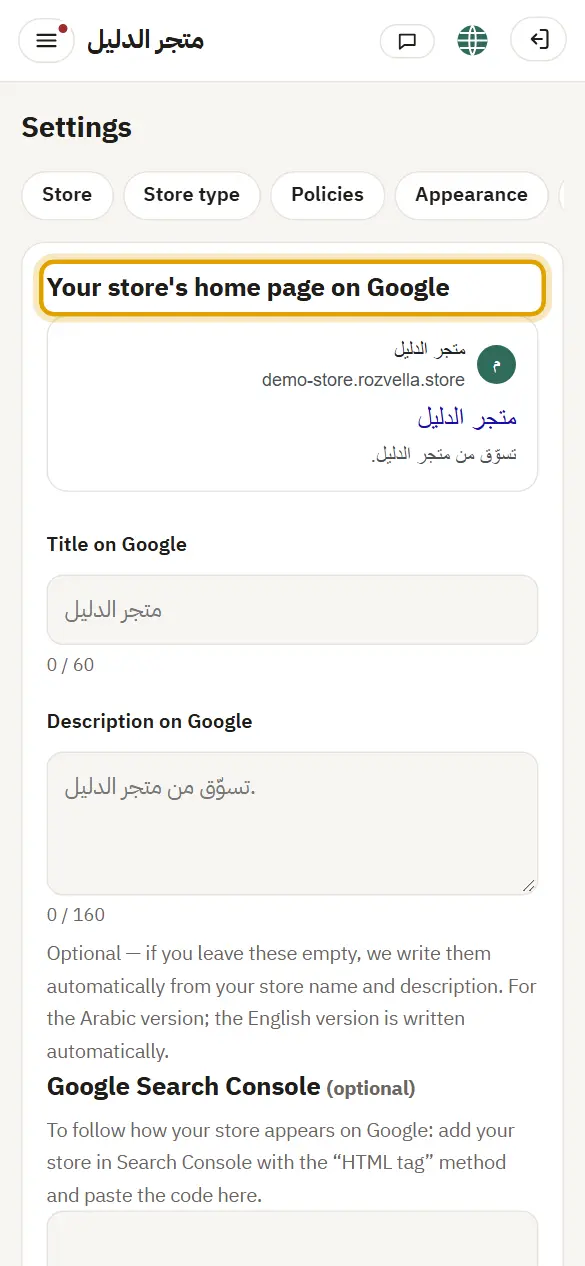
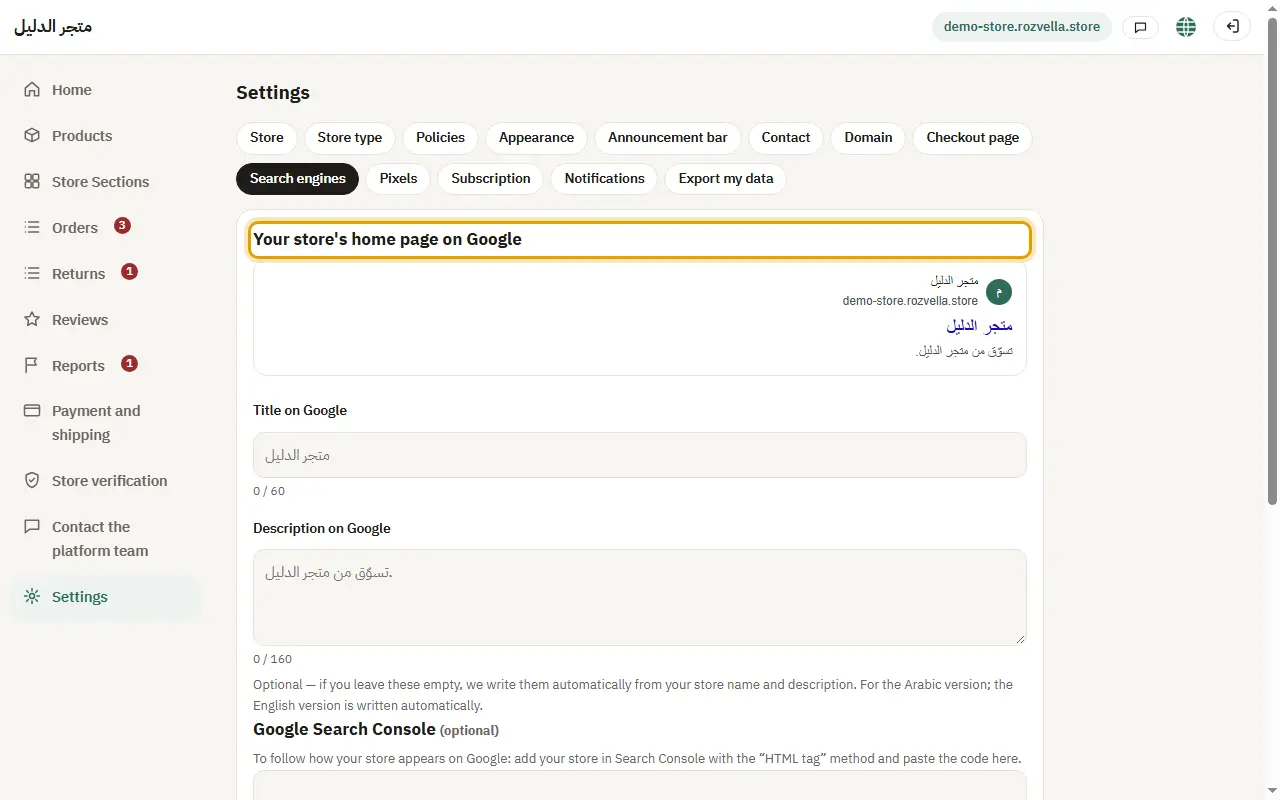
1Your store's title and description
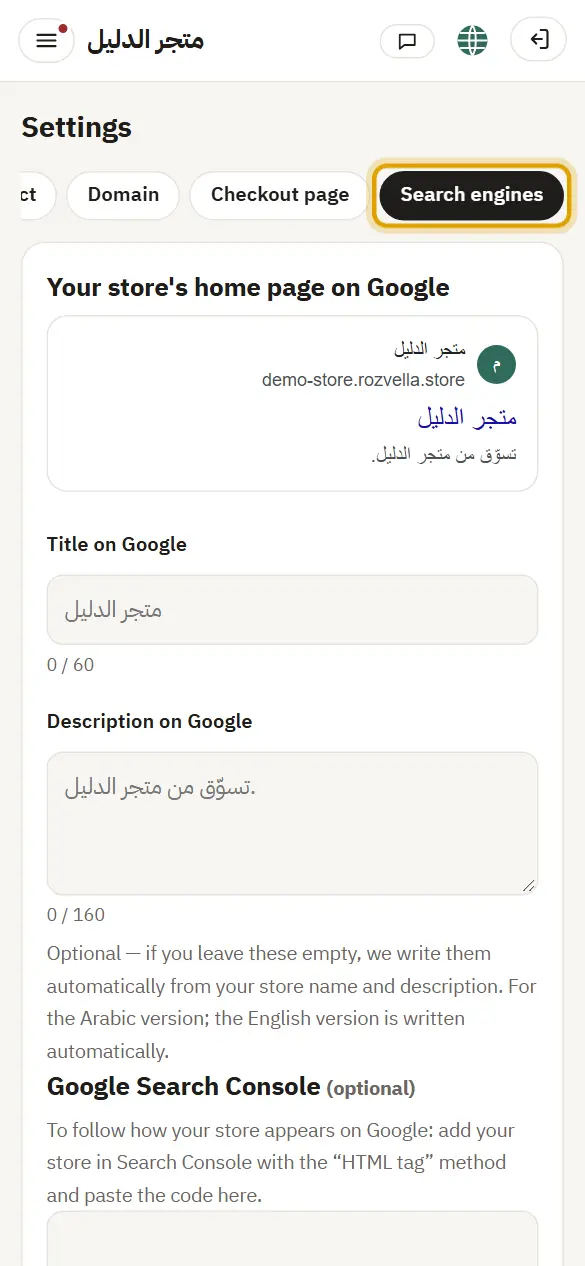
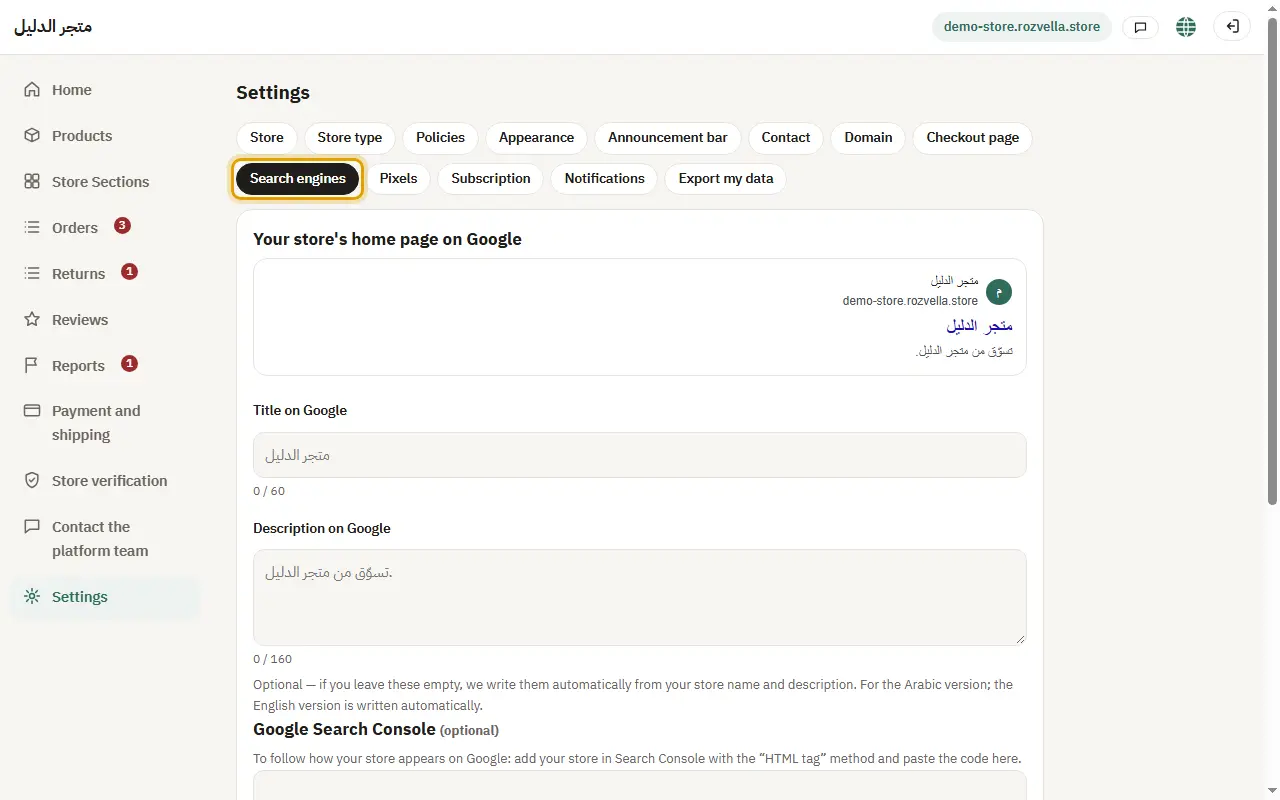
Where?Settings›Search engines›Your store's home page on Google
Write the title and description as you want them in Google results, or leave them empty for automatic text, then “Save”.
2Each product's title and description
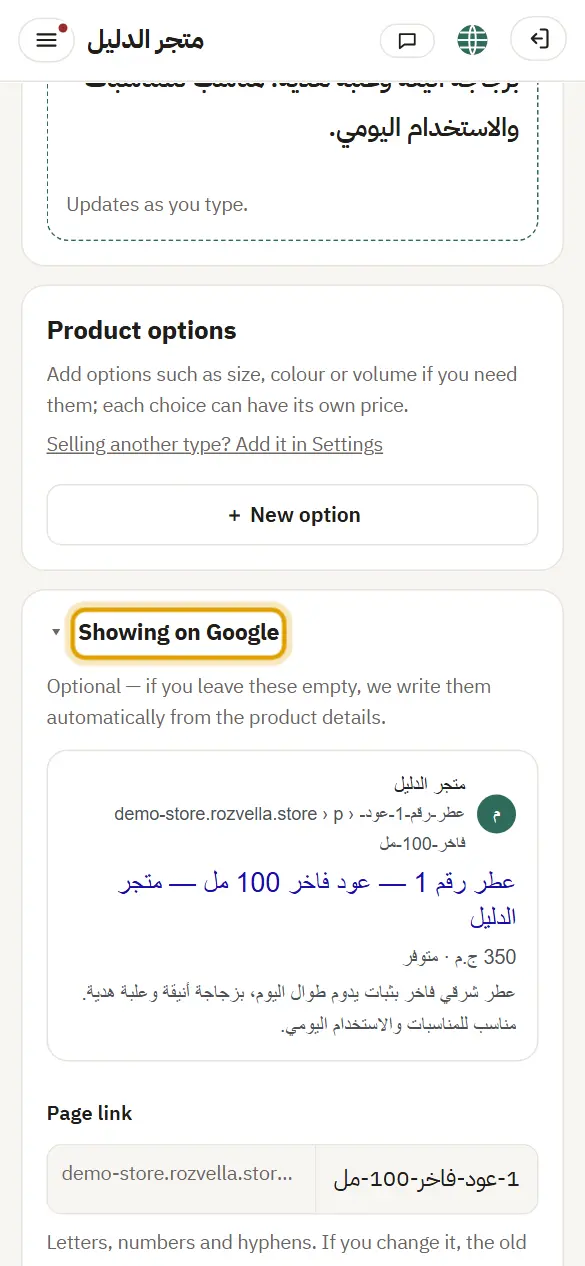
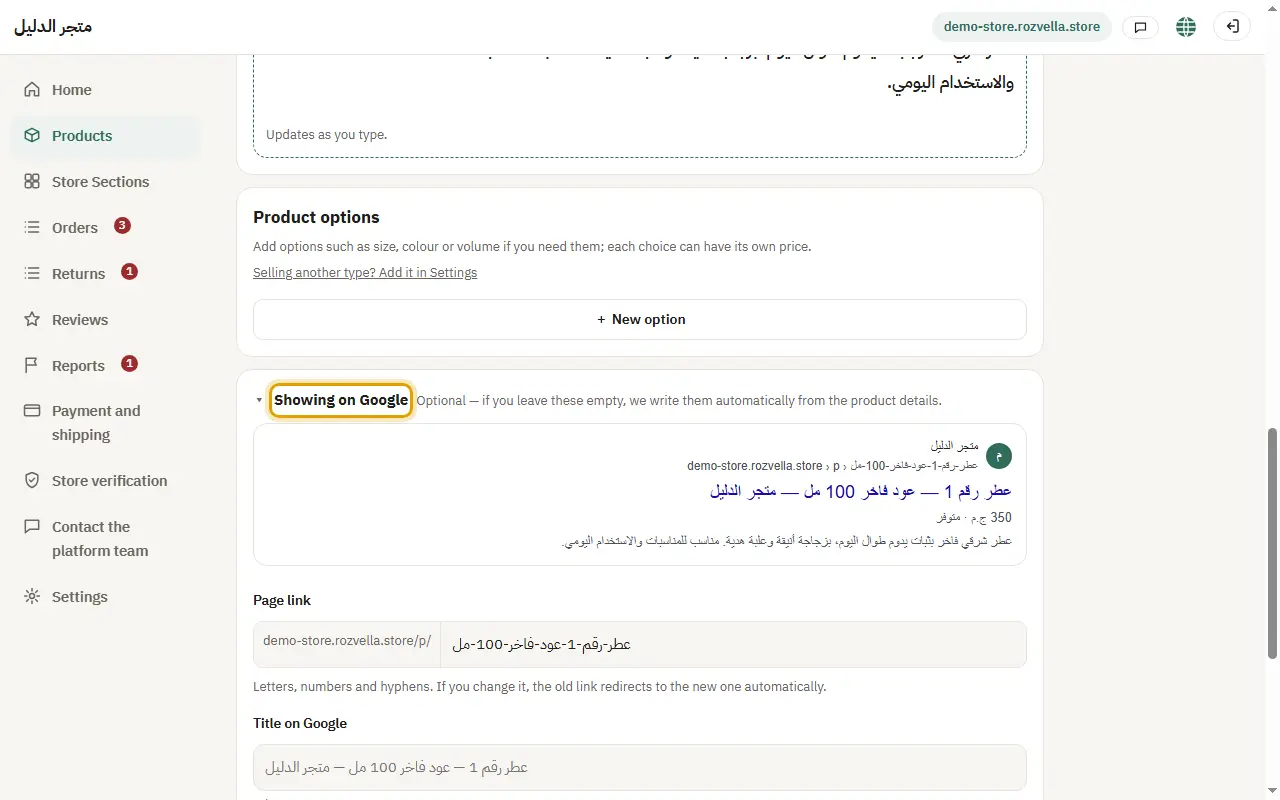
Where?Products›Showing on Google
At the bottom of the product form open “Showing on Google” to change the page link, title and description.
3Google Search Console
Where?Settings›Search engines
In Search Console add your store with the “HTML tag” method, copy the code, paste it in the Google Search Console field and press “Save”. Then press “Verify” in Search Console, and submit the sitemap.xml.
“The Search Console code is not valid”
Paste the code or the whole tag exactly as it appears in Search Console.
4Google Merchant Center
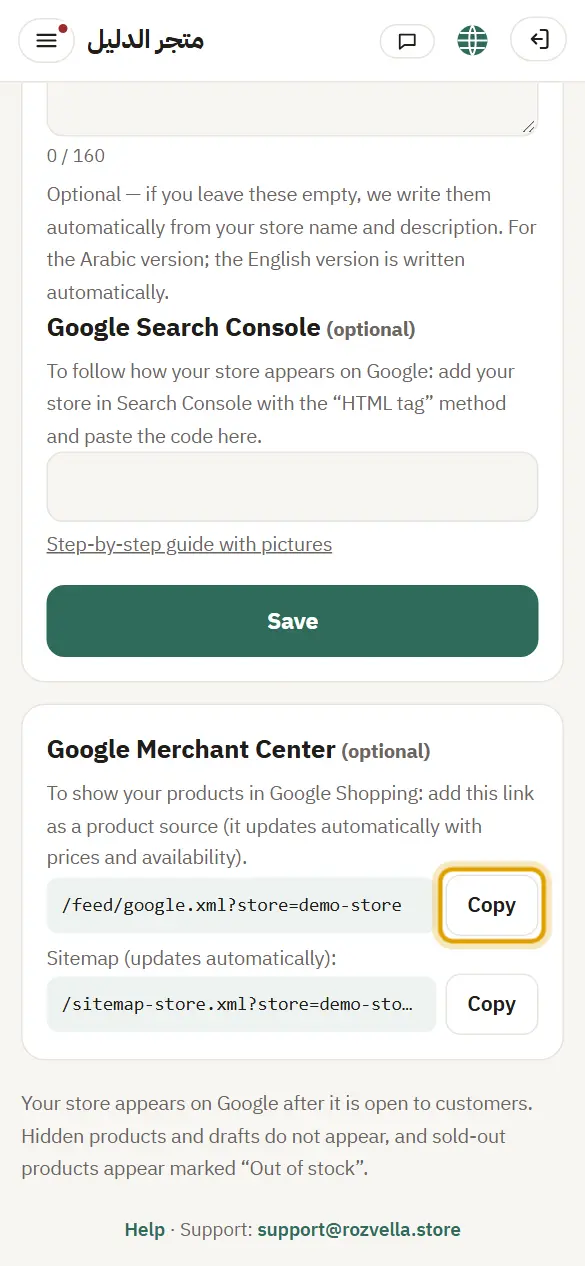
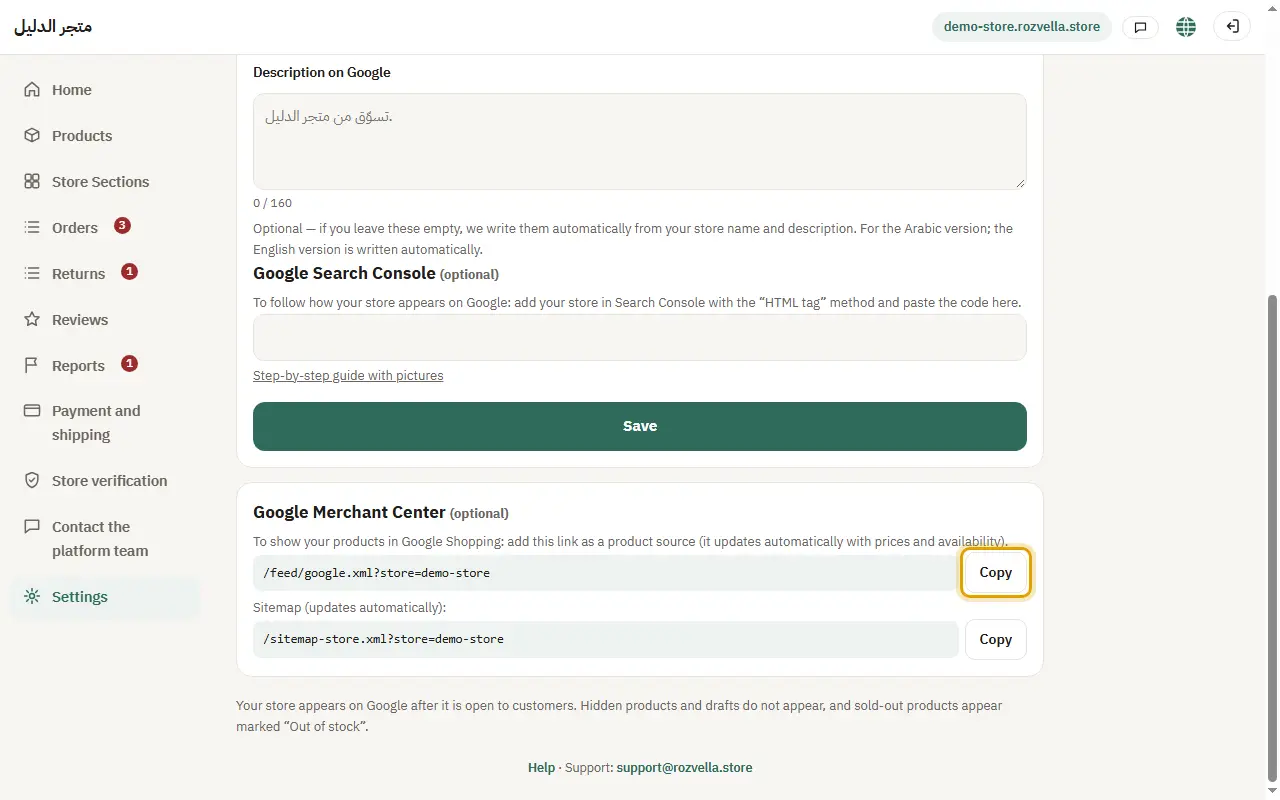
Where?Settings›Search engines›Copy
Copy the product file link from the Google Merchant Center card, and add it in Merchant Center as a product source using “File link”.
Your store appears on Google after it opens to customers, which can take days to weeks.