Logo, colours and your store's look
Your store's look is under “Settings ← Look” and “Announcement bar”, and changes show in your store right away.
In this article (5)
1Store colour
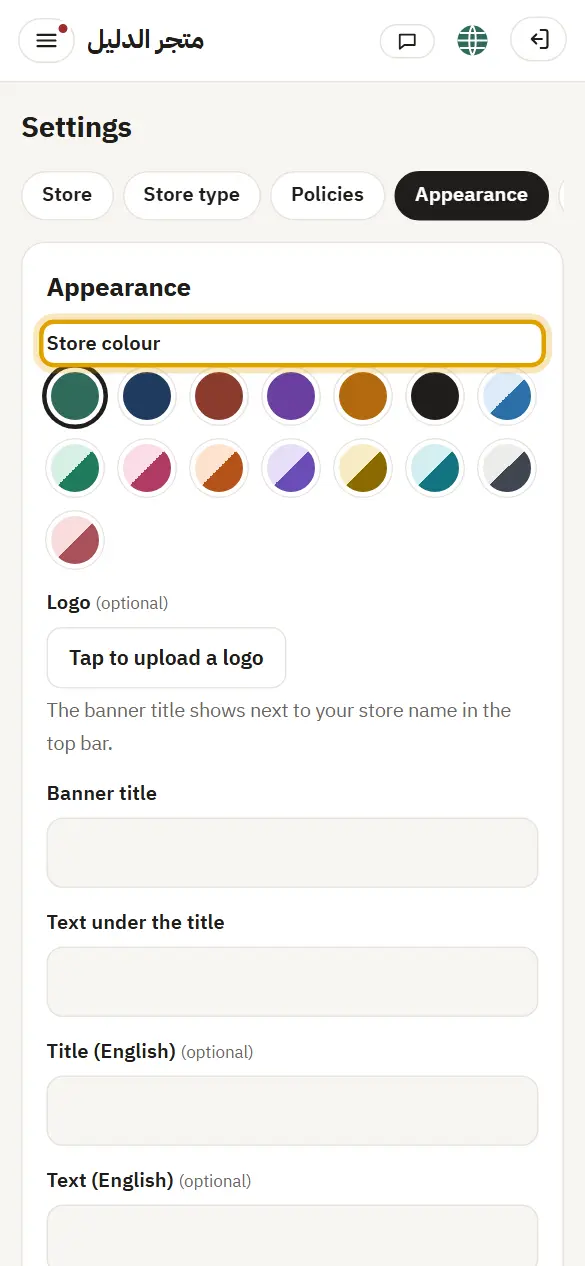
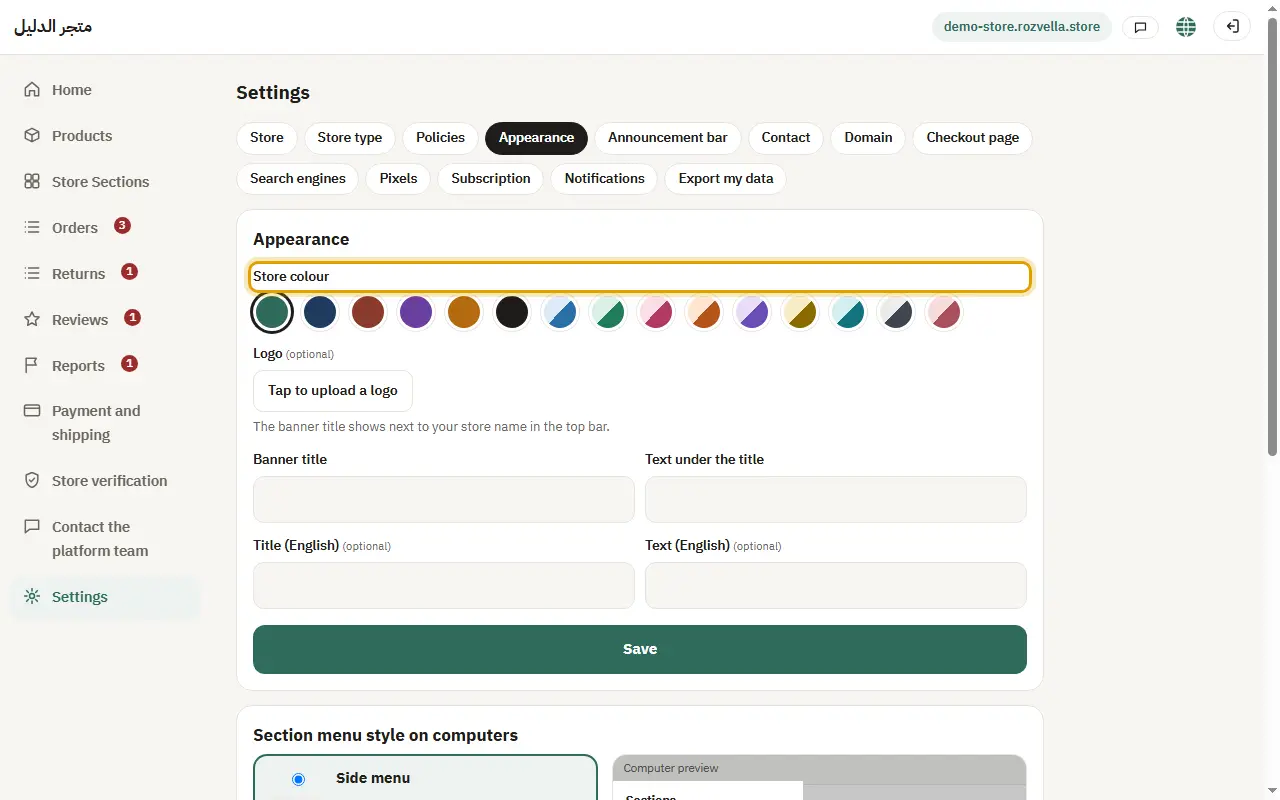
Where?Settings›Appearance›Store colour
Pick one of the ready colours, then press “Save”.
2Logo
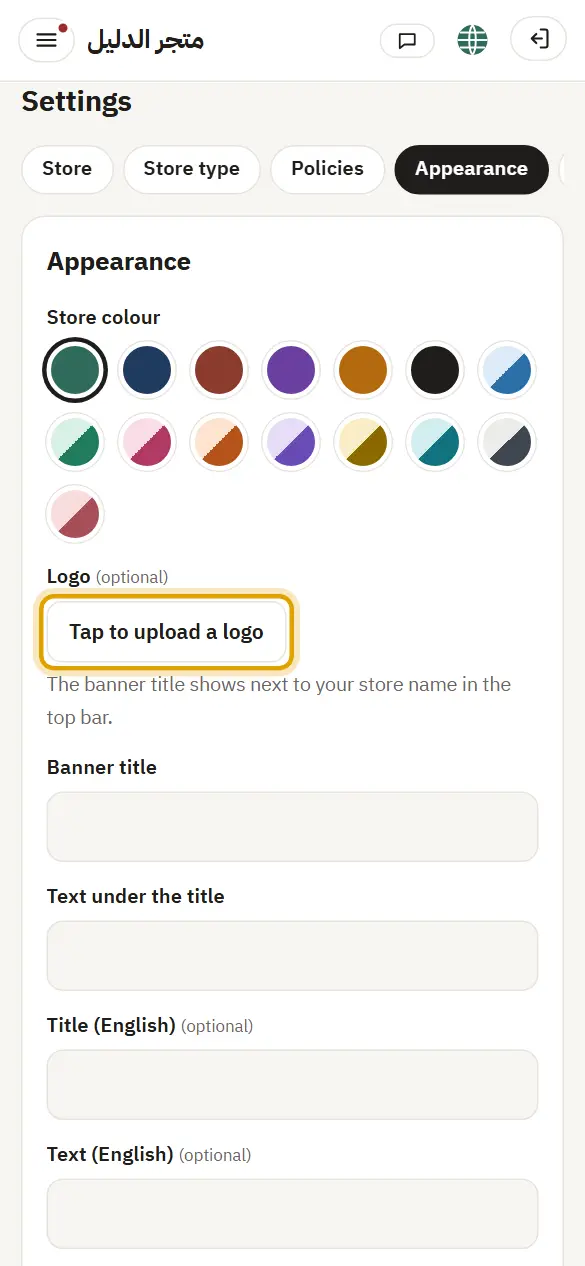
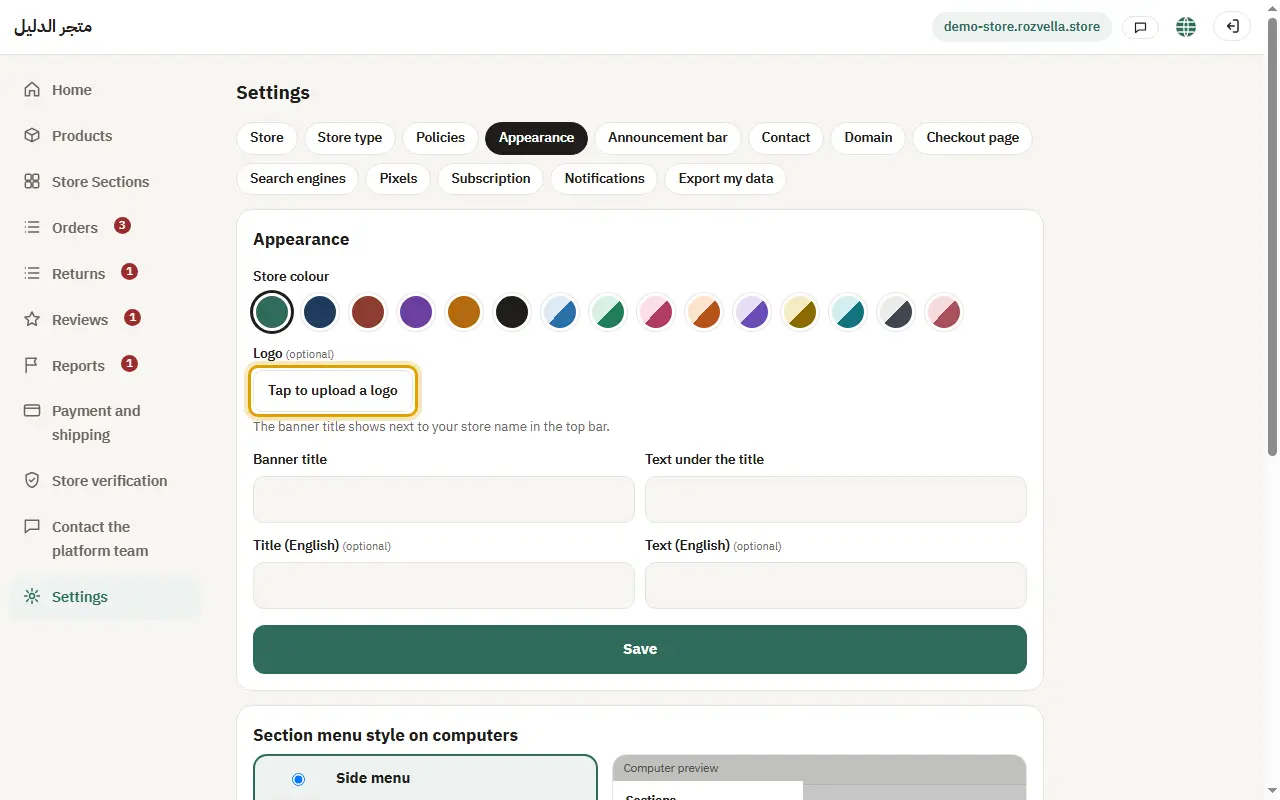
Where?Settings›Appearance›Tap to upload a logo
Press “Click to upload the logo” and choose your logo image from your device.
“The file is not a supported image”
Upload a JPG, PNG or WebP image.
“The image is too large”
Make the image smaller or upload a lighter copy.
3Banner title
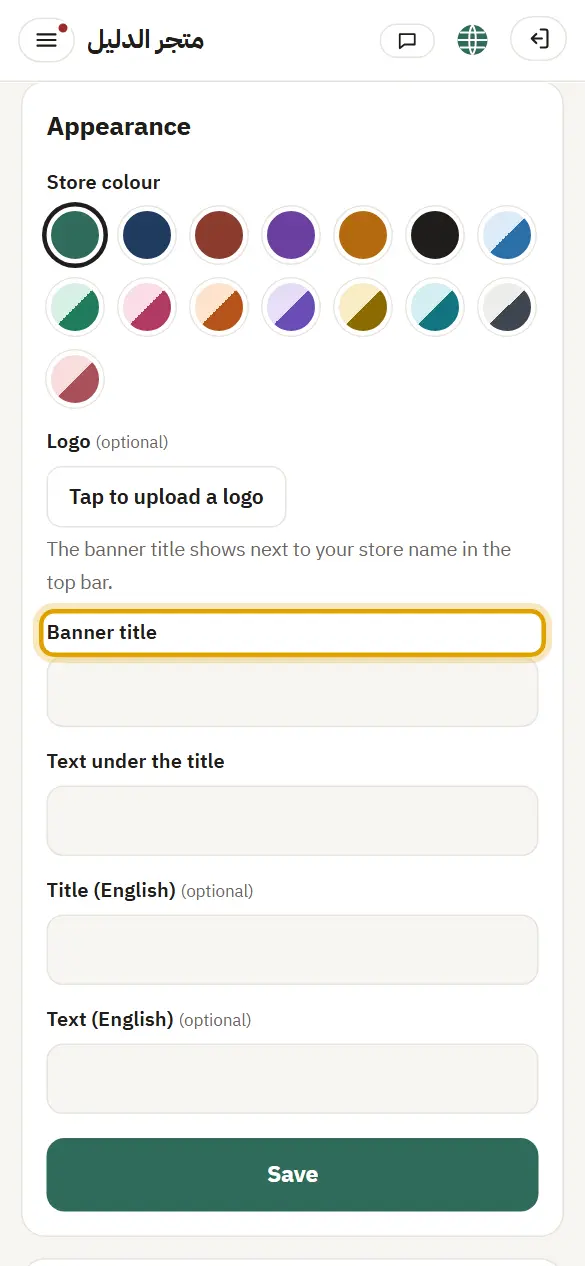
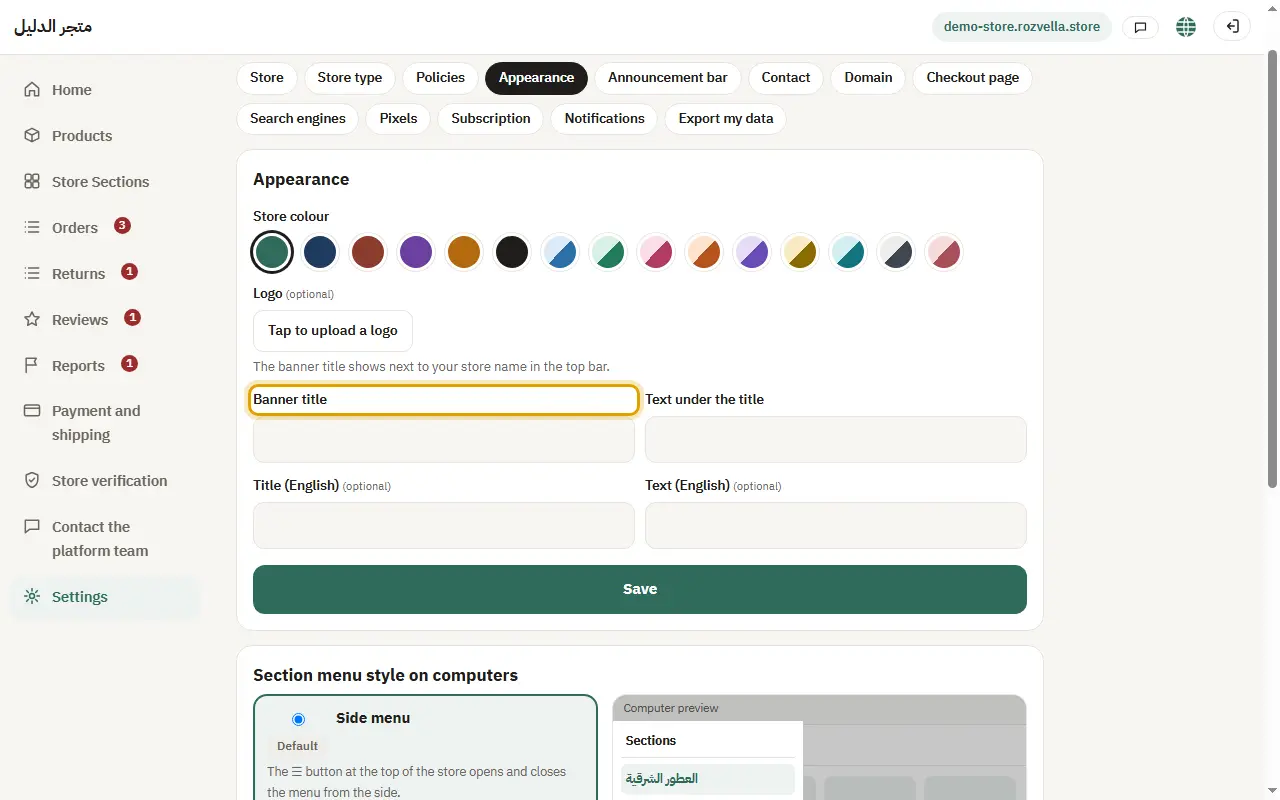
Where?Settings›Appearance›Banner title
Write the “Banner title” (for example: carefully chosen products), and in English if you like, then press “Save”.
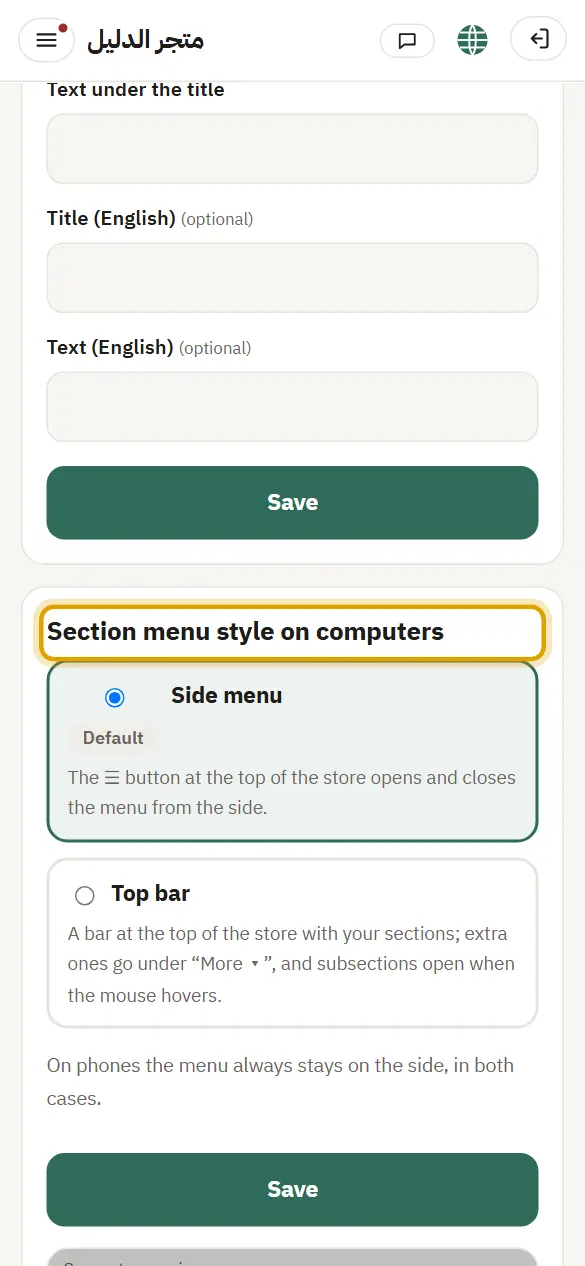
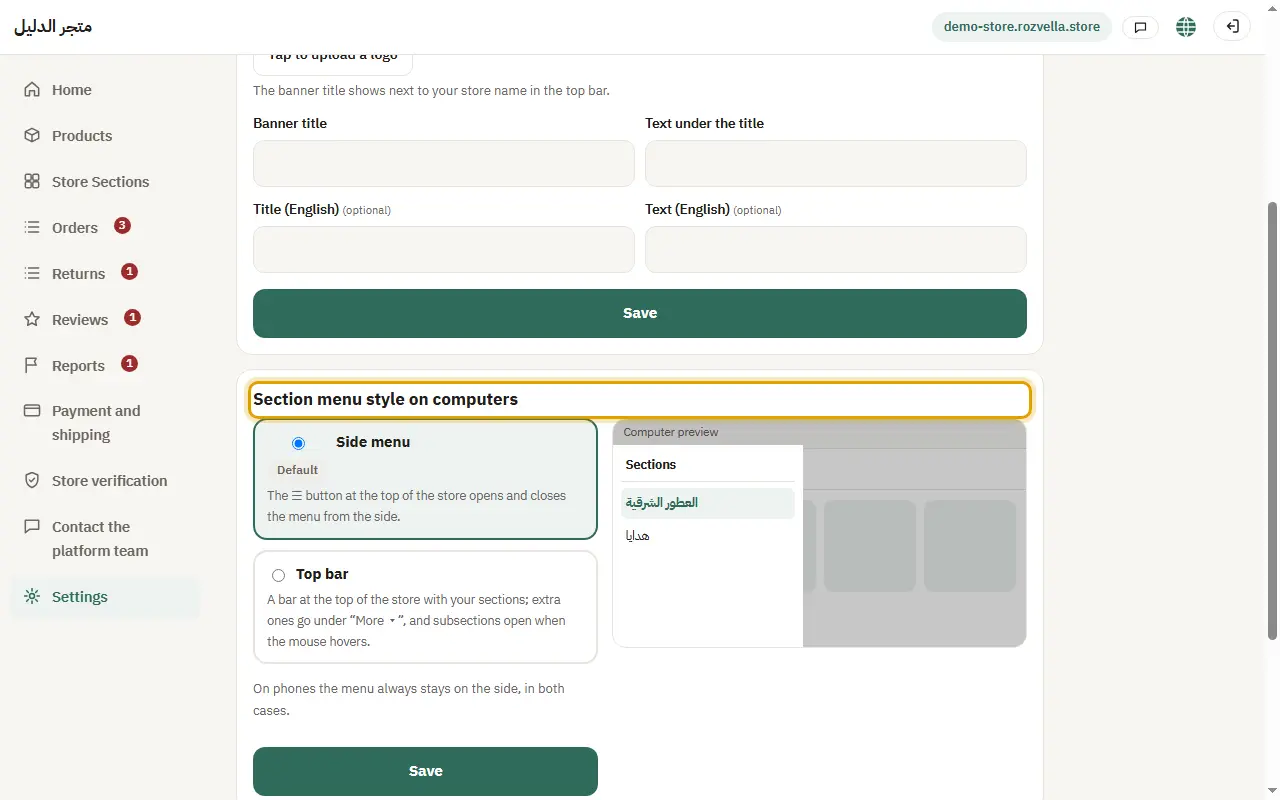
4Section menu style on computers
Where?Settings›Appearance›Section menu style on computers
Choose “Side menu” (☰ button) or “Top bar” (a bar at the top of the store), check the preview, then press “Save”.
5Announcement bar
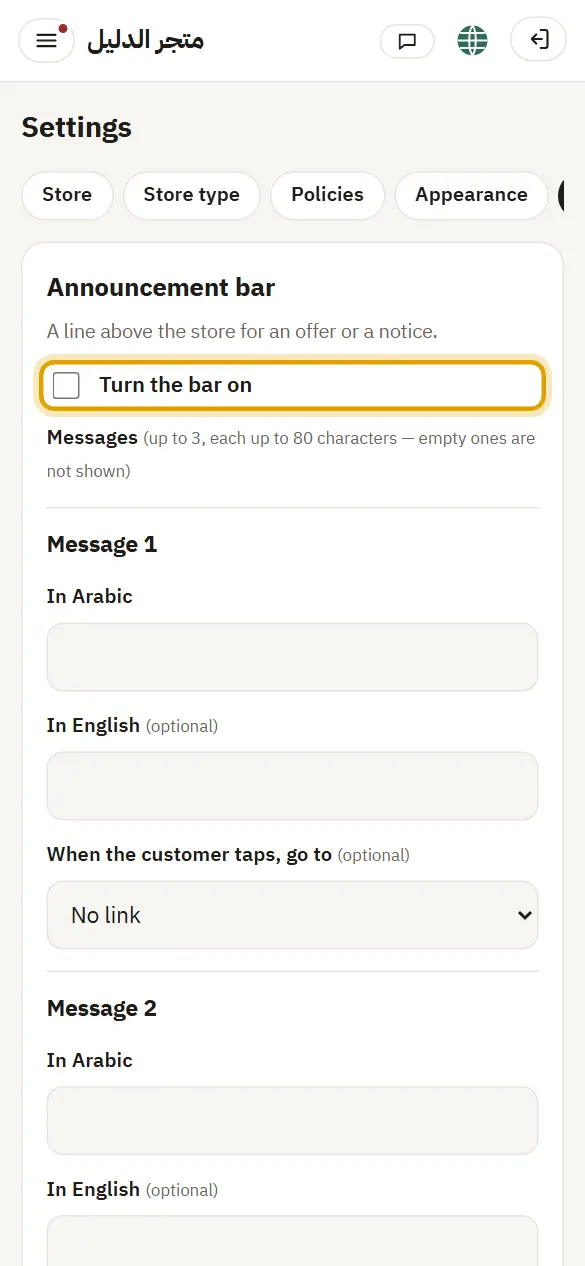
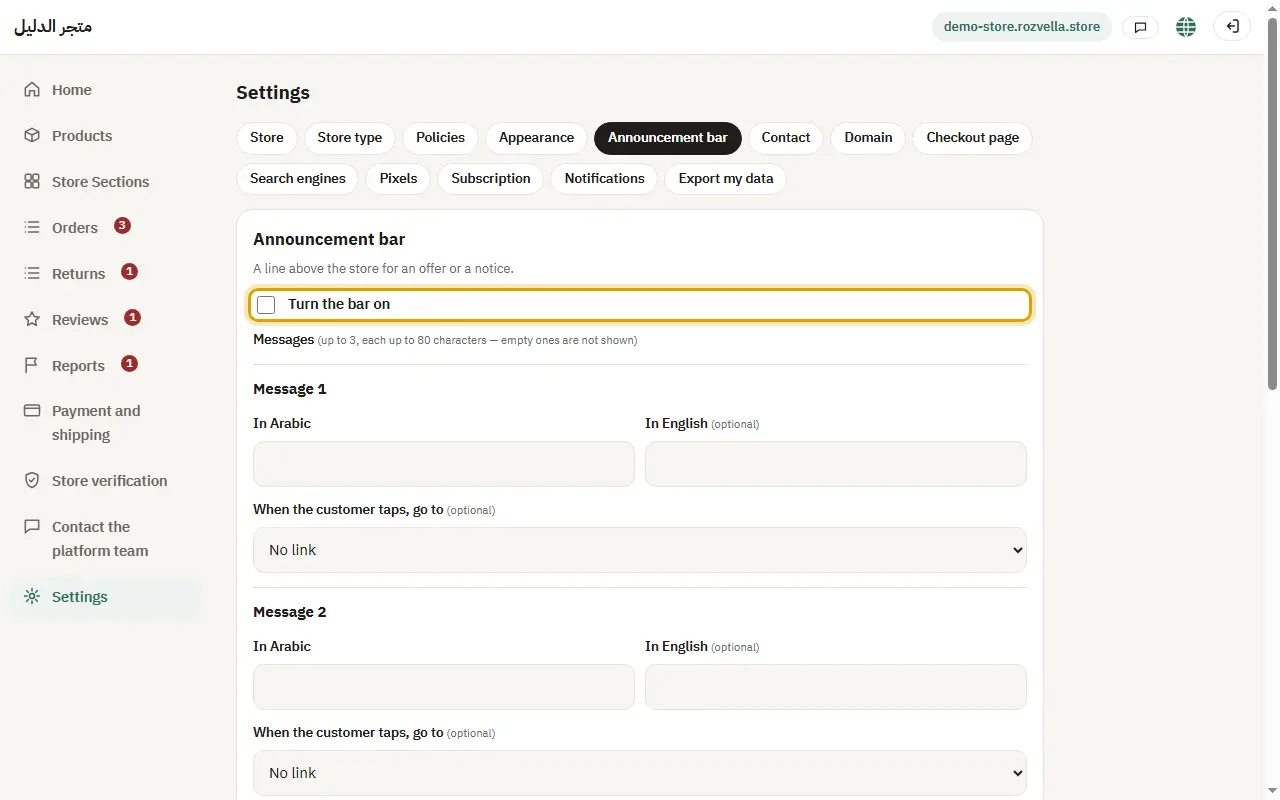
Where?Settings›Announcement bar›Turn the bar on
Tick “Turn on the bar”, write your messages, choose the background and text colours and the motion, and you can link each message to a section or product. Then press “Save”.