Opening your store to customers
Building the store is free. When it's ready, you open it to customers with a subscription.
In this article (3)
1When is your store ready?
Where?Home›Your store is ready to open 🎉
Complete three conditions: at least one published product, shipping prices, and policies (reviewed and approved), with your email confirmed.
Picture from a demo dashboard
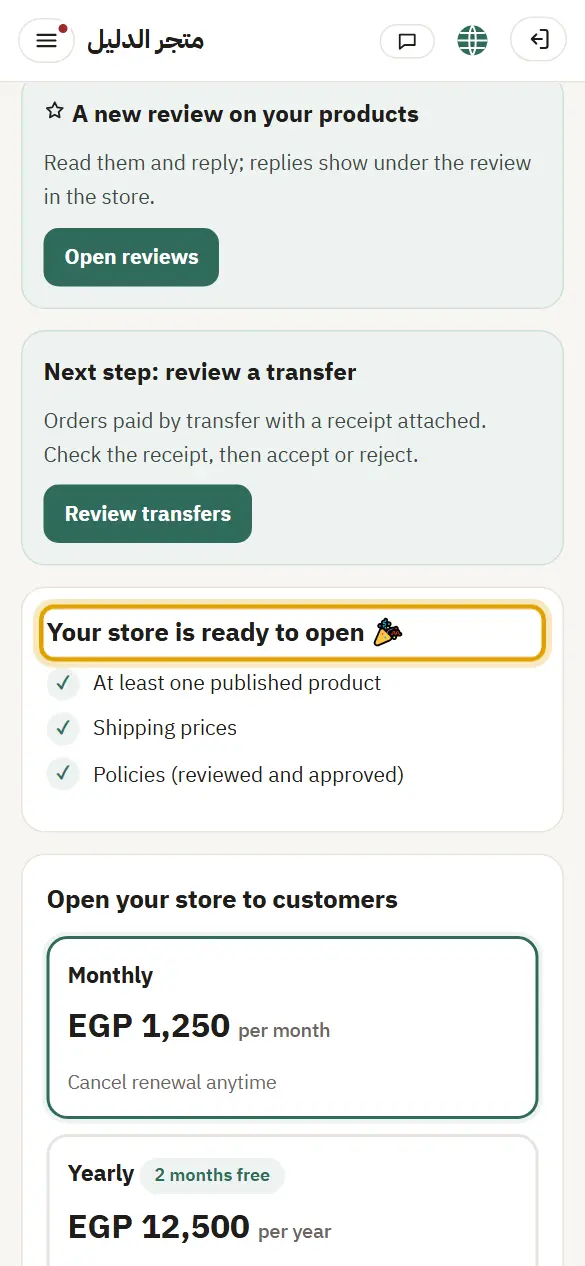
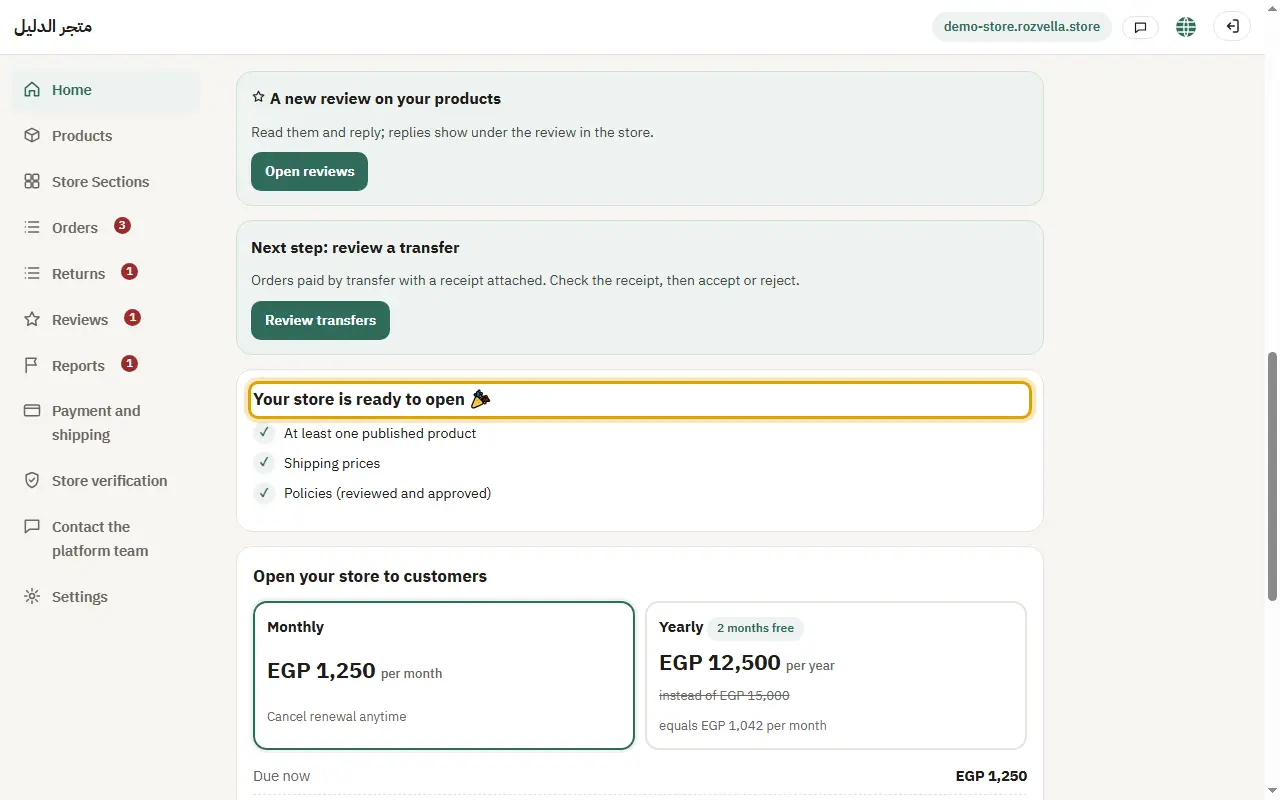
What happens?The “Your store is ready to open 🎉” card appears on your home page with the plans and prices.
2Choose a plan and pay
Where?Home›Open your store
Choose “Monthly” or “Yearly”, then press “Open your store”.
Picture from a demo dashboard
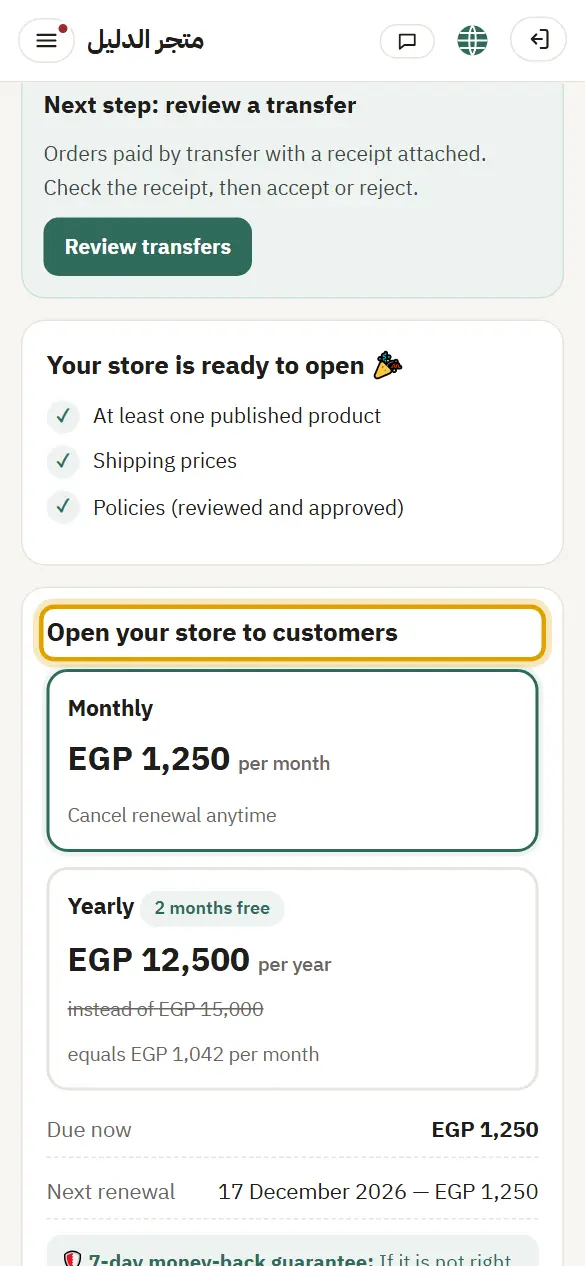
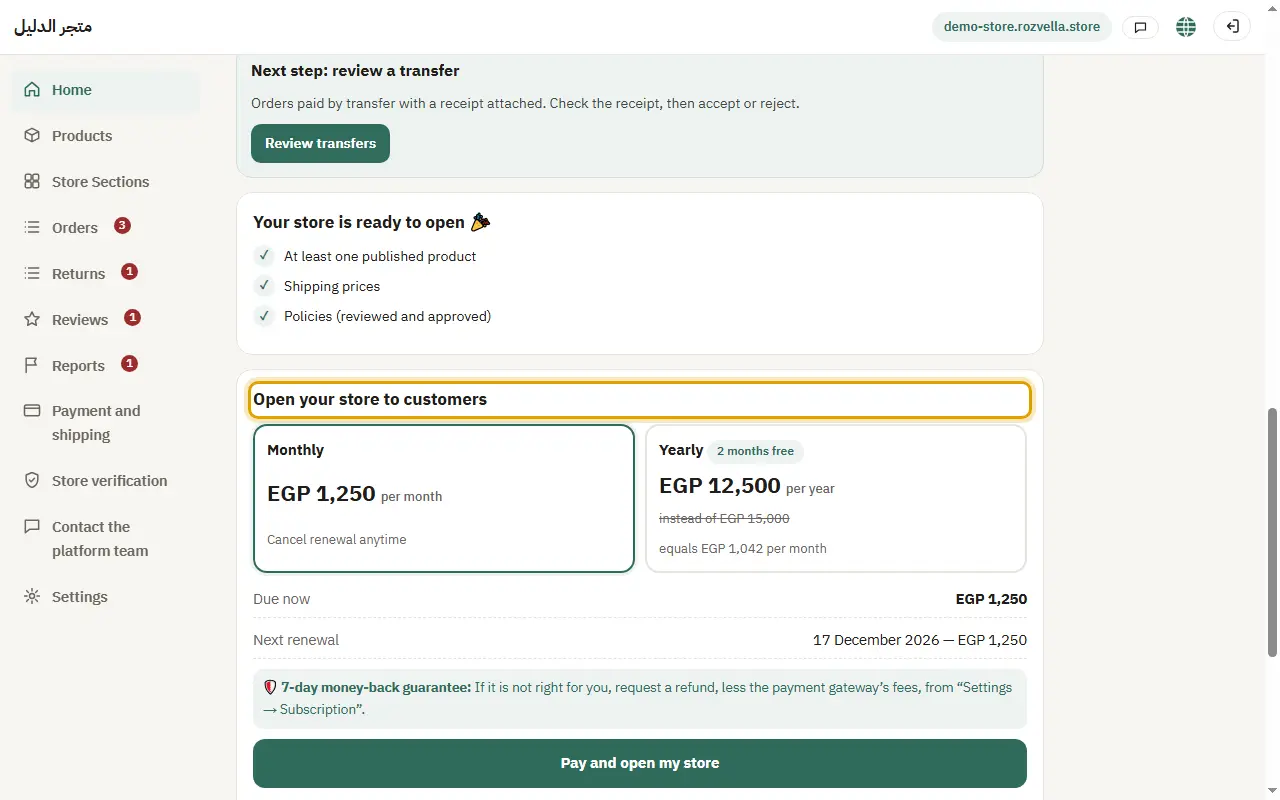
What happens?You go to Stripe's secure payment page to enter your card. We don't see or store your card details.
Common problems and fixesThe offer is no longer shown
The launch offer lasts a set time after your store is ready. After that, the regular price shows.
3After payment
Return to the dashboard after paying, and don't close the page during “Confirming the payment…”.
What happens?Once Stripe confirms the payment, “Your store is now open to customers” appears, and you get the receipt by email.
Common problems and fixes“We haven't received payment confirmation yet”
Stripe's confirmation is sometimes a few minutes late. Don't pay again; refresh the page shortly, and contact the team if it continues.