rozvella.storeCreate your store

Product options and quantity

Options let one product sell in several sizes or colours, with a price and quantity for each choice.

5 steps · Last updated: 17 November 2026

In this article (5)
  1. Add an option
  2. The colour option
  3. A price for each choice
  4. Quantity in stock
  5. Text or a photo from the customer

1Add an option

Where?

ProductsAdd product+ New option

Under “Product options” press “+ New option”, write its title (for example: Size), then add the choices with “+ Choice”. You can add up to 3 options, each with up to 20 choices.
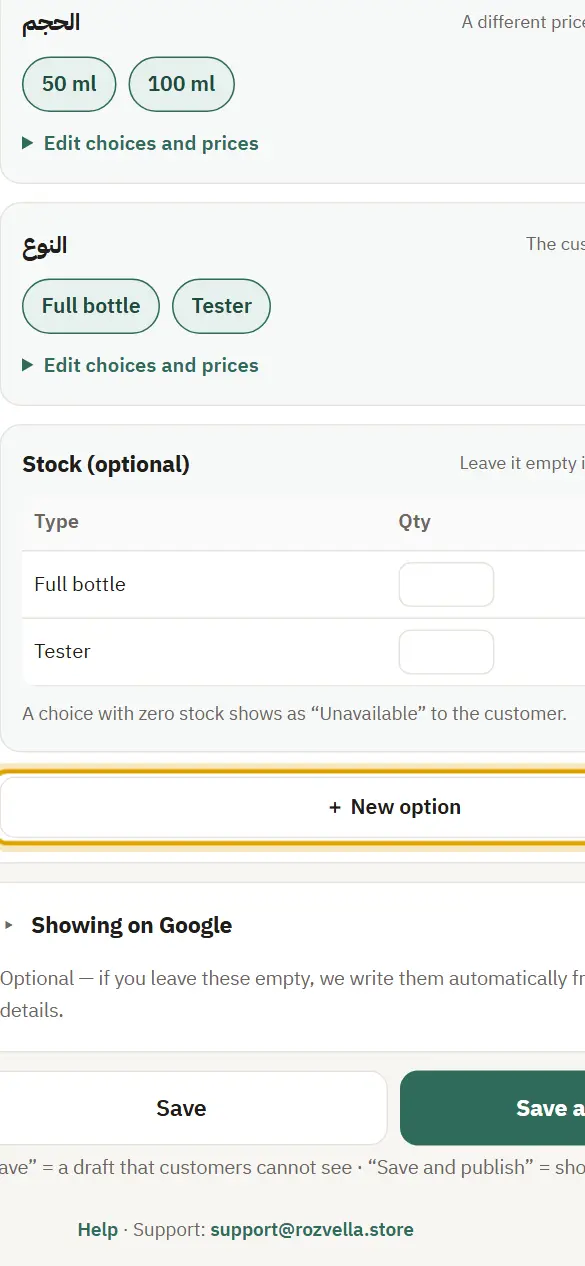
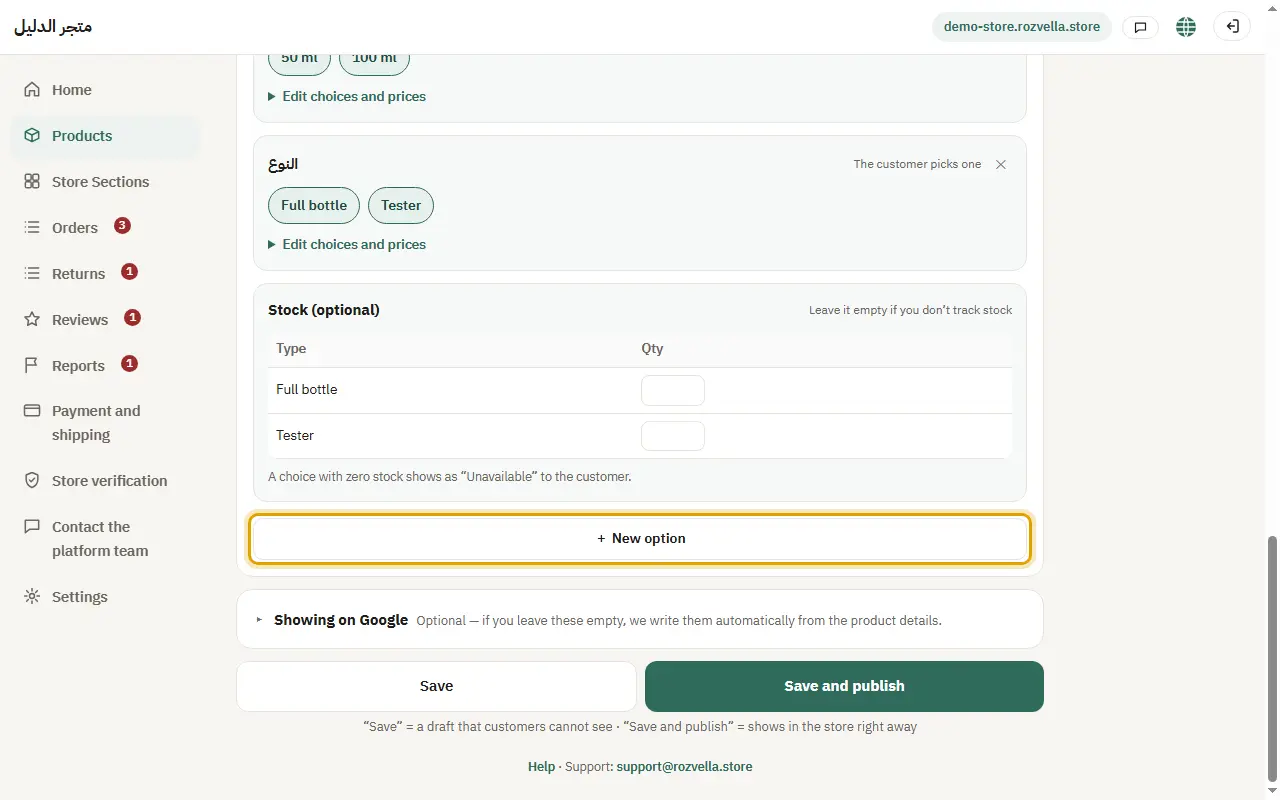
Picture from a demo dashboard
Add an option — Product options and quantityAdd an option — Product options and quantityAdd an option — Product options and quantity
What happens?The option appears on the product page, and the product can't be added to the cart until the customer chooses.

2The colour option

Where?

ProductsAdd product+ Colour

Press “+ Colour” and pick from the ready colours by searching for the name. If your colour isn't there, press “Colour not listed? Type its name and pick the colour”.
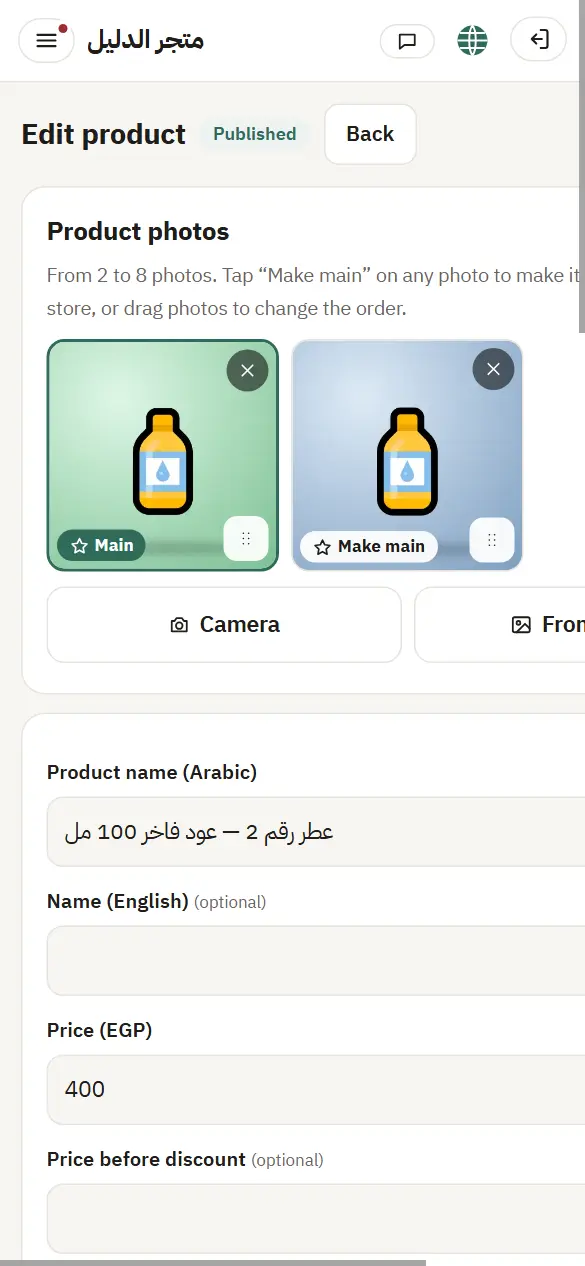
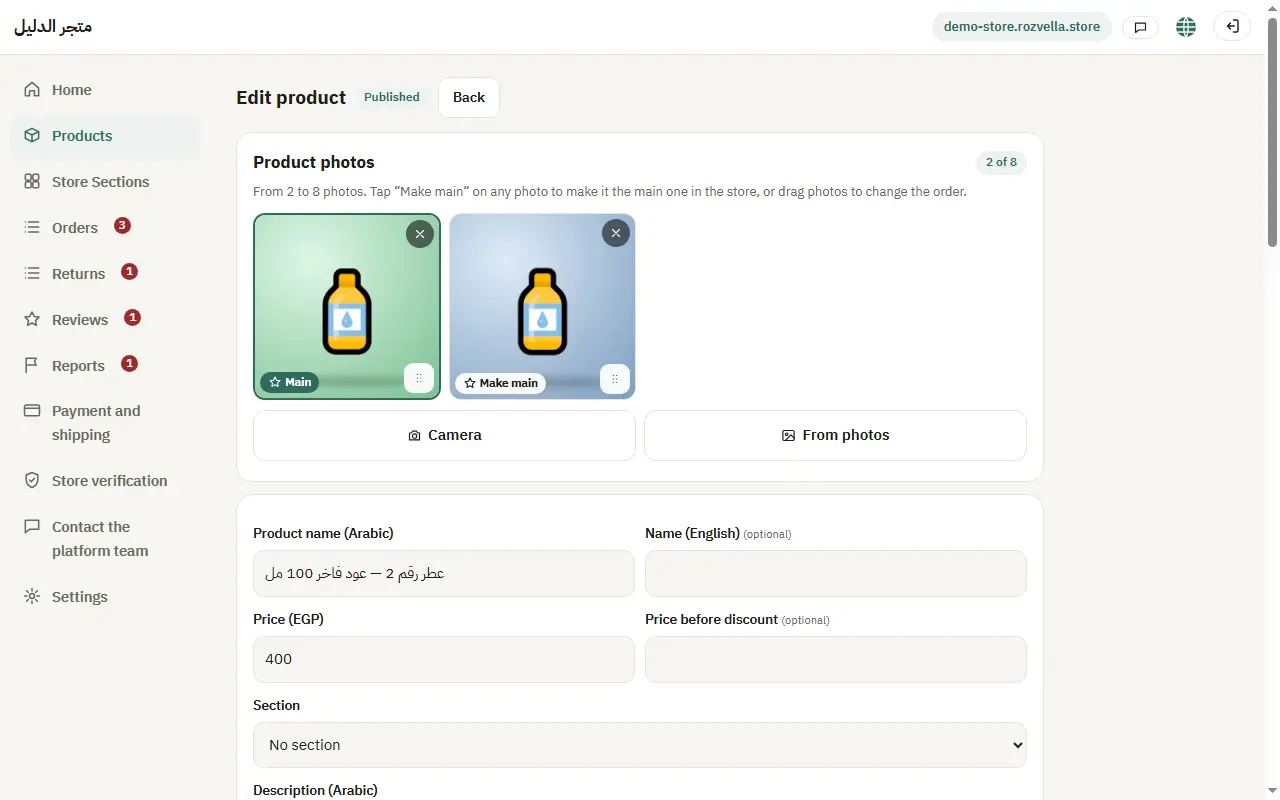
Picture from a demo dashboard
The colour option — Product options and quantityThe colour option — Product options and quantityThe colour option — Product options and quantity
What happens?Each colour shows as a coloured circle, and you can link a photo to each colour.

3A price for each choice

Where?

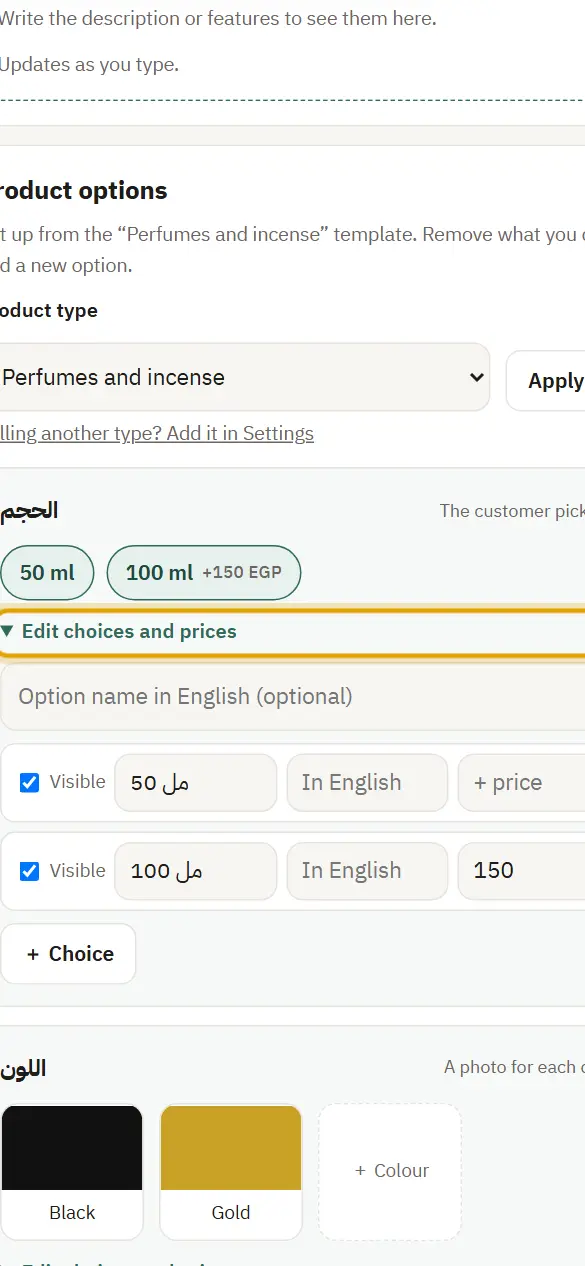
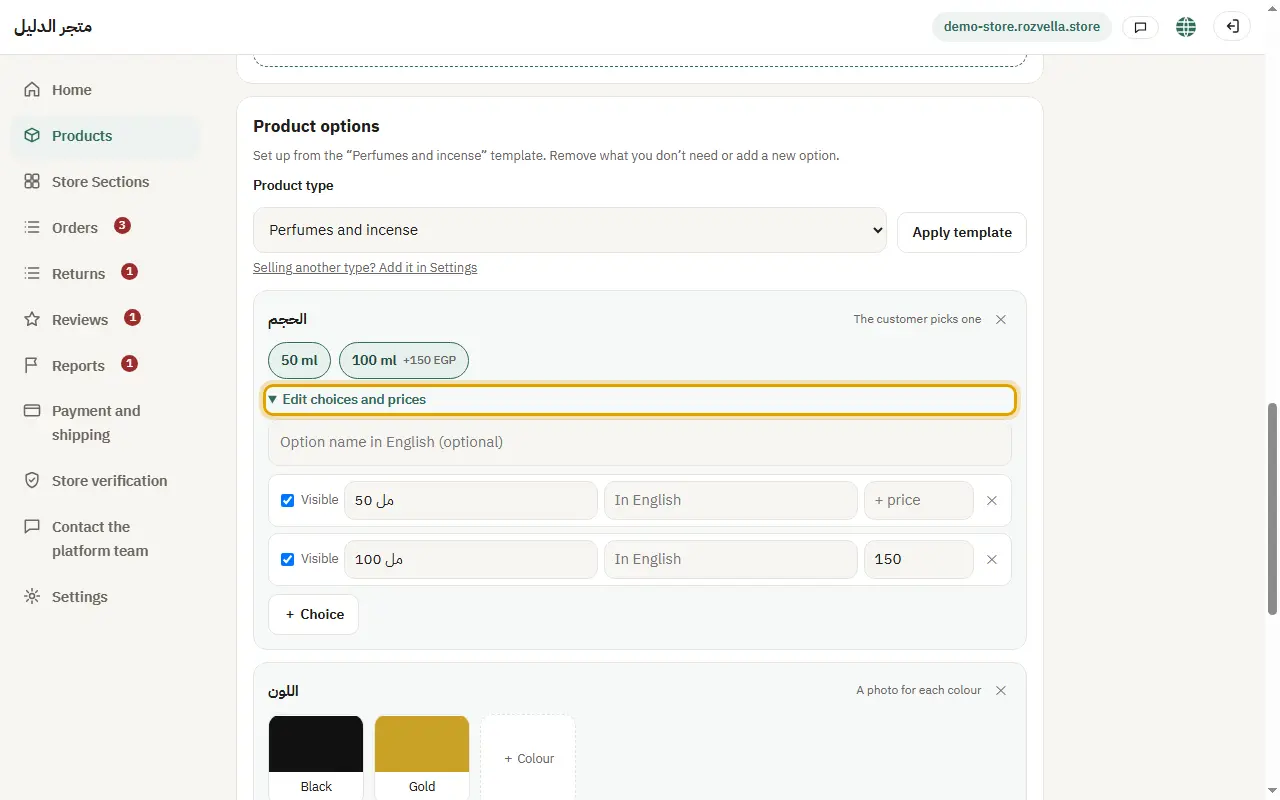
ProductsAdd productEdit choices and prices

Choose “A different price for each choice” to add an extra price per choice, or “A different full price for each choice” to enter the full price.
Picture from a demo dashboard
A price for each choice — Product options and quantityA price for each choice — Product options and quantityA price for each choice — Product options and quantity
What happens?The price on the product page changes when the customer chooses, and the system calculates it at order time.

4Quantity in stock

Where?

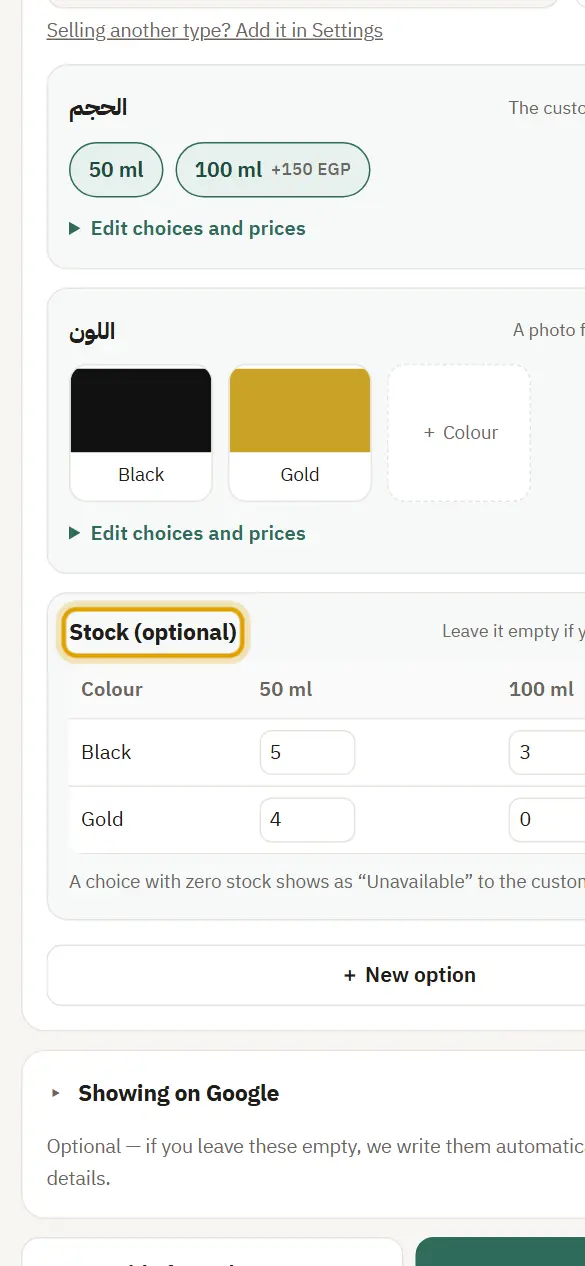
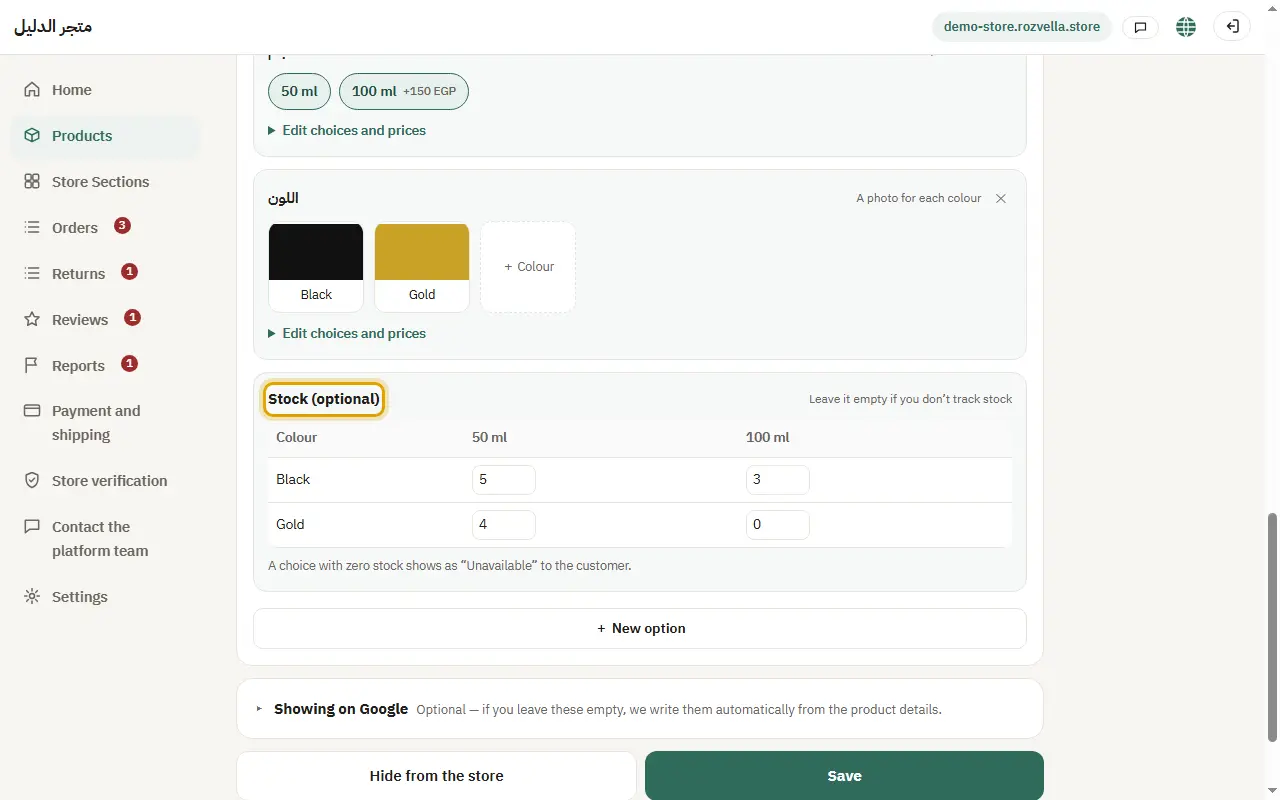
ProductsAdd productStock (optional)

Under “Stock (optional)” enter the quantity in stock for each choice. Leave it empty if you don't track stock.
Picture from a demo dashboard
Quantity in stock — Product options and quantityQuantity in stock — Product options and quantityQuantity in stock — Product options and quantity
What happens?A choice that runs out shows as unavailable to the customer.

5Text or a photo from the customer

Where?

ProductsAdd product

Add a “Text field from the customer” (like a name to engrave, with a character limit and an optional extra price), or a “Photo from the customer” (required or optional).
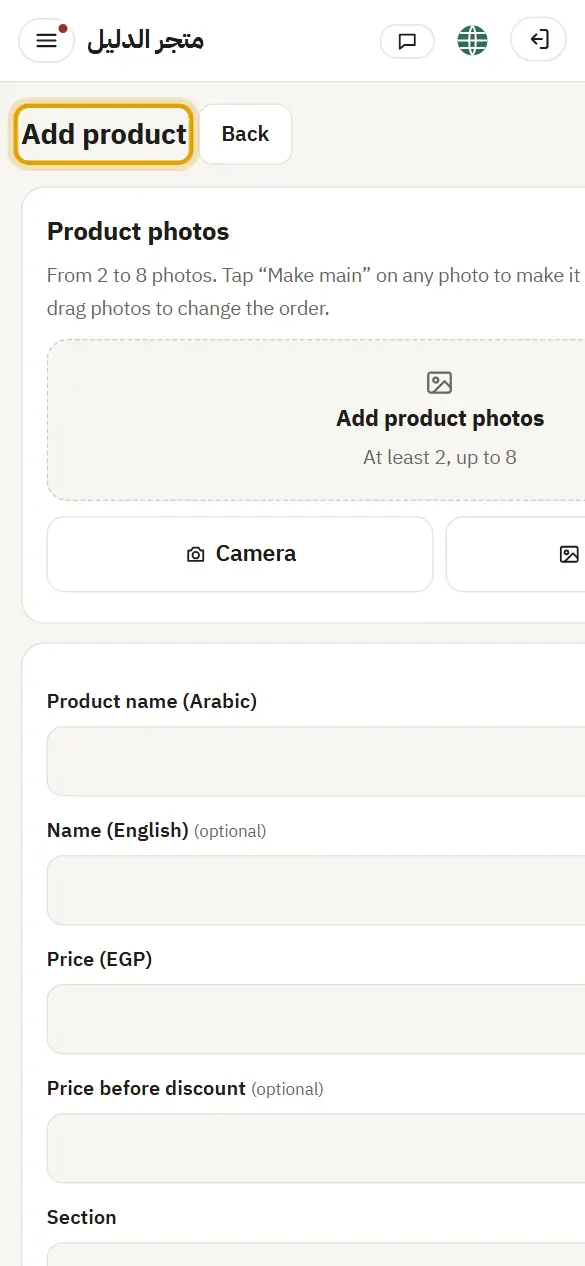
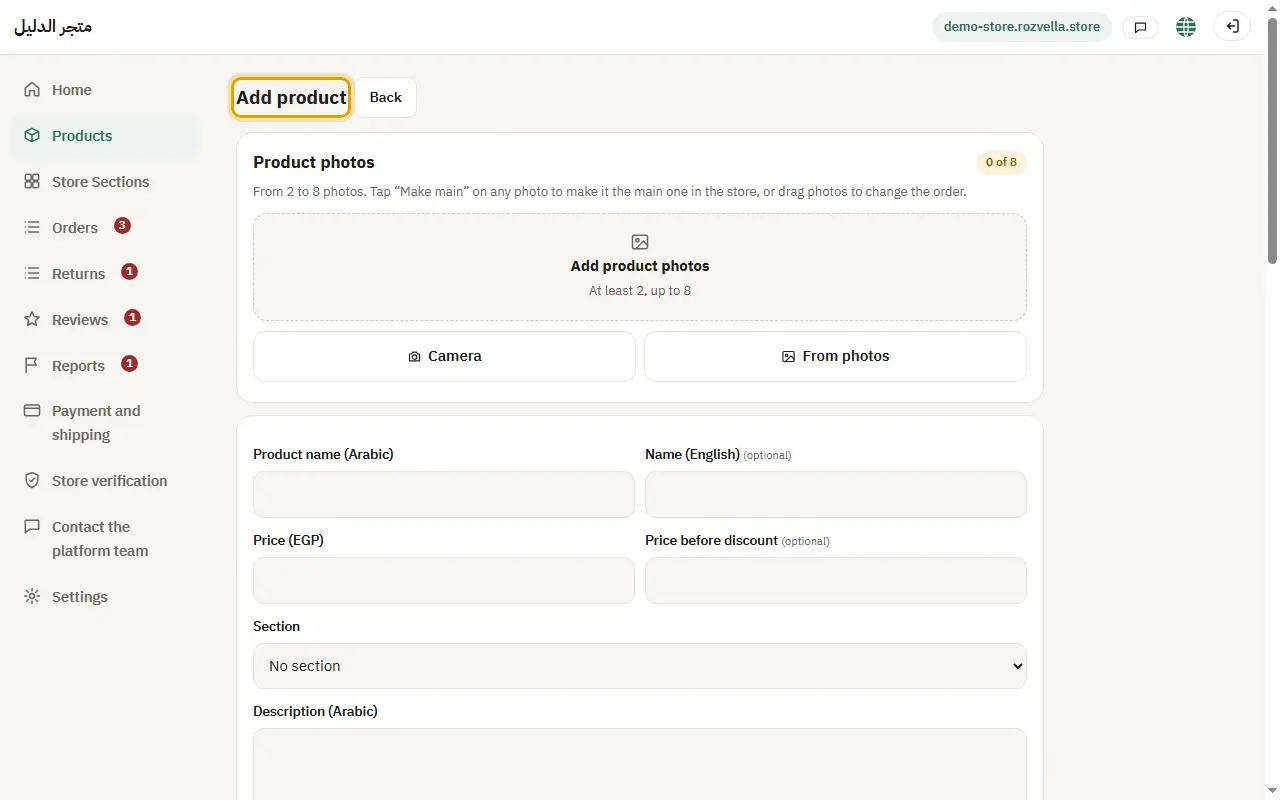
Picture from a demo dashboard
Text or a photo from the customer — Product options and quantityText or a photo from the customer — Product options and quantityText or a photo from the customer — Product options and quantity
What happens?The customer writes the text or uploads the photo before ordering, and you see it next to the product on the order page.