rozvella.storeCreate your store

“What do you sell?” and the product type

“What do you sell?” prepares a template for each type: the right options, details and warnings. You can change everything afterwards.

4 steps · Last updated: 17 November 2026

In this article (4)
  1. Choose your product types
  2. The type template in the product form
  3. Registration number and licence
  4. Special fields for some types

1Choose your product types

Where?

SettingsStore type

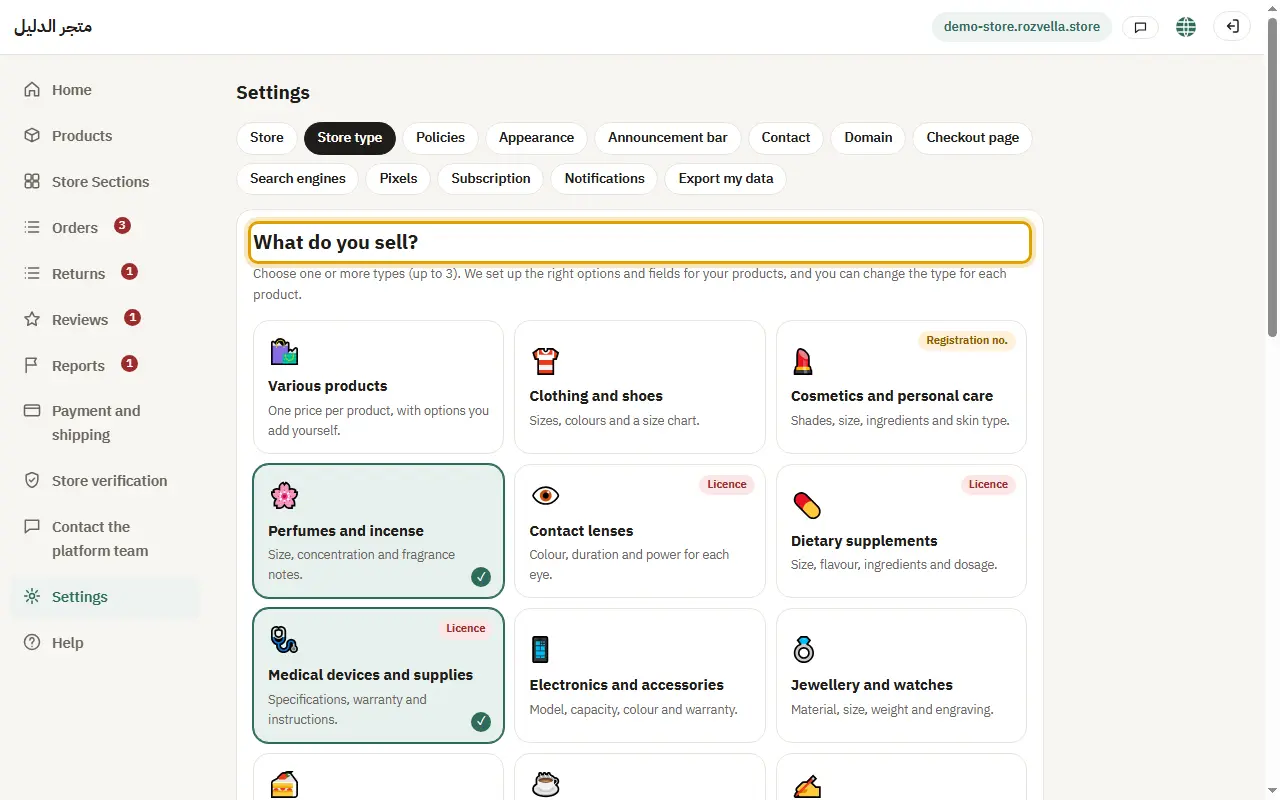
From “Settings ← Store type”, choose one or more types (up to 3), then press “Save”.
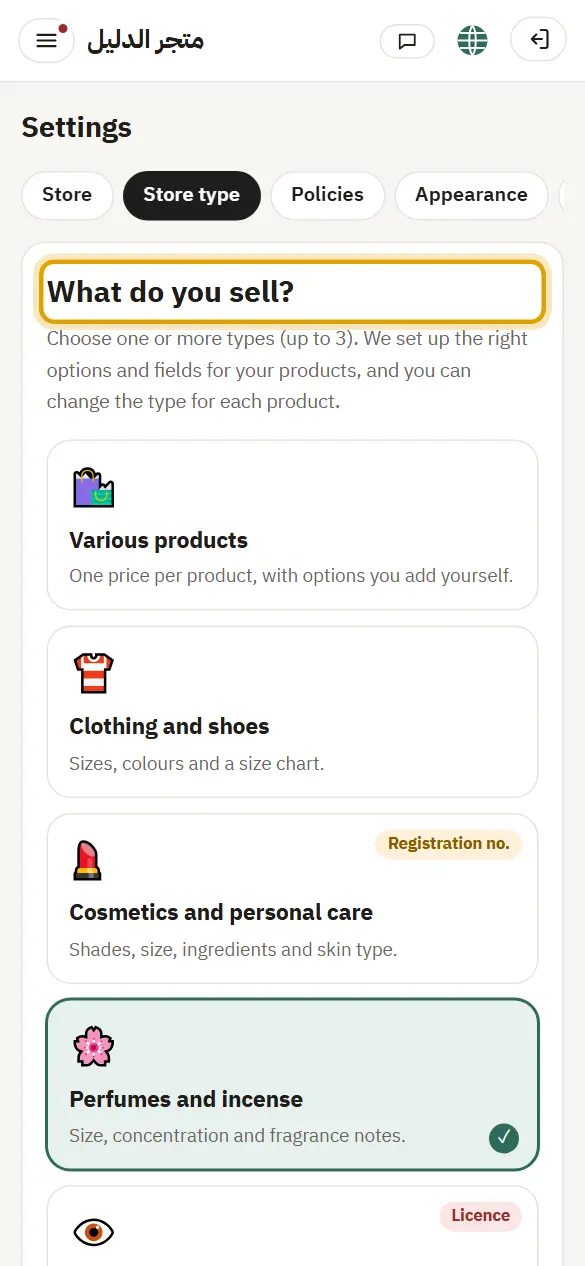
Picture from a demo dashboard
Choose your product types — “What do you sell?” and the product typeChoose your product types — “What do you sell?” and the product typeChoose your product types — “What do you sell?” and the product type
What happens?The types appear under “Product type” in the product form. If you choose one type, the field is hidden and it is used automatically.
Common problems and fixes
A type says “Coming soon”

That type isn't open on the platform yet. It appears for you once it's available.

“Digital products” says “Available once your store is verified and subscribed”

Digital products open together with prepayment. The card shows your progress (verification and subscription), and it opens by itself once the conditions are met.

2The type template in the product form

Where?

ProductsAdd productApply template

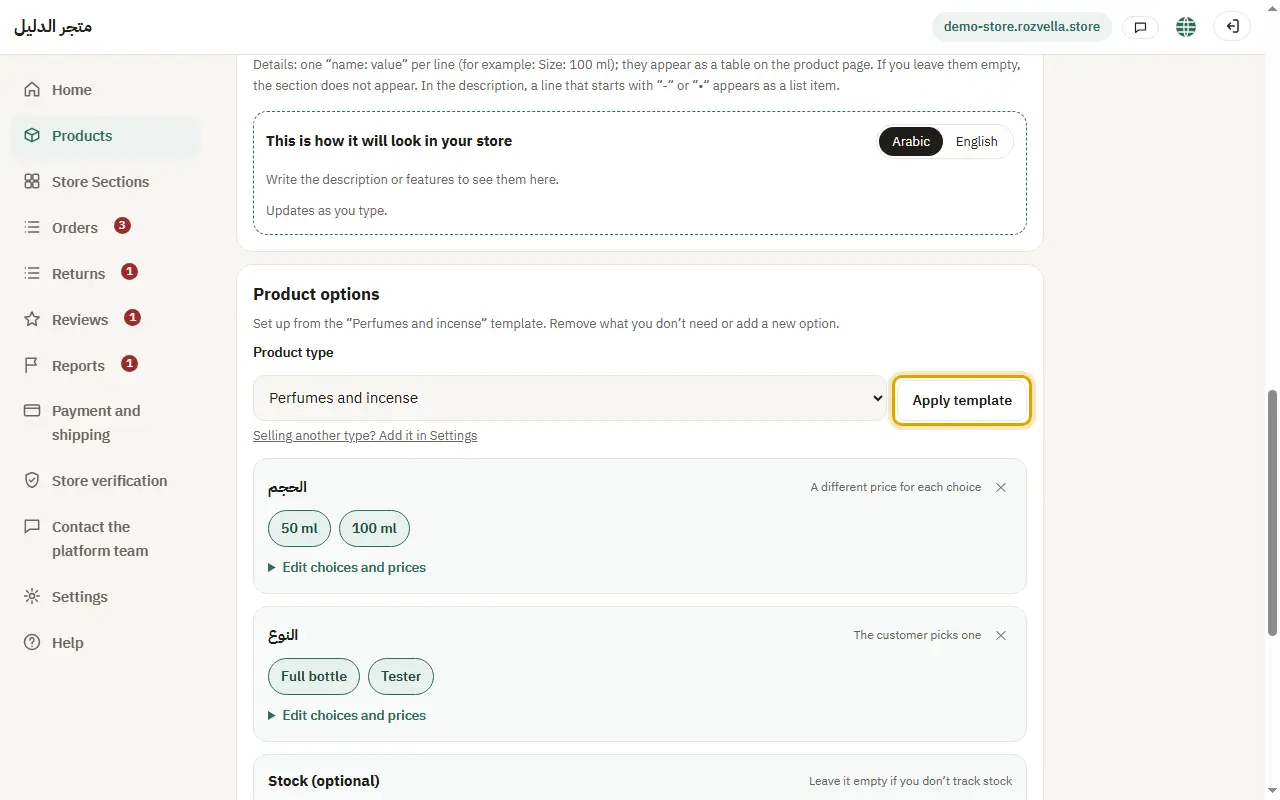
In the product form choose the “Product type”, then press “Apply template”.
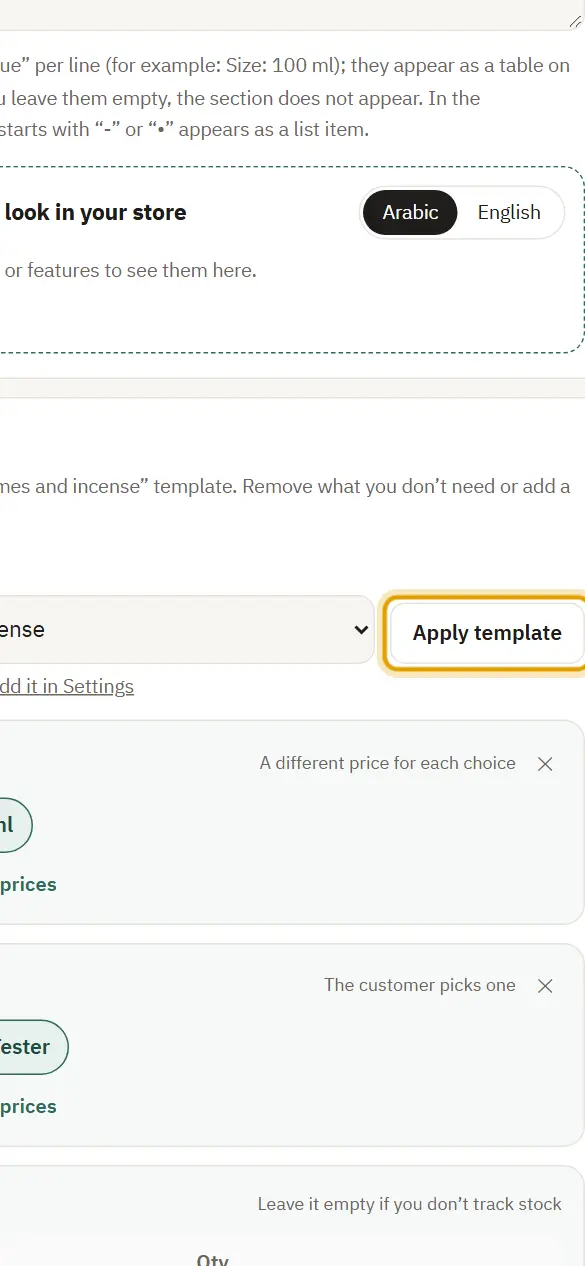
Picture from a demo dashboard
The type template in the product form — “What do you sell?” and the product typeThe type template in the product form — “What do you sell?” and the product typeThe type template in the product form — “What do you sell?” and the product type
What happens?The options, details and warning for that type are added, and you can delete or change what you don't need.

3Registration number and licence

Where?

SettingsStore typeLicence image

Some types need a “Registration number” for each product (like cosmetics), and medical devices need a licence: upload the “Licence image” and its expiry date.
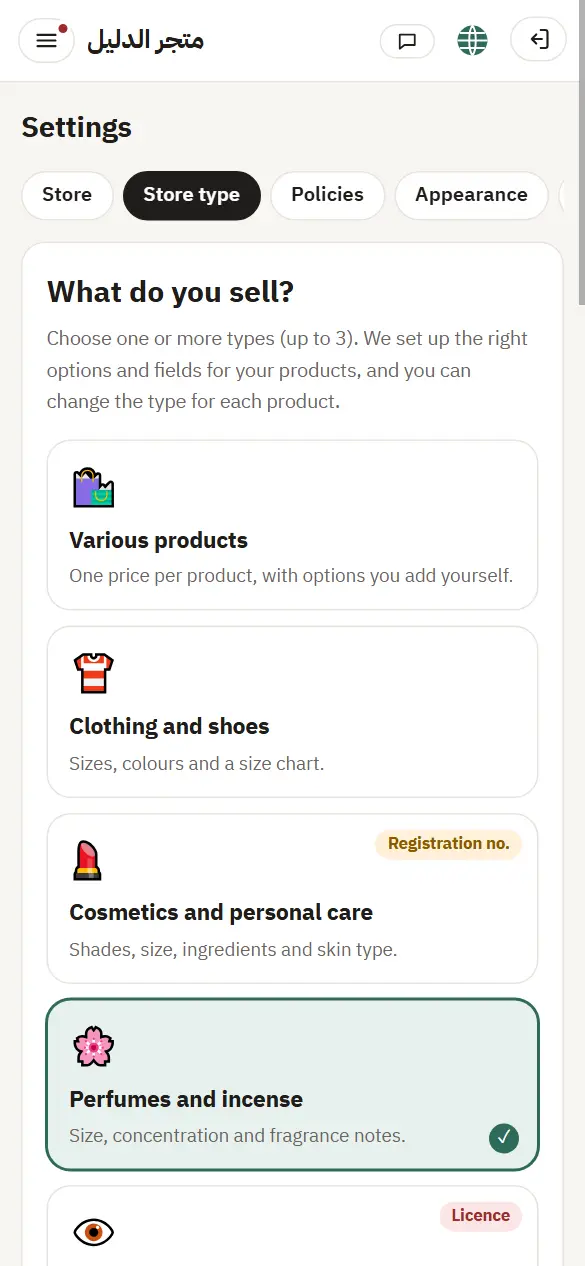
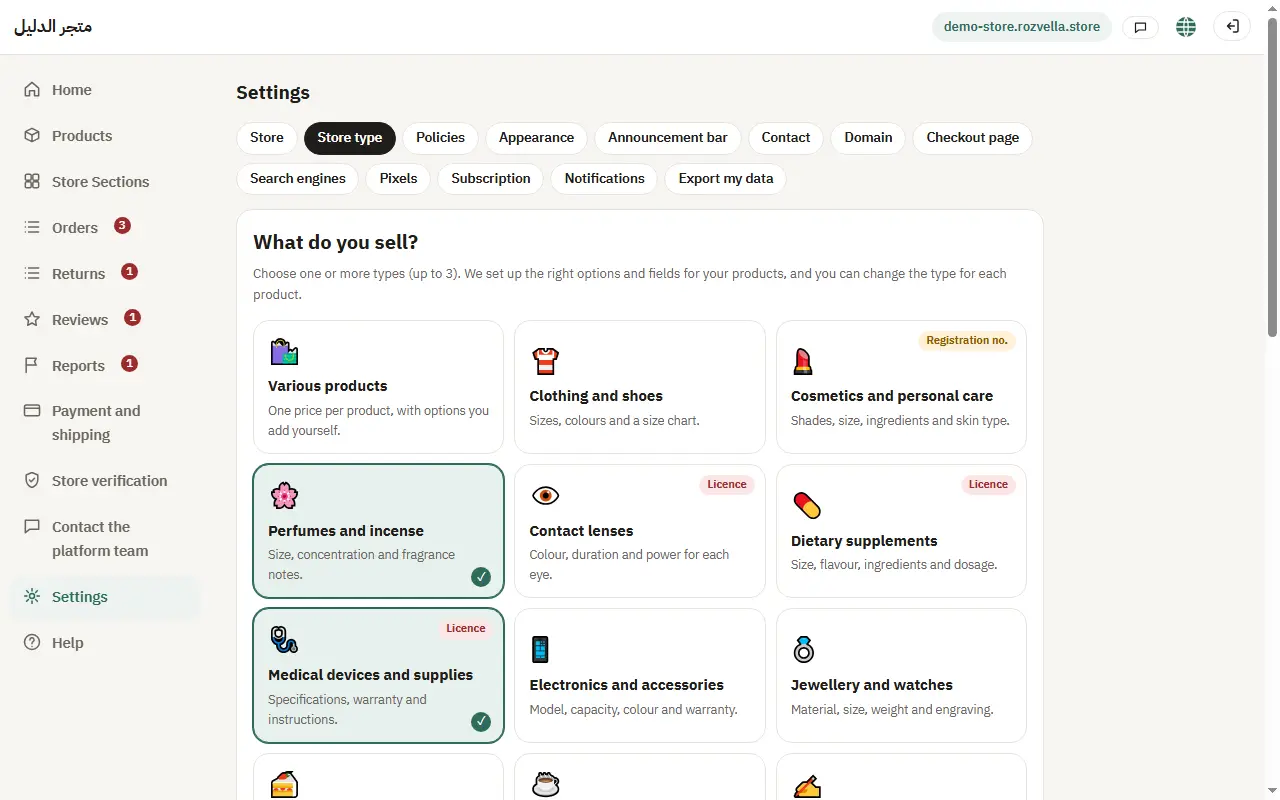
Picture from a demo dashboard
Registration number and licence — “What do you sell?” and the product typeRegistration number and licence — “What do you sell?” and the product typeRegistration number and licence — “What do you sell?” and the product type
What happens?The platform team reviews the licence, and products of that type can't be published before it is approved. You are reminded before it expires.
Common problems and fixes
“The licence must be a JPG or PNG image or a PDF file”

Take a photo of the licence or save it as a PDF, then upload it.

4Special fields for some types

Where?

ProductsAdd product

Depending on the type, fields appear such as “Preparation time” (gifts and furniture), “Delivery time”, “Delivery areas” and “Expiry” (food), “Shipping size” for large items, and “Prescription” and “Eye power” (lenses and medical devices).
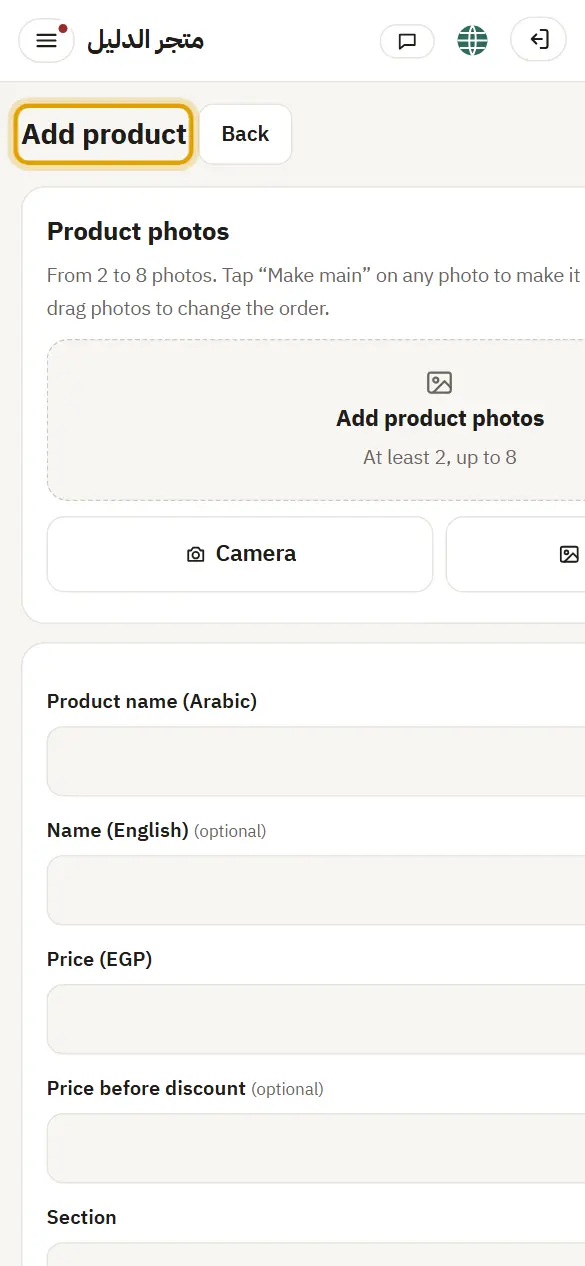
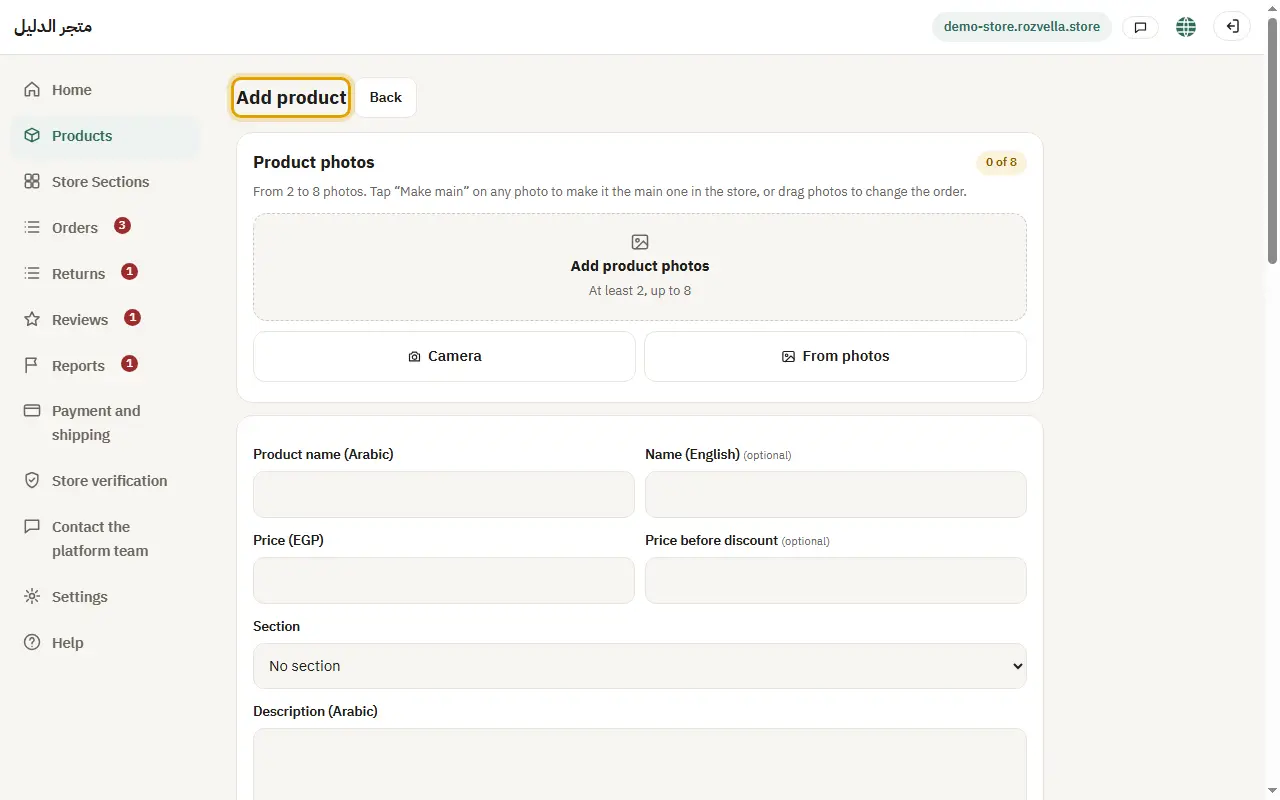
Picture from a demo dashboard
Special fields for some types — “What do you sell?” and the product typeSpecial fields for some types — “What do you sell?” and the product typeSpecial fields for some types — “What do you sell?” and the product type
What happens?The customer sees these choices on the product page, and we check them when the order is placed.