Adding a product and its photos
Every product needs at least 1 photos and a price to be published. You can save it as a draft and finish it later.
In this article (7)
1Open “Add product”
Where?Products›Add product
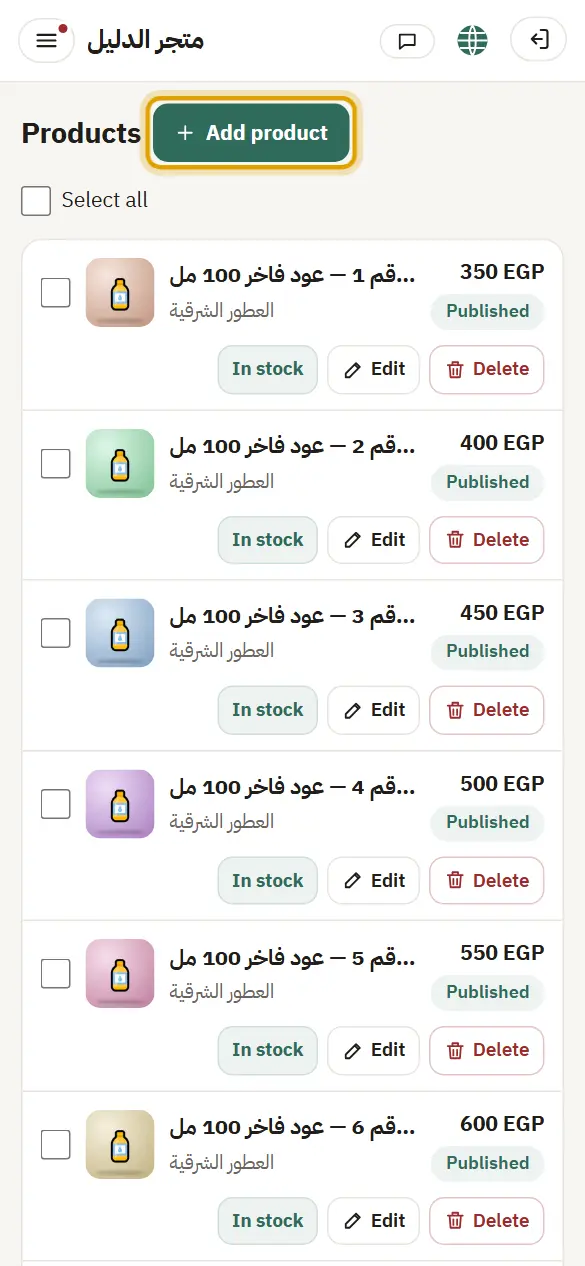
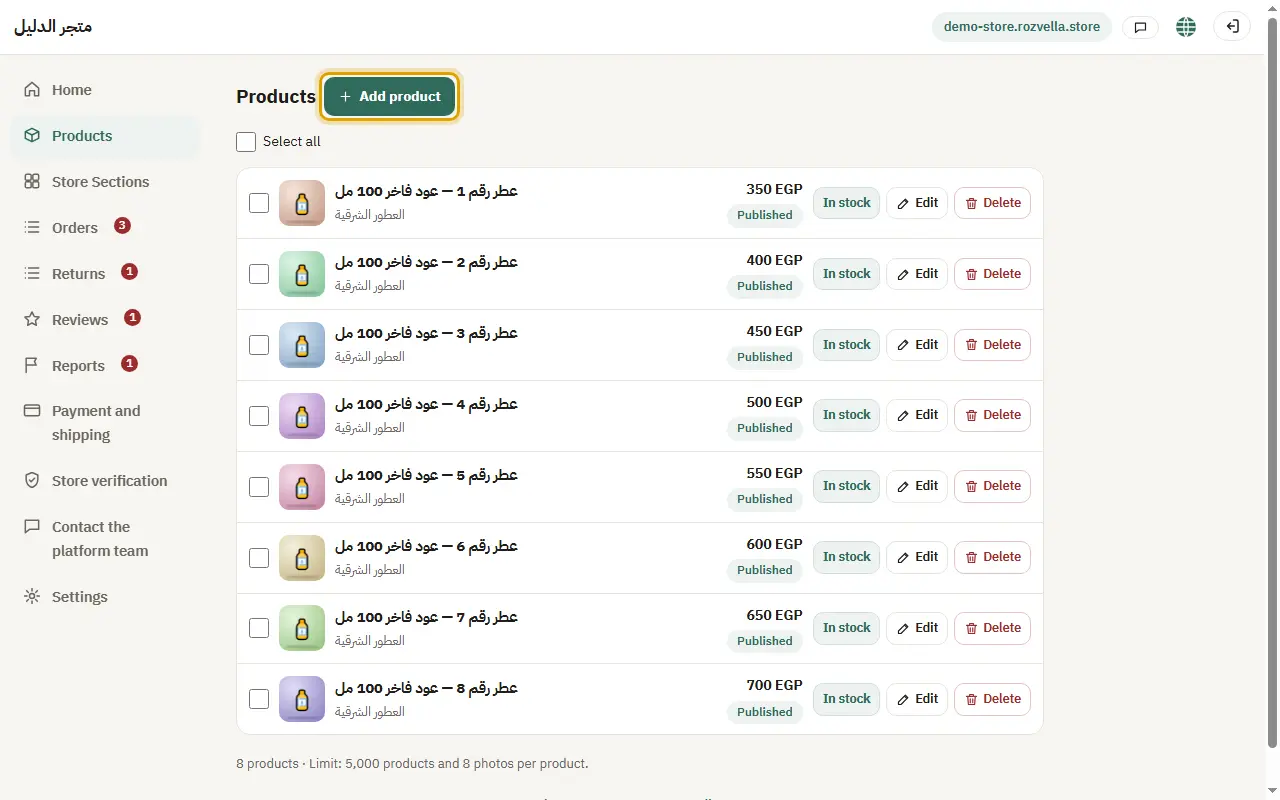
From “Products”, press “Add product”.
2Upload the photos
Where?Products›Add product›Add product photos
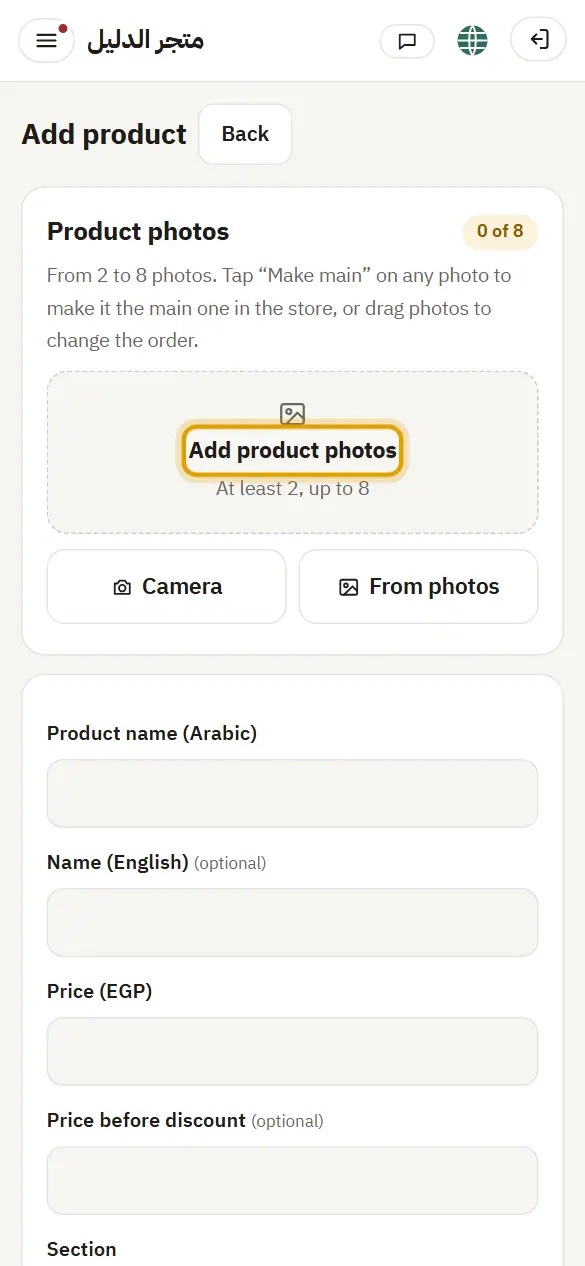
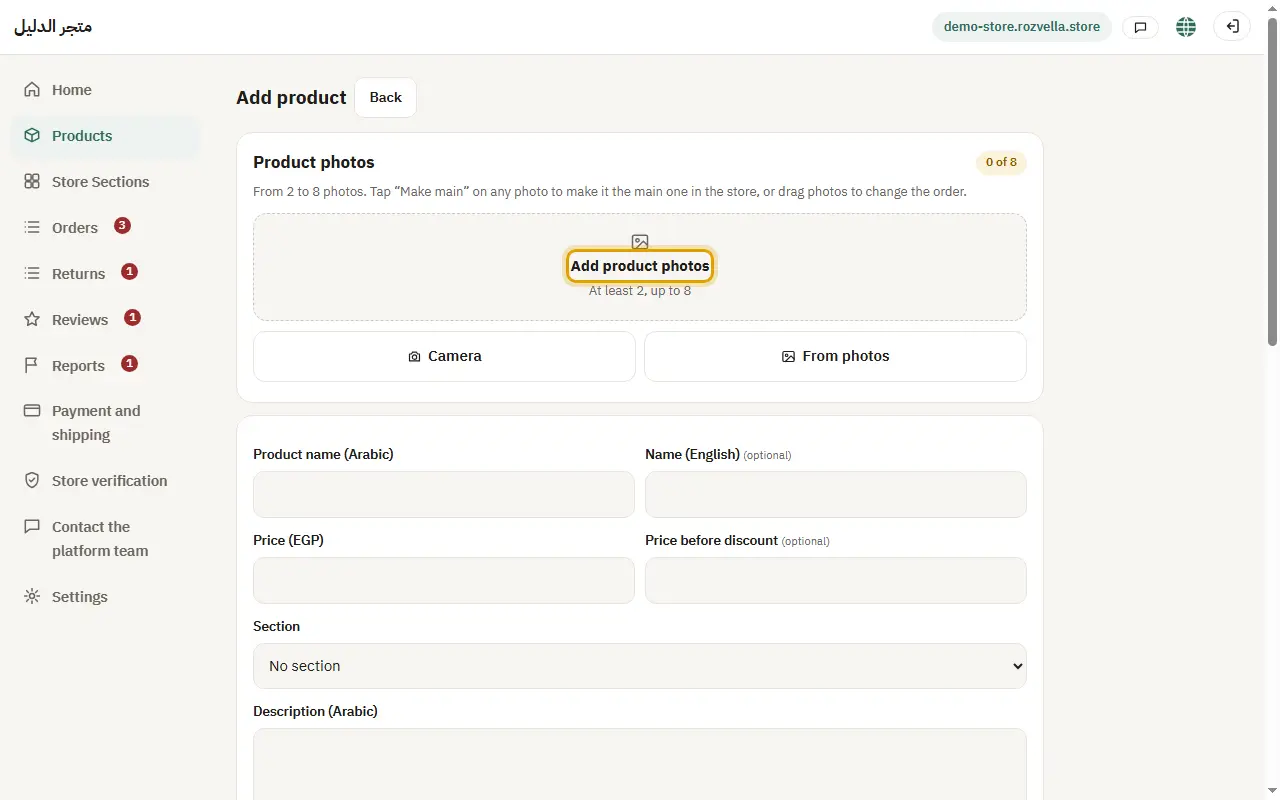
Press “Add product photos” and upload 1 to 8 photos from your camera or gallery. Drag the photos to order them, and press “Main” on the photo you want shown first.
“The photos are too large (up to 5 MB each)”
Make the photo smaller or take it at a lower resolution, then upload it again.
“You uploaded many photos without saving”
Save the product first, then continue uploading. Photos that are never saved are deleted after a day.
3Name, price and description
Where?Products›Add product
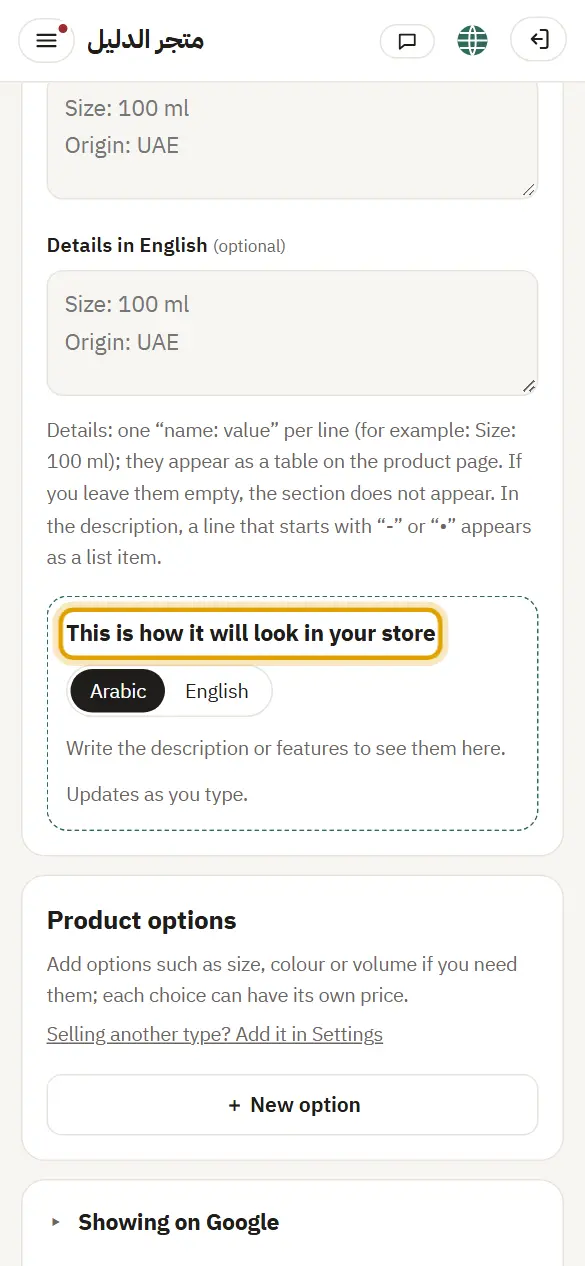
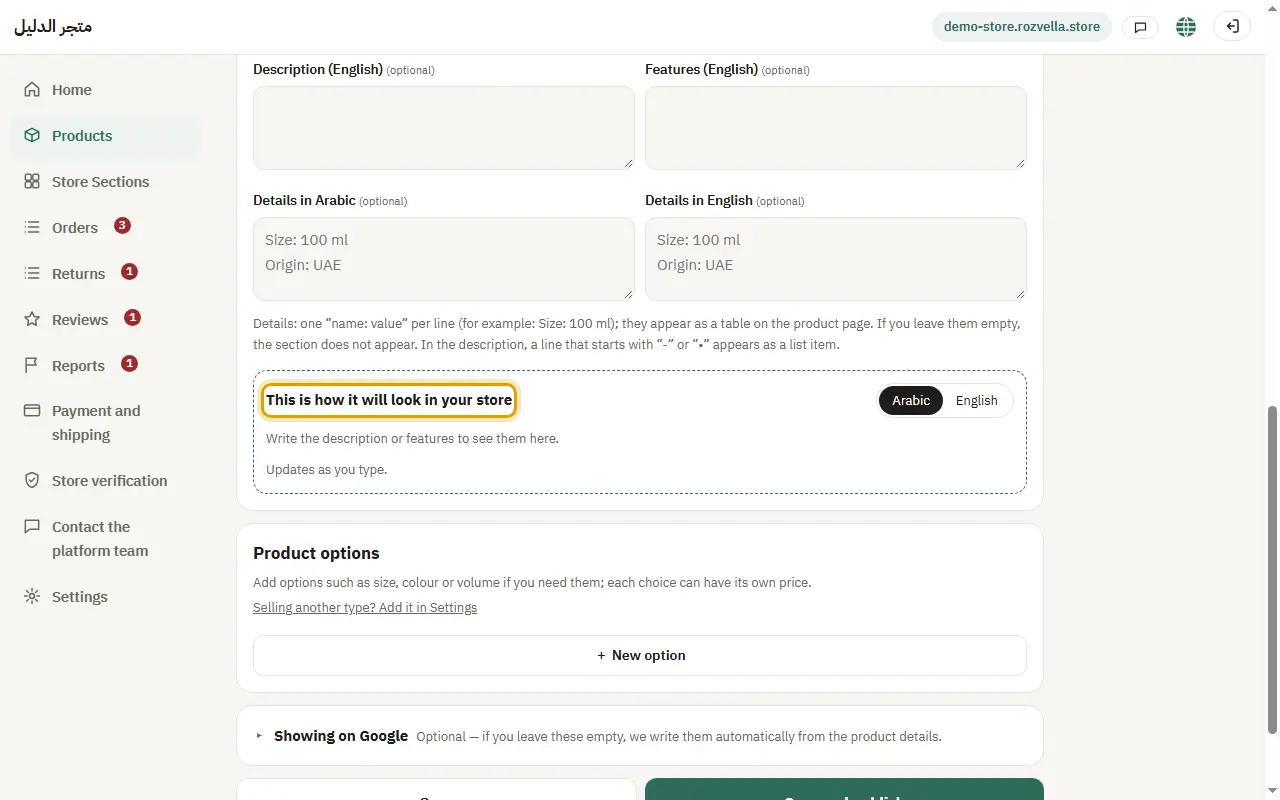
Enter the product name, the price, the “Price before discount” if any, the section and the description. In “Features” write one feature per line, and in “Details” one “name: value” per line. English is optional.
“The price before discount must be higher than the price”
Put the current price in “Price” and the old higher price in “Price before discount”, or leave the second empty.
“Enter the product name”
The Arabic name is required, even for a draft.
4“Save” or “Save and publish”
Where?Products›Add product›Save and publish
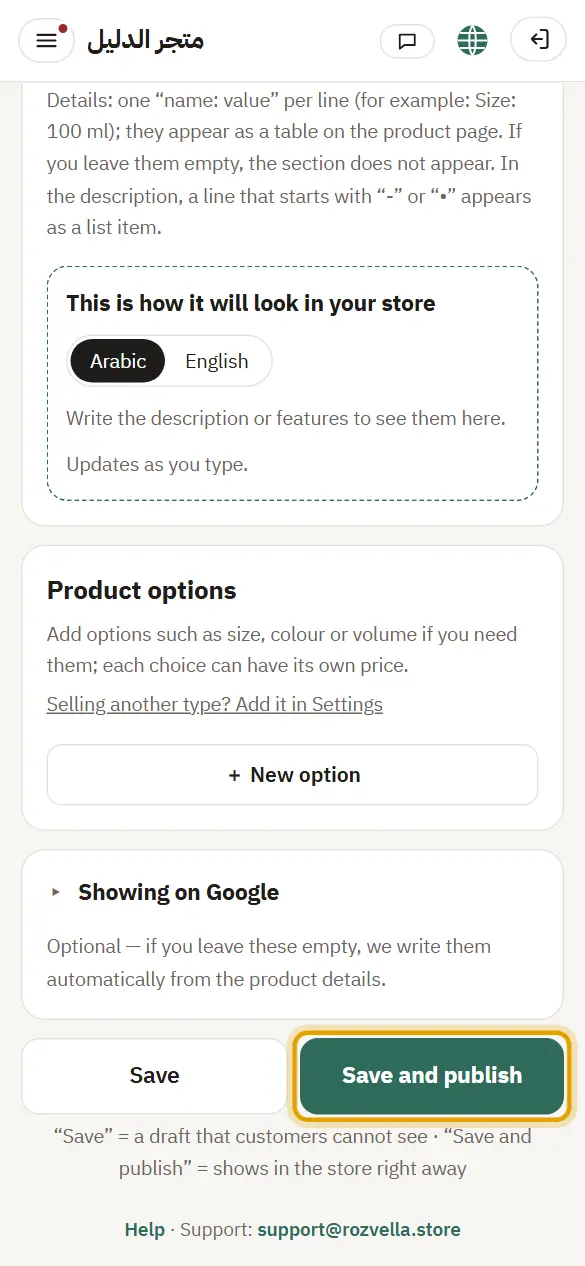
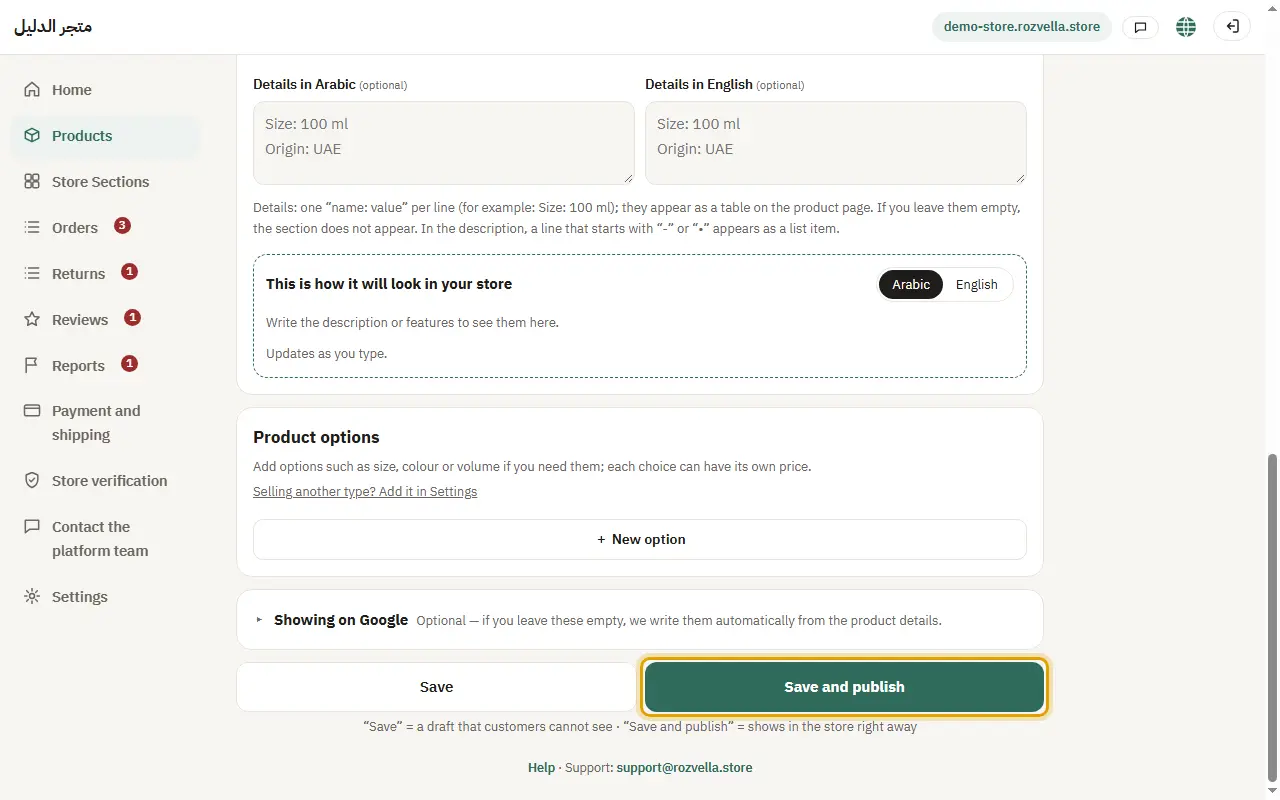
Press “Save” to keep the product as a draft customers can't see (it can have no price), or “Save and publish” to show it in your store right away.
“Enter the price to publish the product”
A published product needs a price. Enter it, or press “Save” to keep it as a draft.
The product won't publish because of photos
“Save and publish” needs at least 1 photos. Add the missing ones.
5Drafts and “Publish all”
Where?Products
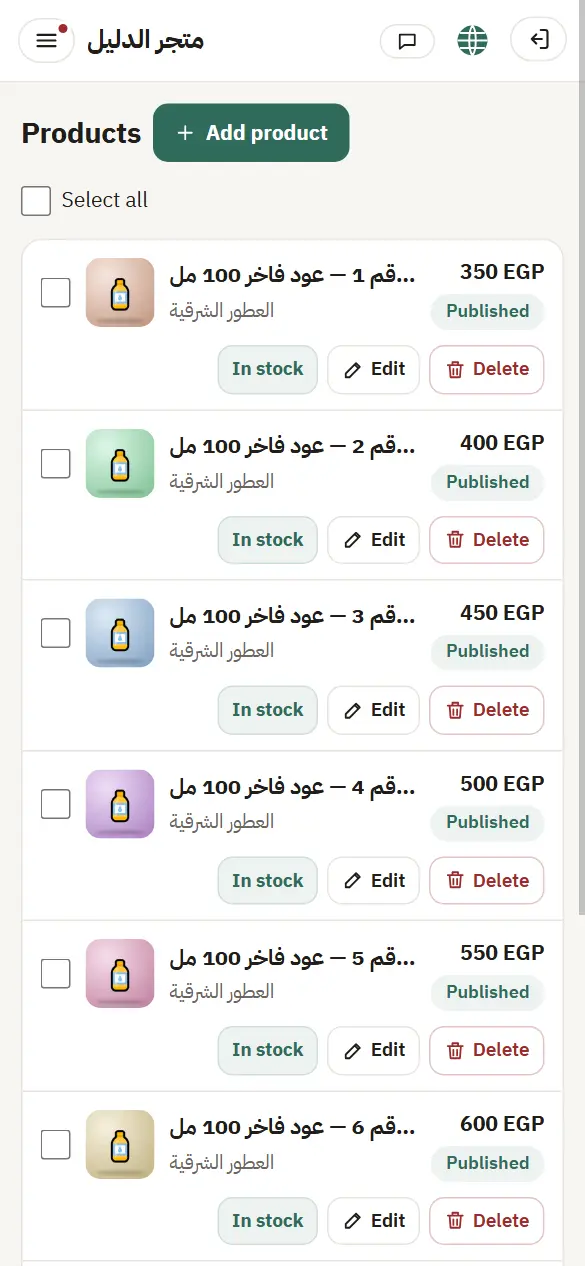
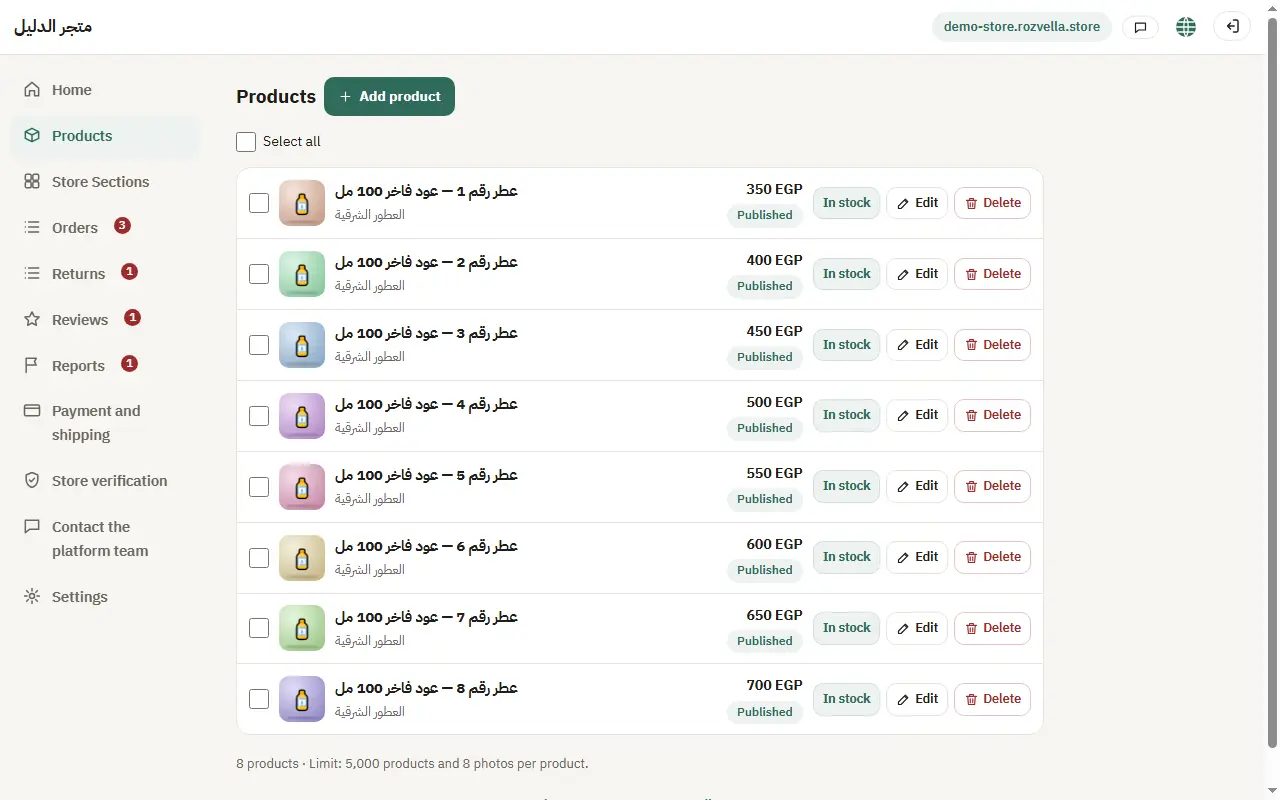
In “Products” each product shows its status: published, hidden or draft. “Publish all” publishes every complete draft.
6In stock / Out of stock
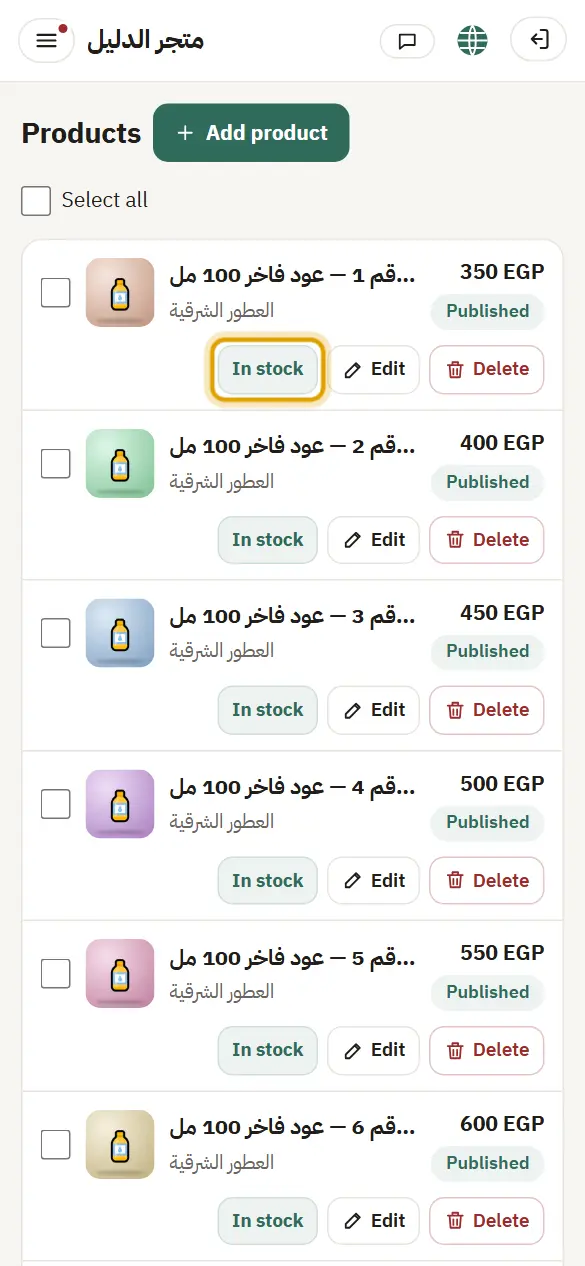
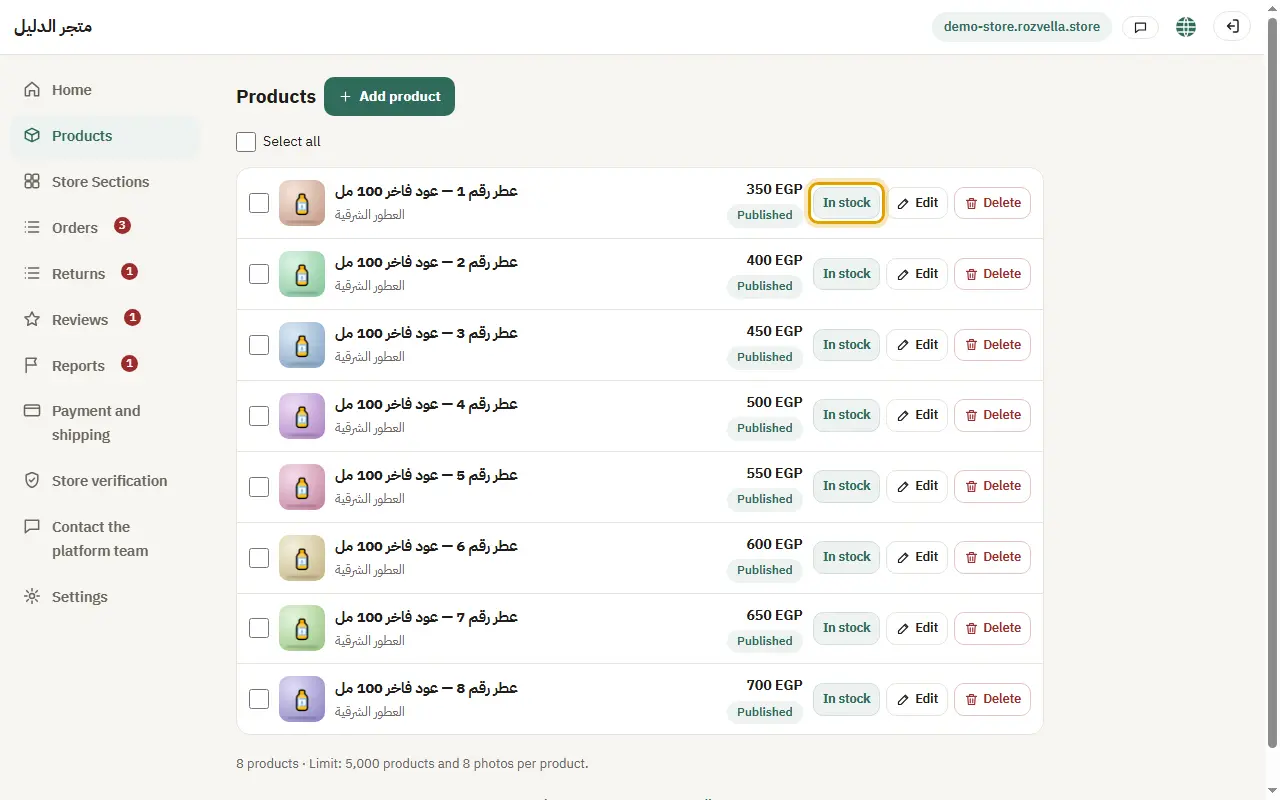
Where?Products›In stock
If a product runs out, press “In stock” next to it to switch it to “Out of stock”.
7Hiding and deleting
Where?Products›Hide from the store
“Hide from the store” hides a product without deleting it. “Delete” removes it from your store and dashboard after you confirm.
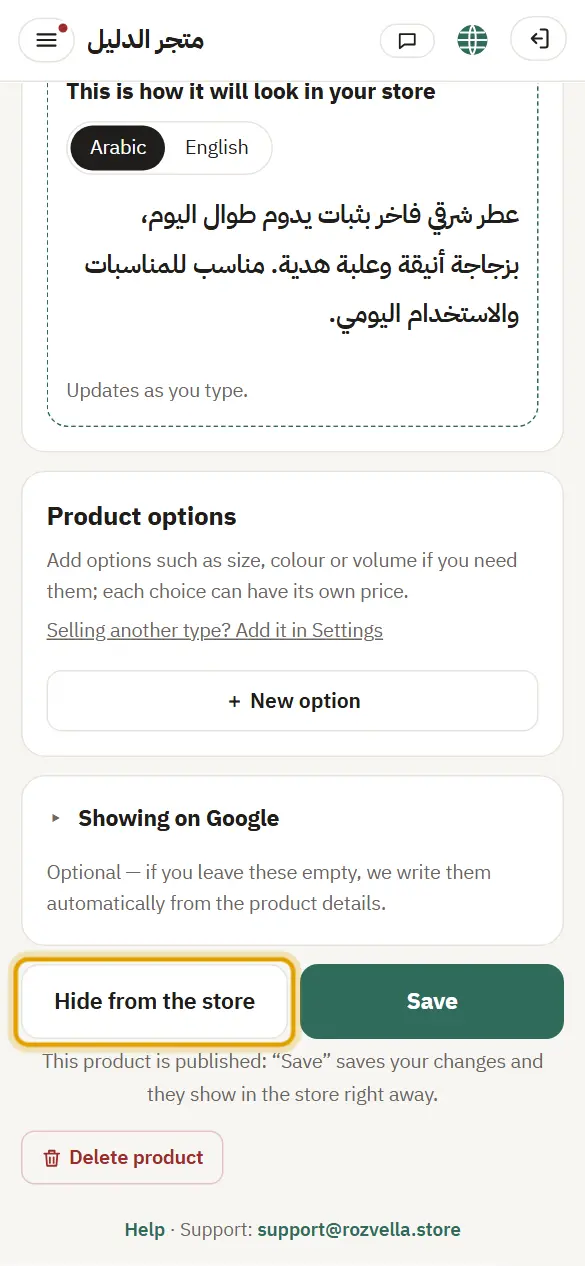
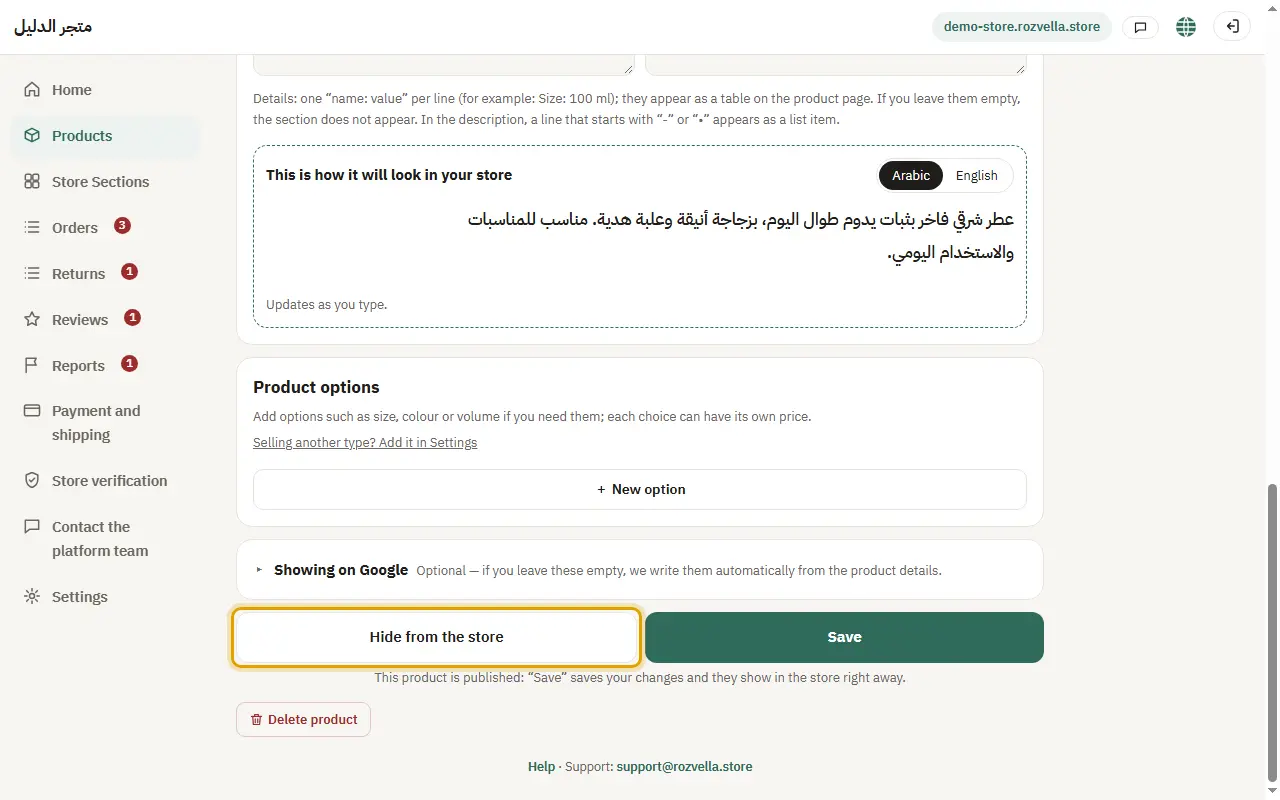
Each product has “Showing on Google” at the bottom of the form (optional). Details are in “Showing up on Google”.