Store sections
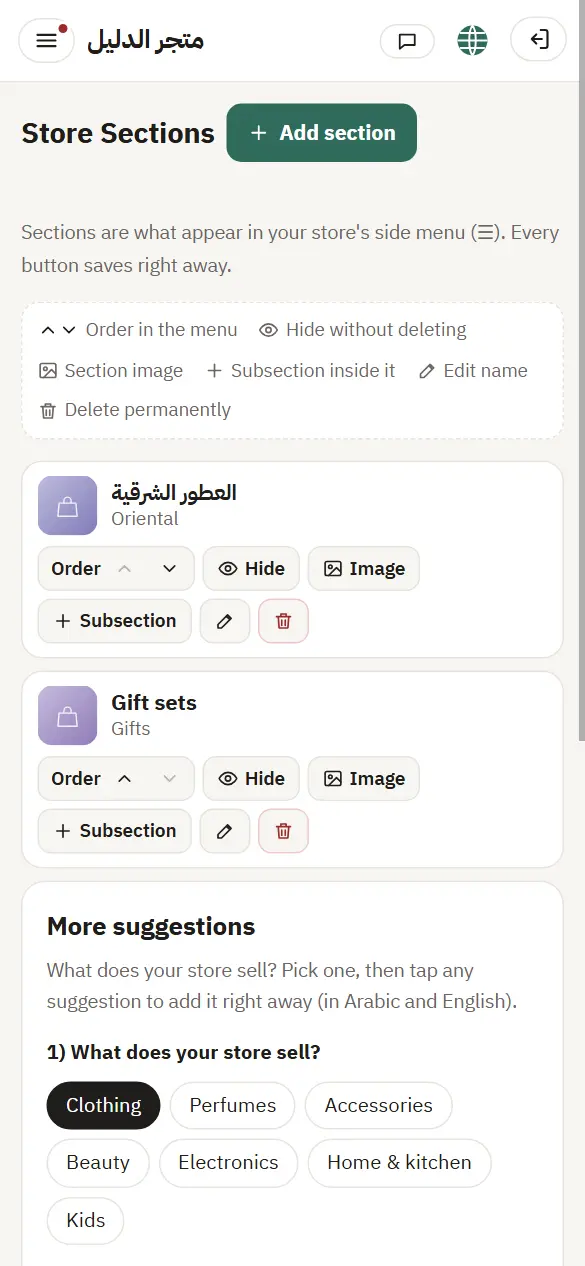
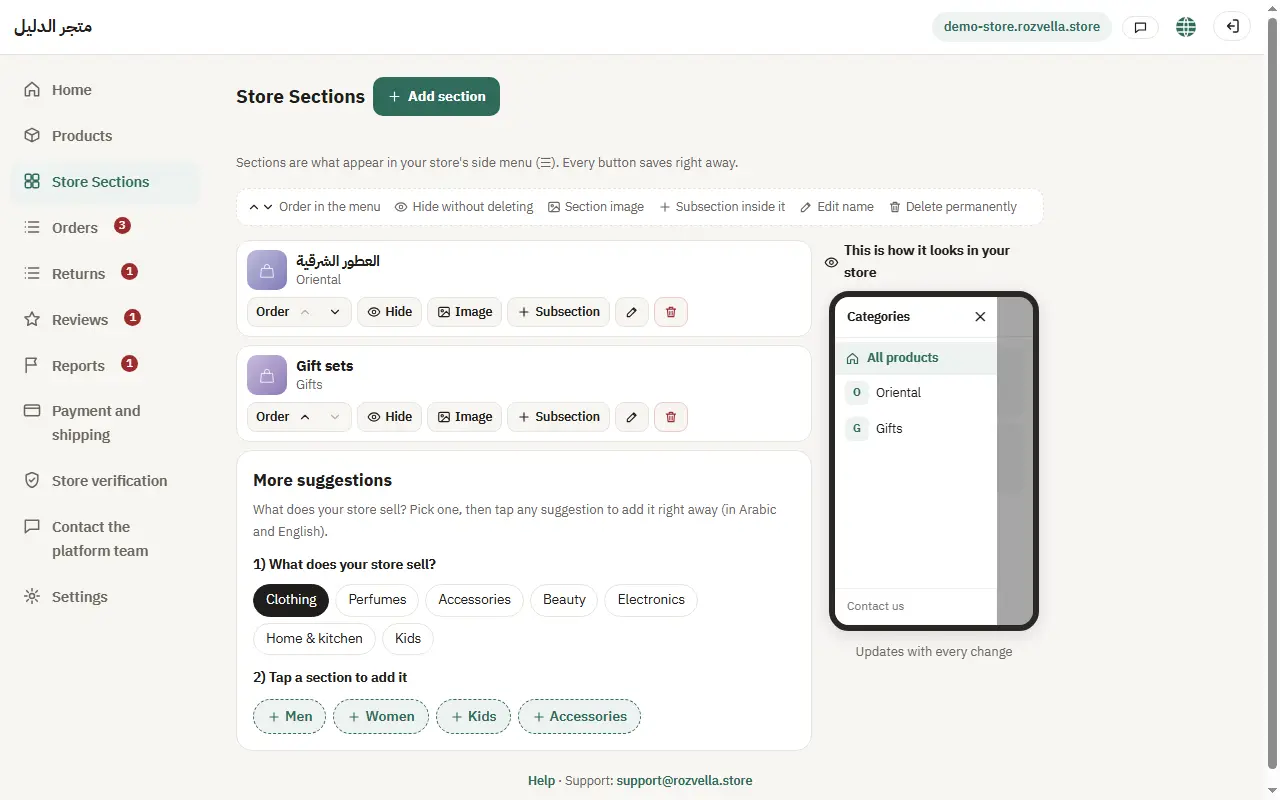
Sections are what appears in your store menu (☰ or the top bar). You can start from the ready suggestions.
In this article (5)
1Add a section
Where?Store Sections›Add section
From “Store sections”, enter the name in Arabic and English under “Add section”, or press a section from the ready suggestions, then “Save”.
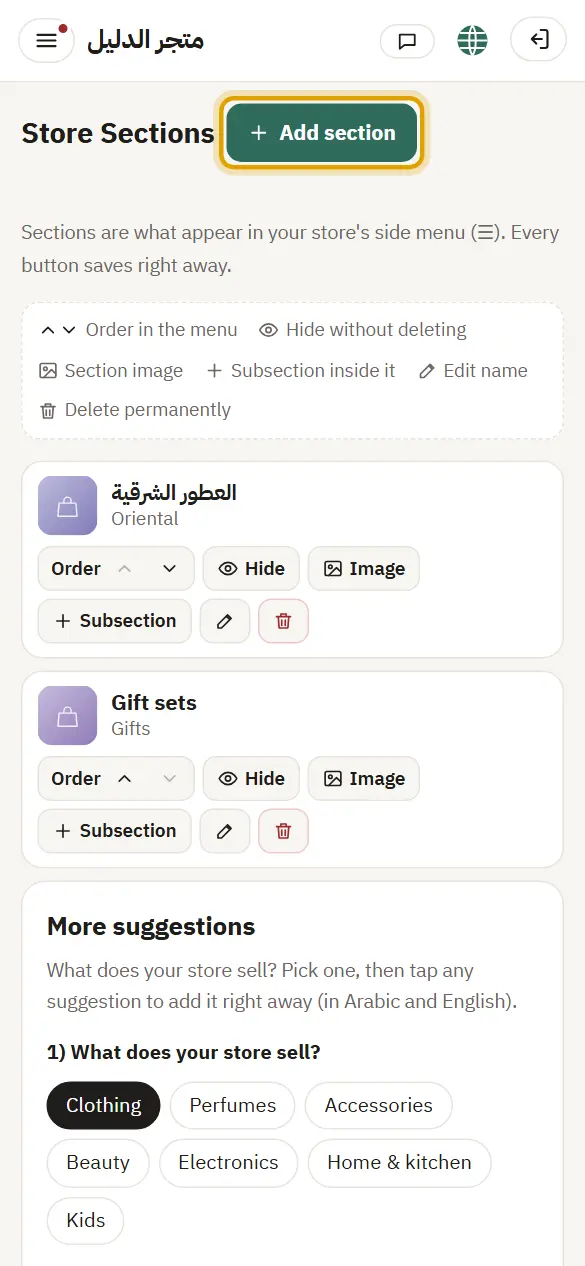
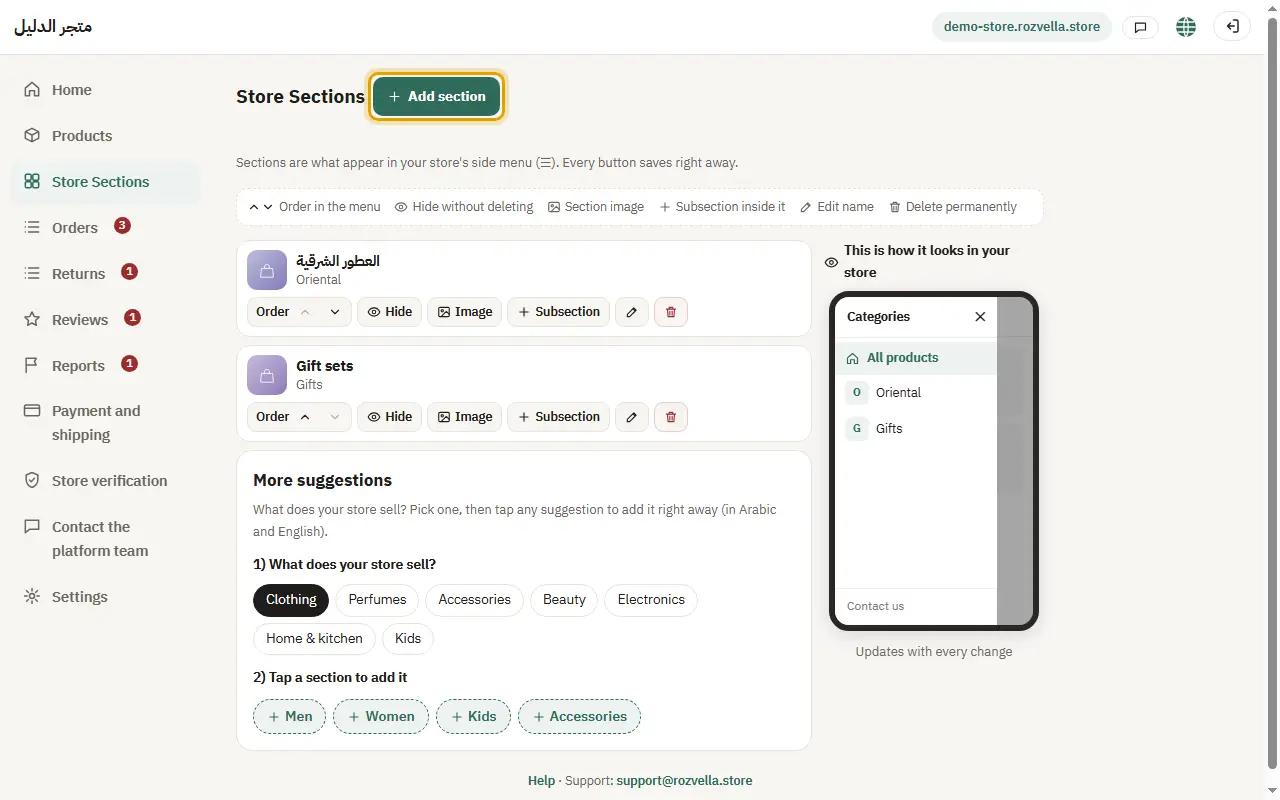
“Enter the name in Arabic and English”
Fill in both fields, or choose a ready section so both names are filled in for you.
2Subsections
Where?Store Sections›Subsection
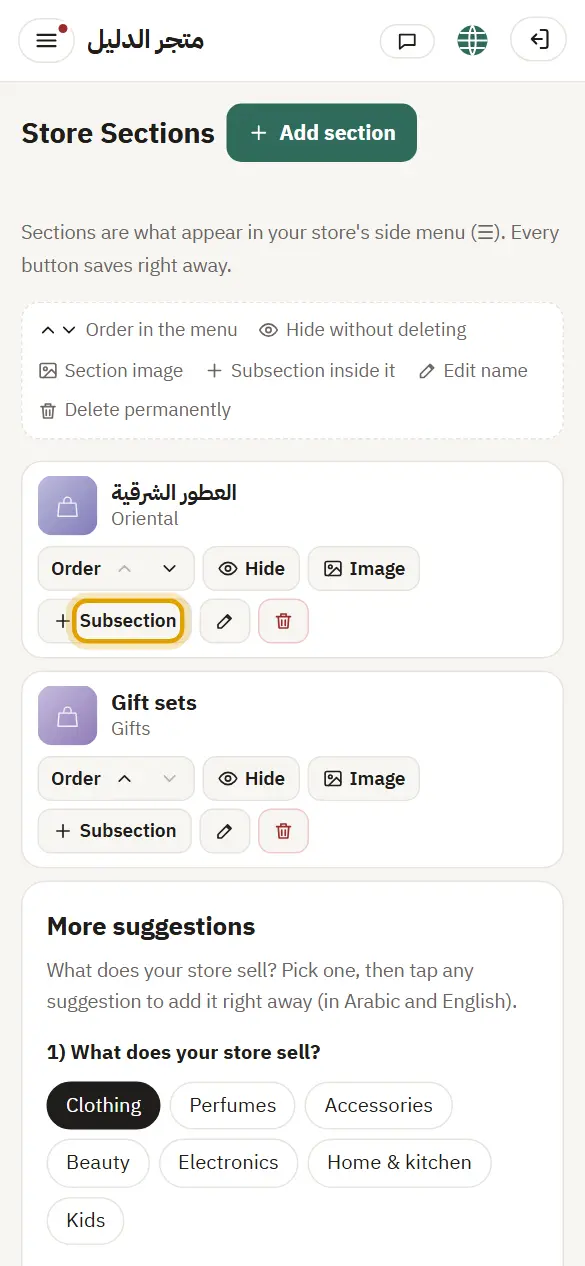
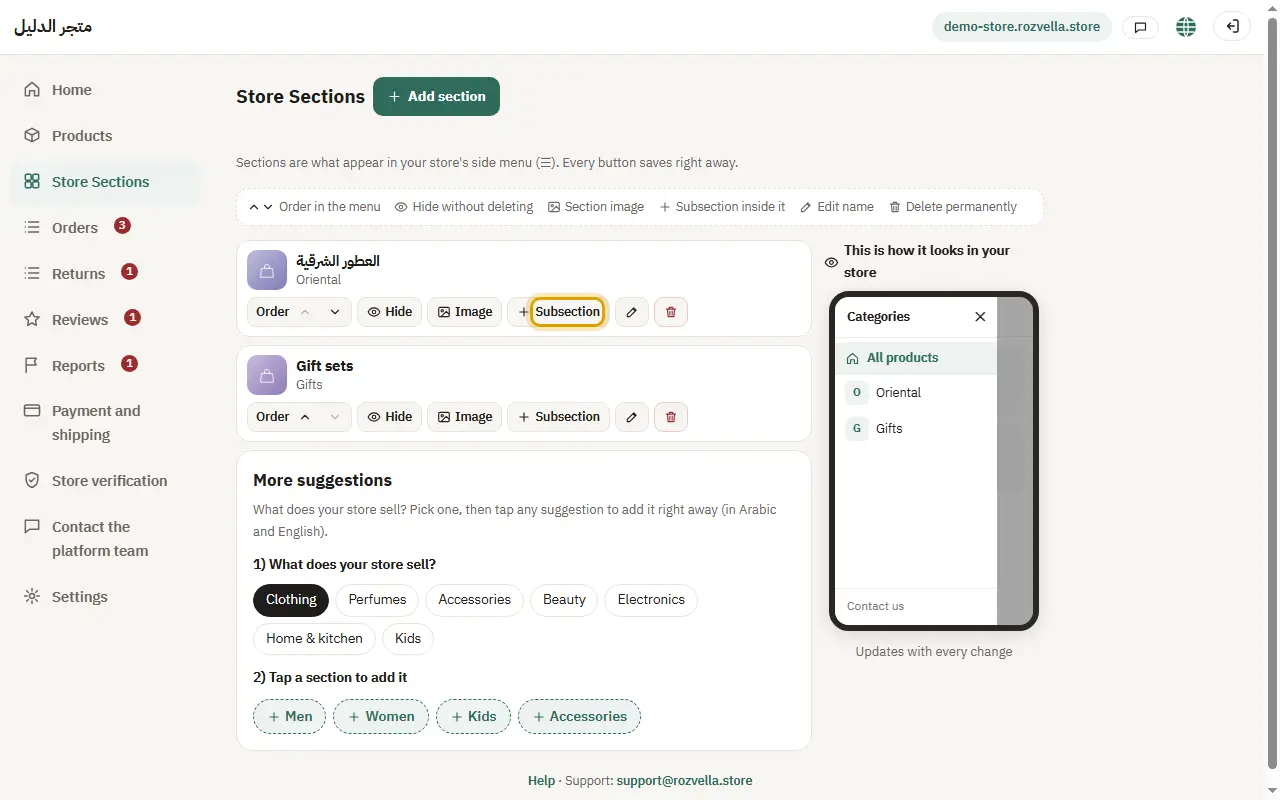
Press “Subsection” next to the main section, enter the name and save.
“The main section is not valid (one level only)”
You can't add a subsection inside a subsection. Add it under a main section.
3Order, photo and hiding
Where?Store Sections
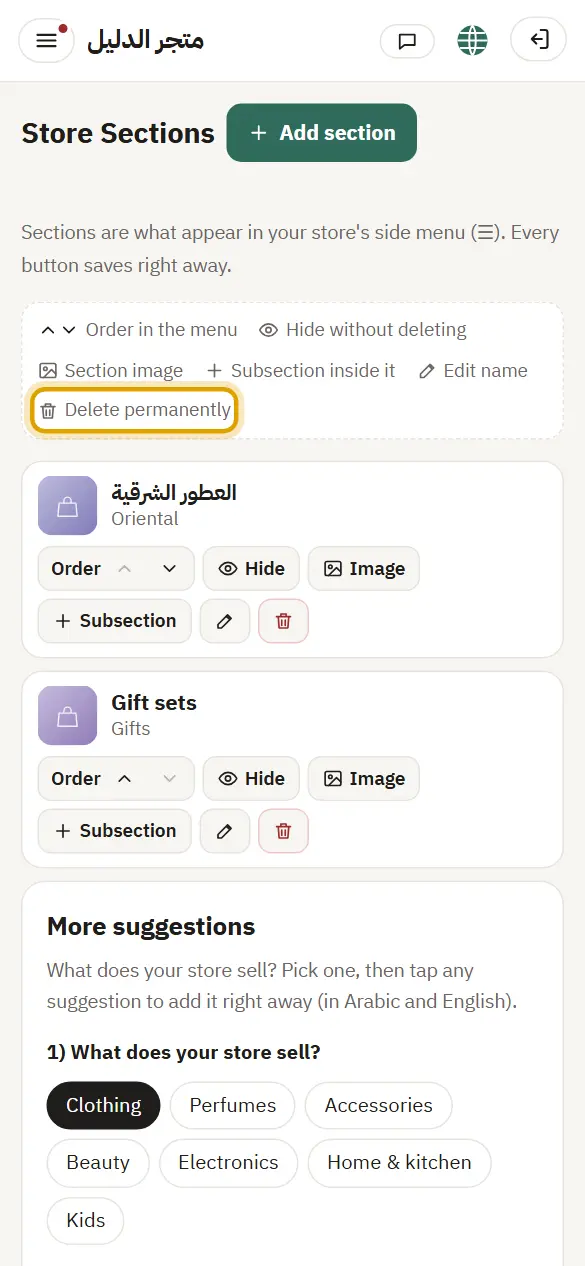
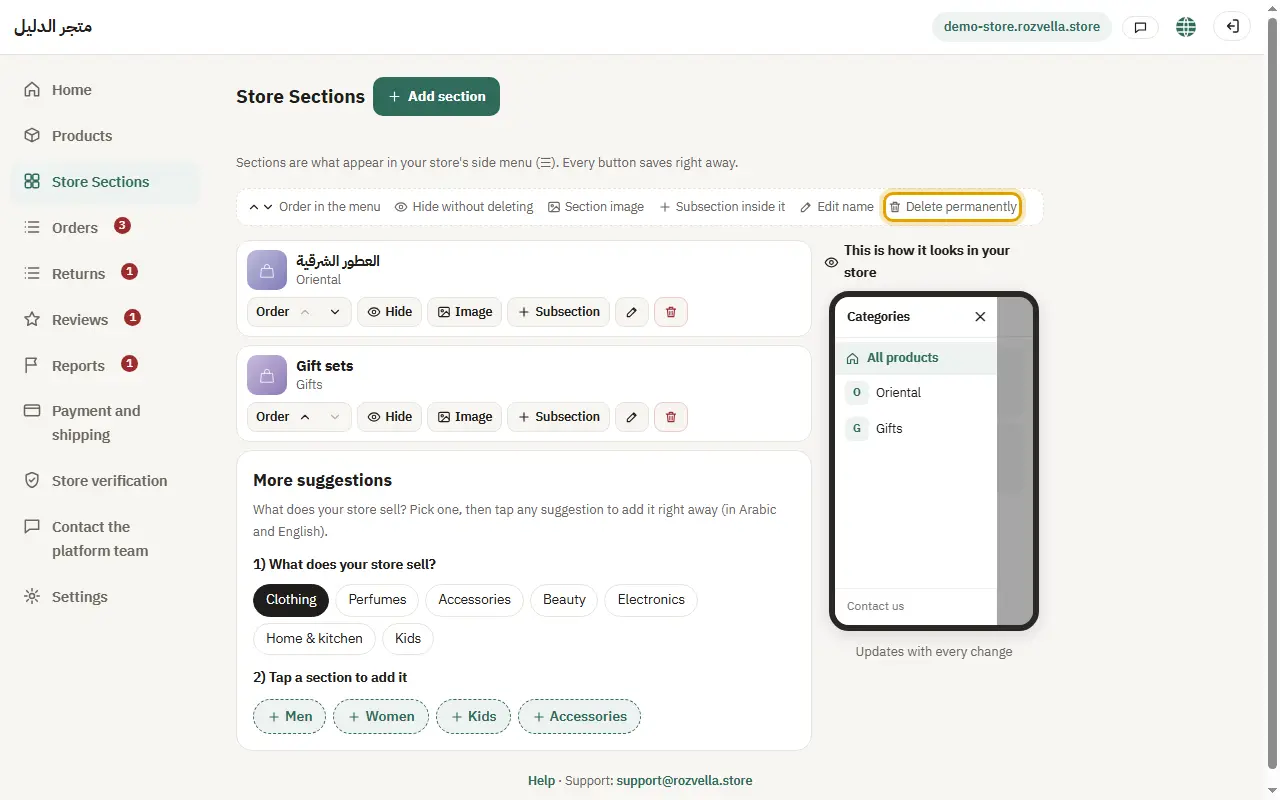
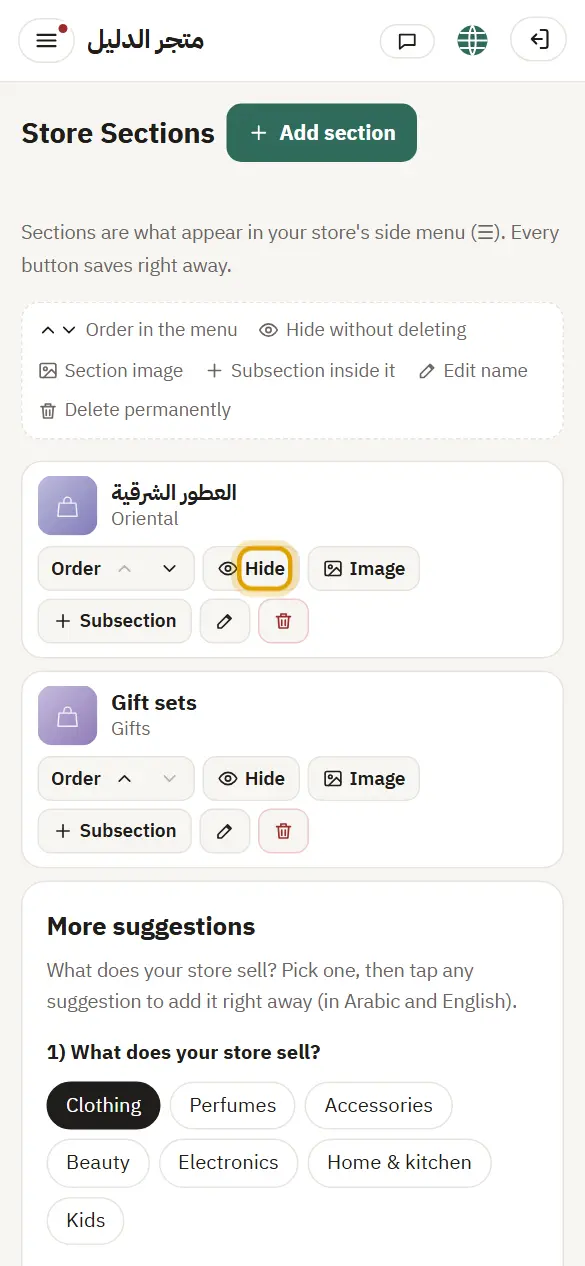
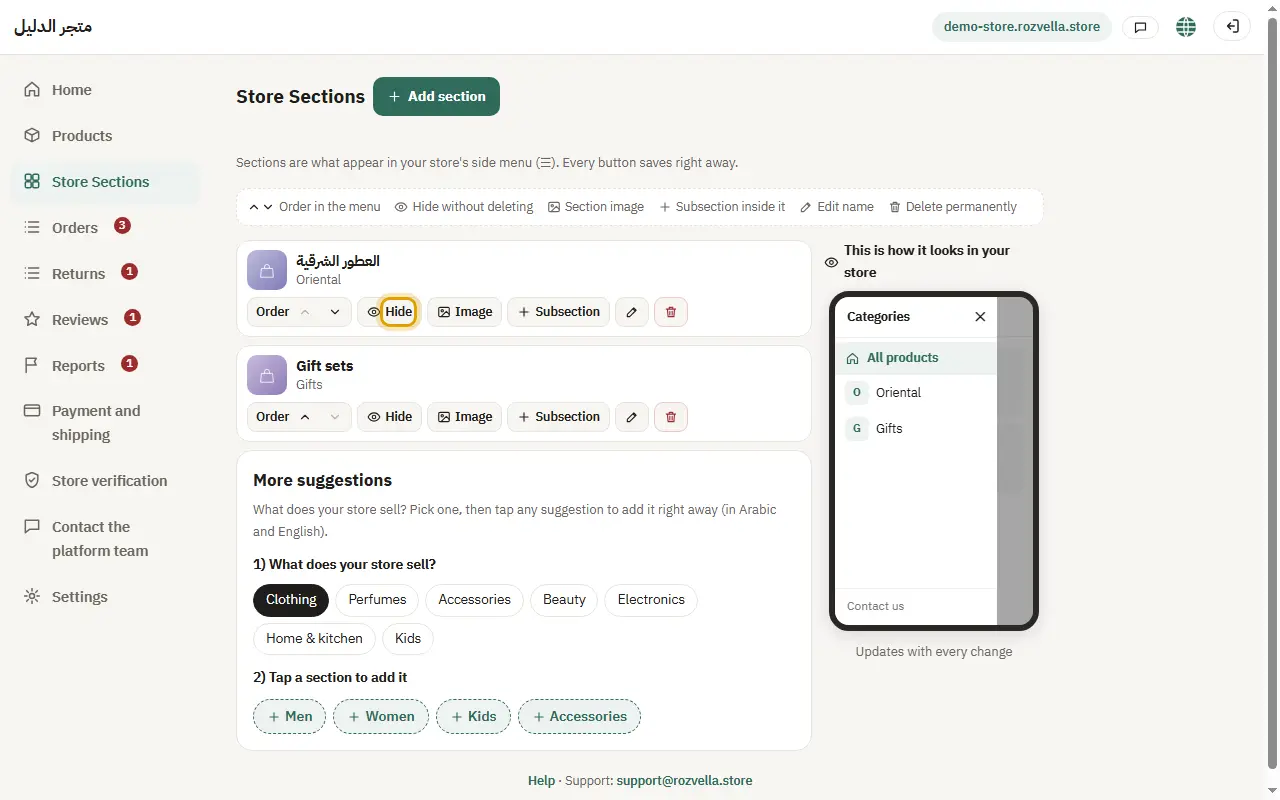
Use the arrows to order sections, “Photo” to add a section photo, and “Hide” to hide it from the store without deleting it.
4Product type for the section (optional)
Where?Store Sections›Product type
If your store sells more than one type, choose the section's “Product type”.
5Deleting a section
Where?Store Sections›Delete
Press “Delete” next to the section and confirm. Deleting a main section deletes its subsections too.